This chapter contains miscellaneous notes that may be applicable to any
device:
Supported debugger probes
- KitProg3 on-board programmer
- MiniProg4
- ULINK2 in CMSIS-DAP mode
- J-Link
To use KitProg3/MiniProg4, CMSIS-DAP, and ULINK2 debuggers
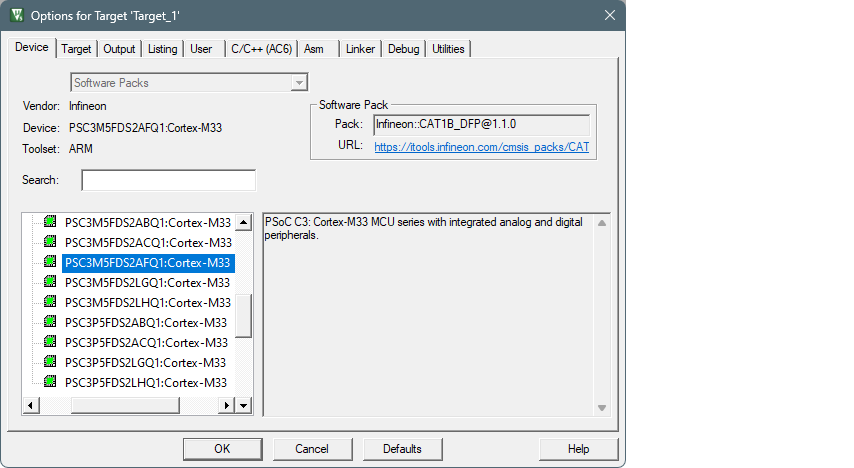
- Select the Device tab in the Options for
Target dialog and check correct core is selected:
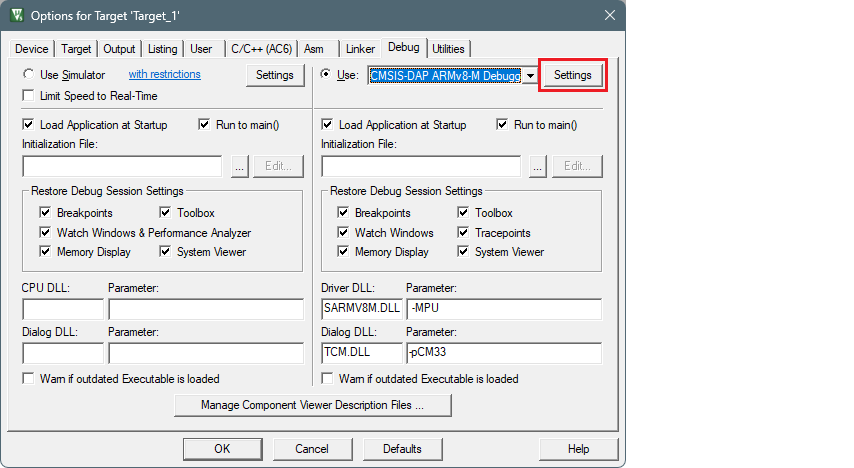
- Select the Debug tab. Note:To use the ULINK2 probe for multi-core debugging, select the CMSIS-DAP Debugger instead of ULink for each core of the project (CM4 and CM0P).
- Click the Settings button.
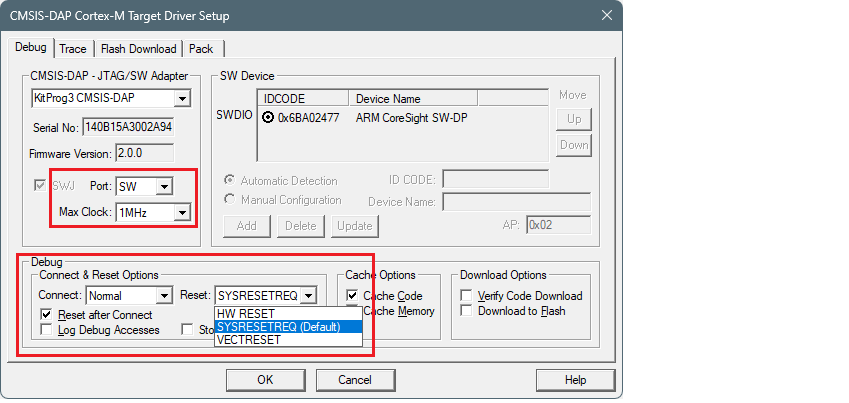
- On the Target Driver Setup dialog on the Debug tab, select the following:
- set Port to "SW"
- set Max Clock to "1 MHz"
- set Connect to "Normal"
- set Reset:
- For PSOC™ 6, to "VECTRESET"
- For PSOC™ 4, PMG1, and AIROC™ CYW208xx, to "SYSRESETREQ"
- For other devices, leave as is.
- enable Reset after Connect option
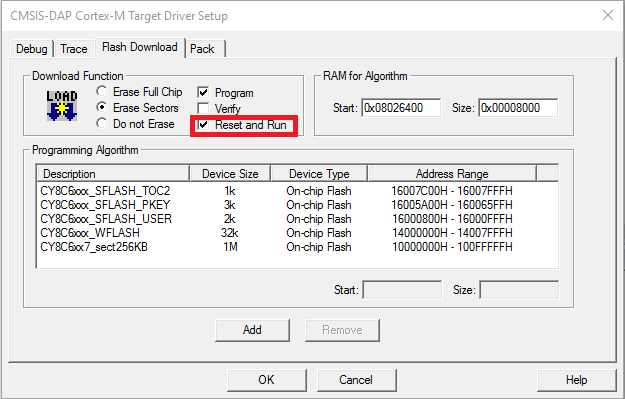
- Select the Flash Download tab and
select "Reset and Run" option after download, if needed:
- Select the Pack tab and check if
the appropriate "DFP" is enabled:
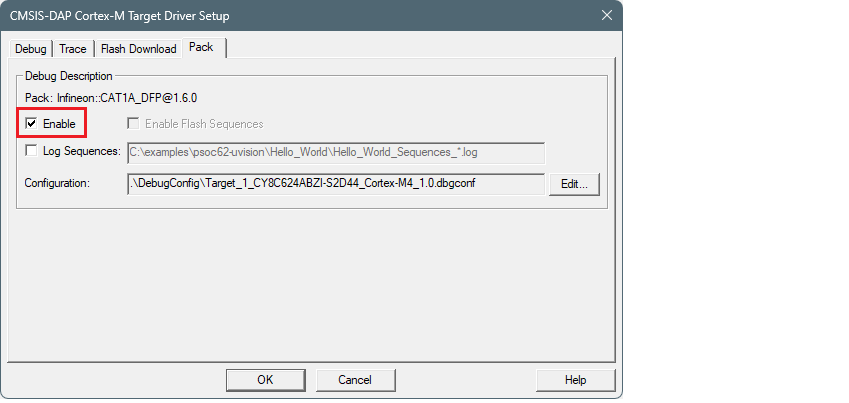
To use J-Link debugger
- Make sure you have J-Link software version 8.12 or newer.
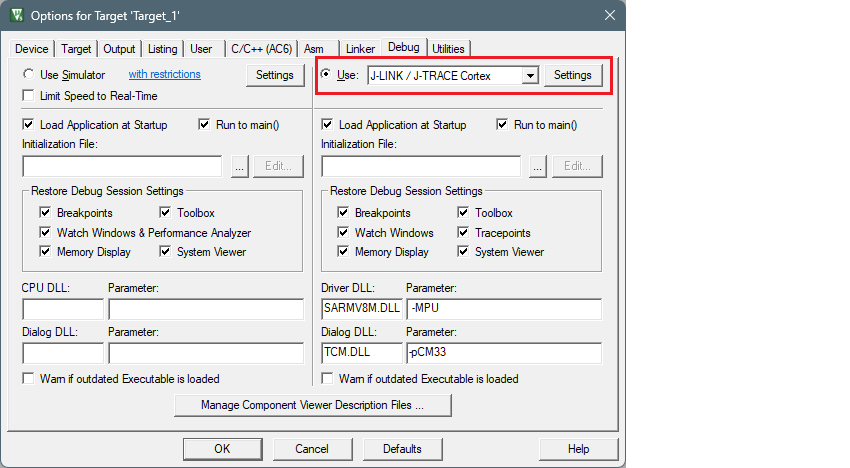
- Select the Debug tab in the
Options for Target dialog, select J-LINK / J-TRACE Cortex as
debug adapter, and click Settings:
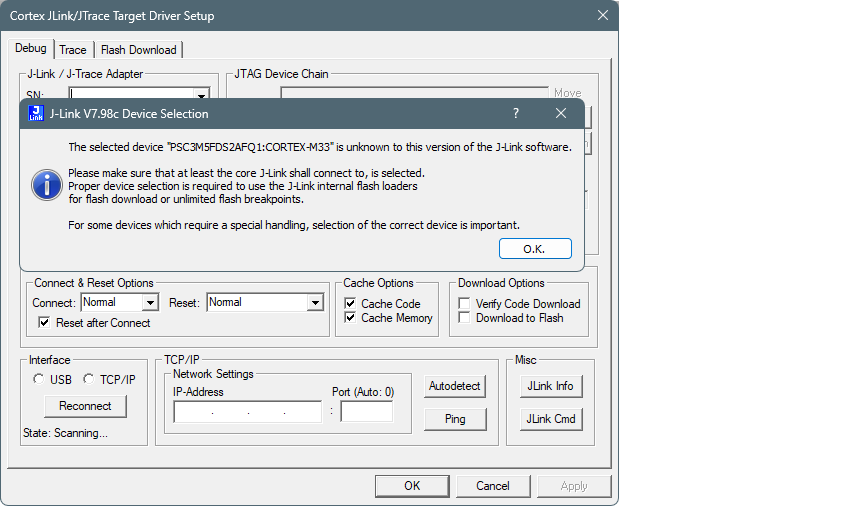
- If you see the following message, click OK in the Device selection message box:
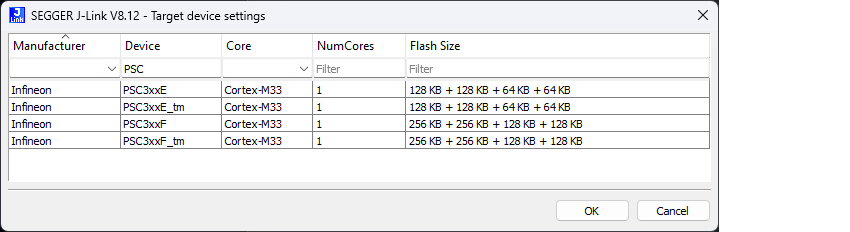
- Select the appropriate device in the Target device settings and click
OK.
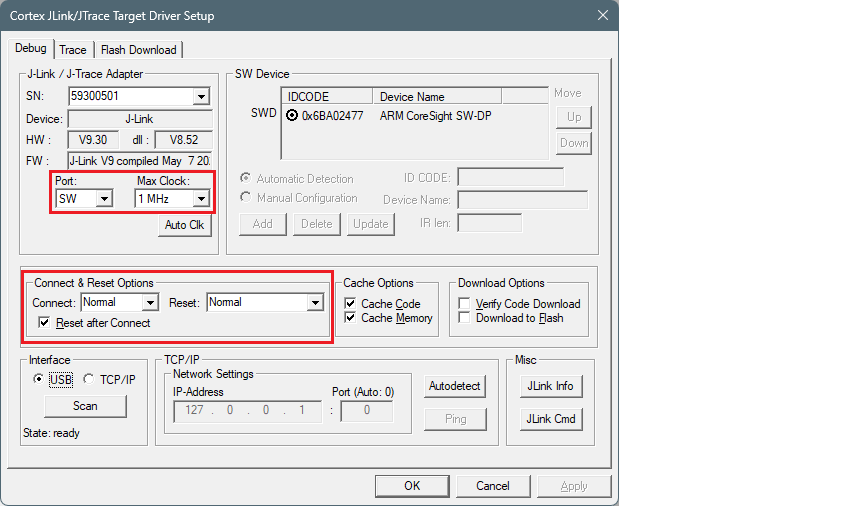
- Go to the Debug tab in Target
Driver Setup dialog and select:
- set Port to "SW"
- set Max Clock to "1 MHz"
- set Connect to "Normal"
- set Reset to "Normal"
- enable Reset after Connect option
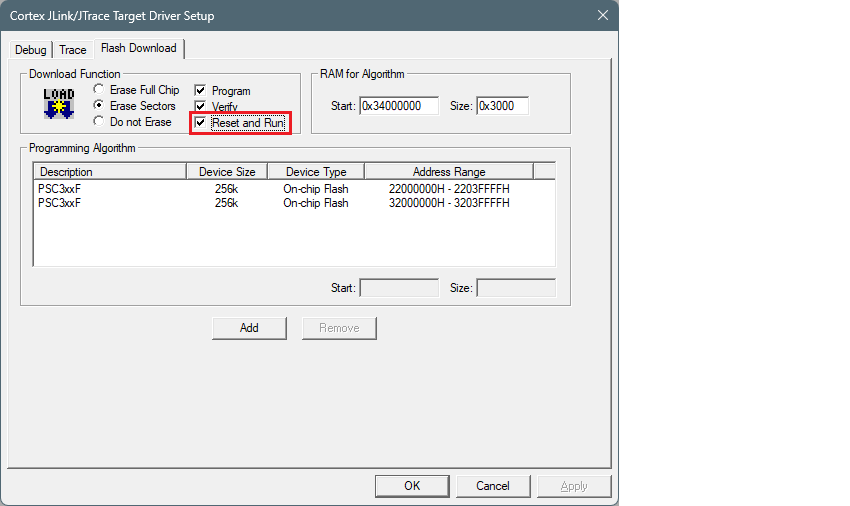
- Select the Flash Download tab
in Target Driver Setup dialog and select Reset and
Run option after download if needed:
Suppress linker build warnings
Often when building an application in uVision, you will see various warnings about unused
sections defined in the linker scripts, such
as:
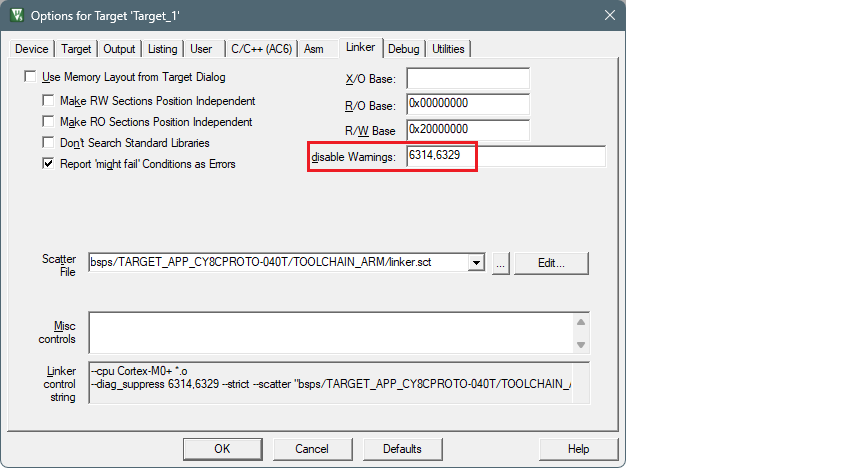
warning: L6314W: No section matches pattern EXCLUDE(*cy_smif.*).To suppress these warnings, add "6314,6329" to the disable
Warnings setting in the Options Linker tab.
Empty defines
There is a known issue in Keil µVision with empty defines. When you try to build an
application, you may see an error similar to
this:
error: You now need to define either
FIXED_POINT or FLOATING_POINT
To fix this, make sure empty defines are quoted. For
example:
DEFINES+=FLOATING_POINT EXPORT=" " USE_CMSIS_DSP \
Patched flashloaders
Step 1: Identify the CMSIS Pack and FLM file
- Determine the name and version of the CMSIS Pack containing the FLM file you want to overwrite (for example, AIROC_DFP.1.2.0).
- Identify the name of the patched flashloader (the FLM file) you want to overwrite (for example, CYW208xx_SMIF.FLM). This file is located in the <app-dir>\bsps\<Kit-Name>\config\GeneratedSource directory.
Step 2: Locate the destination FLM file
- Open File Explorer and navigate to the directory: %LocalAppData%\Arm\Packs\<Pack_Name>\<Version>\Flash
- Replace <Pack_Name> with the name of the CMSIS Pack (for example, Infineon\AIROC_DFP) and <Version> with the version number of the CMSIS Pack (for example, 1.2.0).
- In this directory, find the file named <FLM_File_Name>.FLM (for example, CYW208xx_SMIF.FLM).
Step 3: Overwrite the FLM file
- Ensure that Keil µVision and any other applications using the FLM file are closed.
- Replace the destination <FLM_File_Name>.FLM file with the patched one you want to use.
- Make sure to keep the same file name and extension (.FLM) to avoid any issues.
Note:
When using J-Link with µVision, the flashloaders will be taken
from the CMSIS DFP. So, there is no need to replace flash loaders in SEGGER J-Link
software.
Perform ETM/ITM trace
For PSOC™ Control and PSOC™ Edge devices, refer to application note AN242338 - Performing ETM and ITM trace on PSOC™ Control С3 and PSOC™ Edge E8 MCUs.
For PSOC™ 6 devices, refer to application note AN235279 - Performing ETM and ITM trace on PSOC™ 6 MCU.