- Auto update: Use this option if you have an older version of the ModusToolbox™ tools package installed to update it and associated packages to the latest versions.
- Manual update: Use this option to manually select various packages to update.
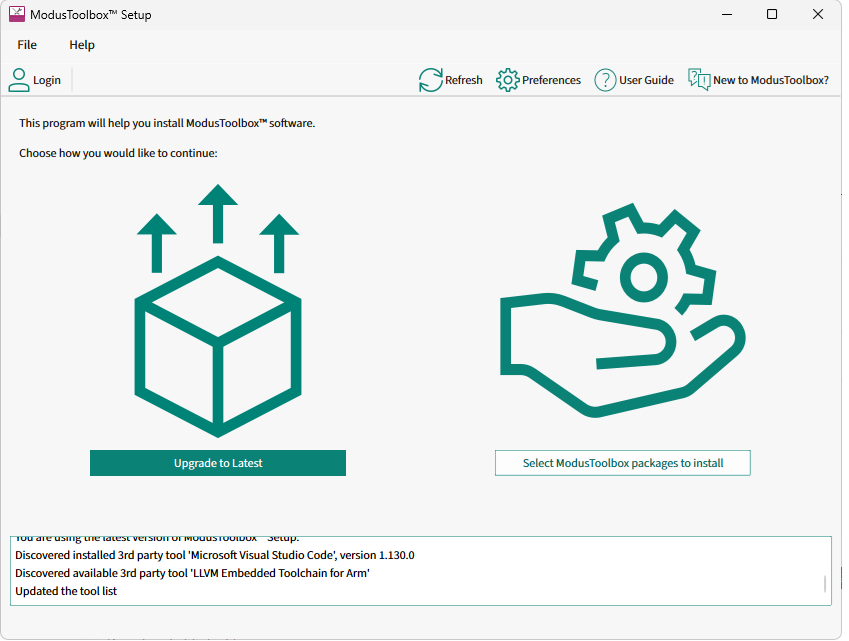
Auto update
If you have an older version of the ModusToolbox™ tools package installed, use the Update to Latest button to automatically select it and associated packages to be updated. It will also detect other older packages not directly related to the ModusToolbox™ tools package and select them for update."
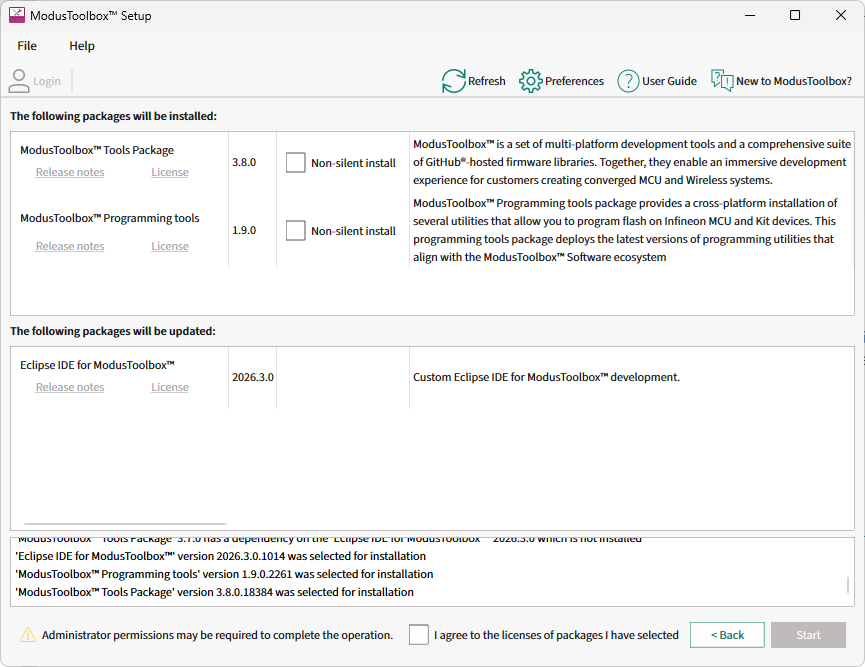
The process to update tools and packages from this point is the same as installing them initially. Follow the instructions on the various screens.
Manual update
To manually select which tools and packages to update, click the Select ModusToolbox packages to install button.
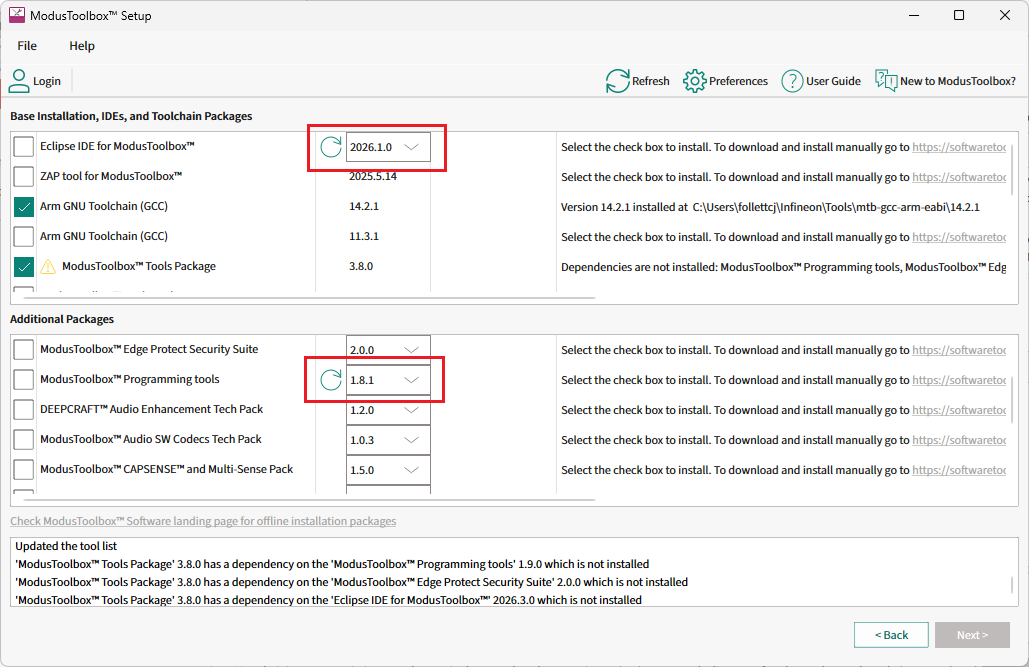
Use the pull-down menu to select the desired version, and then select the check box next to it. This will enable the Next > button to proceed with the update.
The process to update tools and packages from this point is the same as installing them initially. Follow the instructions on the various screens.