Install Infineon Device Configurator
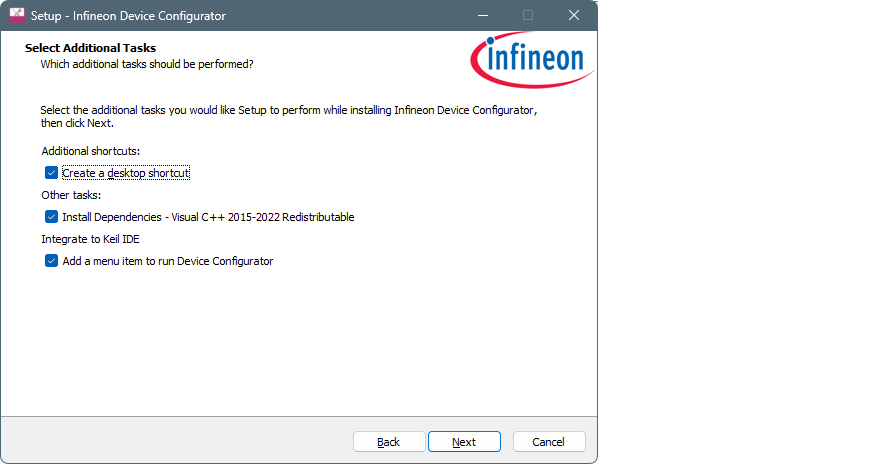
The installer for the Infineon Device Configurator is provided on Linux, macOS, and Windows. At this time, using the tool with Keil µVision IDE or IAR Embedded Workbench outside of the ModusToolbox™ environment is only supported on Windows, as these are only available for that operating system. The installer can be downloaded here: http://www.infineon.com/idc
Launch the deviceconfigurator_[version].[build #]_windows_x64.exe installer and follow the installer wizard steps. We recommend installing as current user. By default, the tool is installed here:
C:\Users\[user-home]\Infineon\Tools\InfineonDeviceConfigurator-[version]
CMSIS Pack
In order to use devices such as TLE994x_5x, you need to install the appropriate CMSIS pack; for example, the MOTIX_TLE994x_5x_PDL.pack. You can find the pack on the Infineon Developer Center webpage: https://softwaretools.infineon.com/assets/com.ifx.tb.tool.motixtle994x5xpdl
Run Device Configurator
Keil µVision
Using the GUI
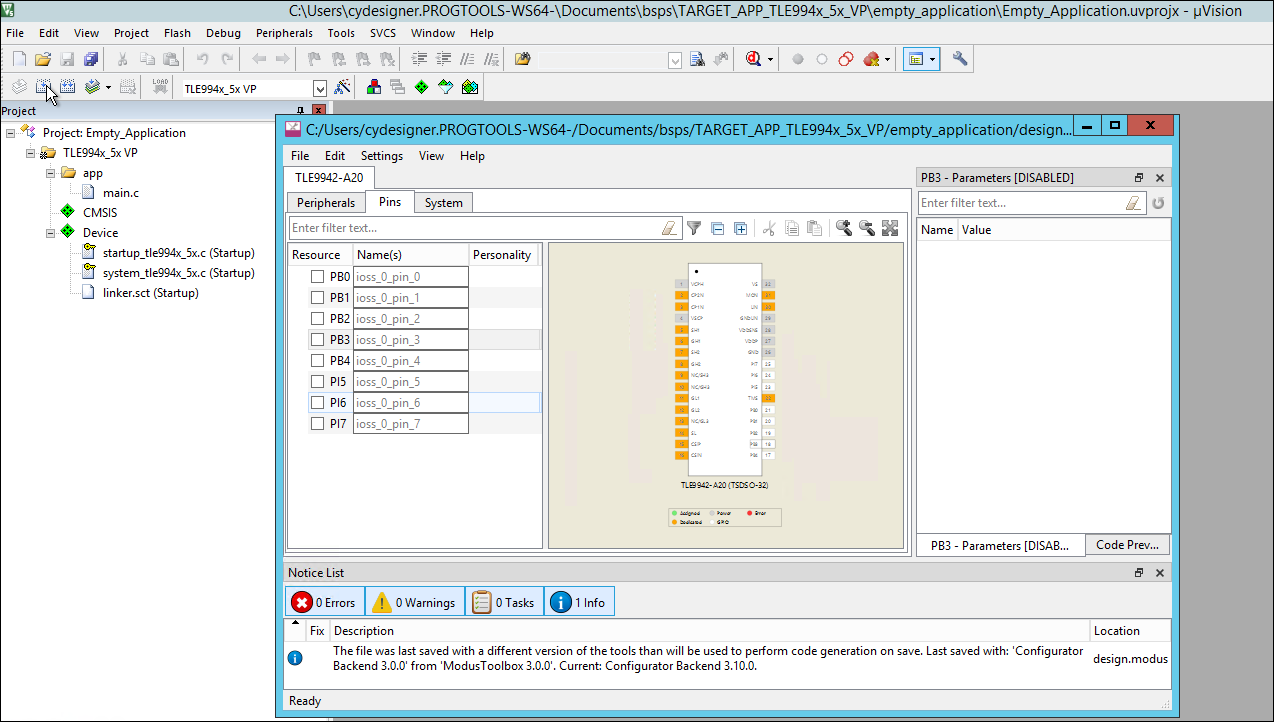
When you save updates, the Device Configurator generates/updates source code in the GeneratedSource directory next to the design.modus file. See the Code generation section for more details.
Add menu item to µVision (script)
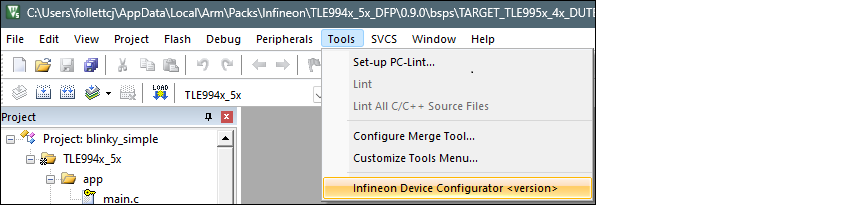
In most cases, the installer adds the menu item to the Keil µVision IDE automatically. It also extracts a IntegrateToKeil.ps1 script to the [installation folder]\resources folder. If the Tools menu in the Keil µVision IDE does not contain the item to launch the Infineon Device Configurator, you can run the script manually to add it.
To run the script, open a command prompt and navigate to the resources folder (for example, C:\Users\[user-home]\Infineon\Tools\InfineonDeviceConfigurator-[version]\resources or C:\Infineon\Tools\InfineonDeviceConfigurator-[version]\resources), type "powershell" in address bar.
Run the following command:
powershell -ExecutionPolicy AllSigned -File IntegrateToKeil.ps1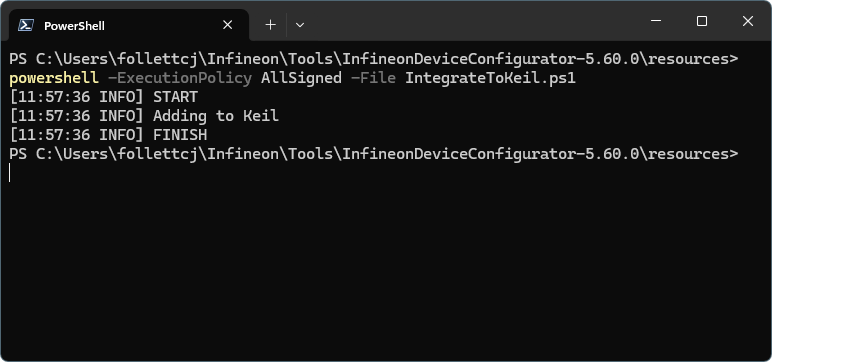
The CLI may require confirmation of script owned by Infineon Technologies publisher.
Remove menu item from µVision (script)
If you use the Device Configurator uninstaller, it will remove the Run Device Configurator menu item from the Keil µVision
IDE automatically. To remove the item manually, run the IntegrateToKeil.ps1
script with -u:
Open a command prompt and navigate to the resources folder (for example, C:\Users\[user-home]\Infineon\Tools\InfineonDeviceConfigurator-[version]\resources or C:\Infineon\Tools\InfineonDeviceConfigurator-[version]\resources), type "powershell" in address bar.
Run the following command:
powershell -ExecutionPolicy AllSigned -File IntegrateToKeil.ps1 -u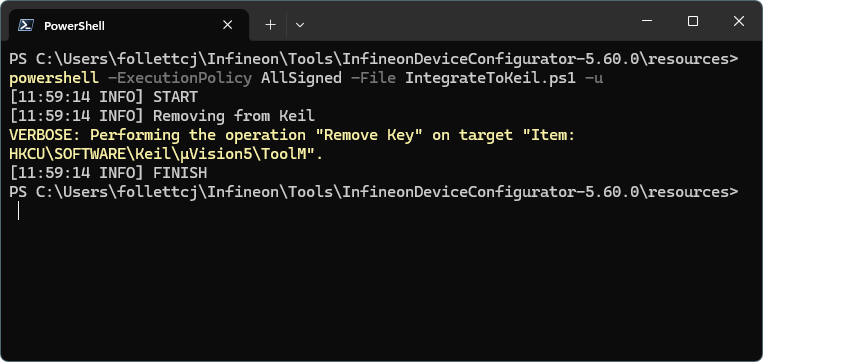
The CLI may require confirmation of script owned by Infineon Technologies publisher.
Using the command line
You can use the command line to run the Device Configurator with project context by providing specific arguments. For example (replace "[...]" with real values):
C:\Users\[user-home]\Infineon\Tools\InfineonDeviceConfigurator-[version]\resources\launch-tool.exe --library "$Sprops.json","$Sdevice-info\device-db\props.json" --design "$Pconfig\design.modus" --set-device $D
IAR Embedded Workbench
The installer does not add any settings for IAR Embedded Workbench. You need to configure the GUI to add a menu item. You can also run the Device Configurator from the command line.
Create design.modus file
- Create a new text file called “design.modus” inside your project directory
with the following minimal
configuration:
<?xml version="1.0" encoding="UTF-8"?> <Configuration app="BACKEND" formatVersion="14" lastSavedWith="Configurator Backend" lastSavedWithVersion="3.50.0" xmlns="http://cypress.com/xsd/cydesignfile_v5"> <Devices> <Device mpn="TLE9954EQA40"> <BlockConfig/> <Netlist/> </Device> </Devices> </Configuration> - Replace the “mpn” attribute with the part number of the used device in your project.
- Save the “design.modus” file.
Run Device Configurator
- Upon first opening the Device Configurator for a project. resolve all pending tasks listed in the Notice List to achieve a valid configuration for the selected device. See Notice List for more details.
- Set a configuration for your device by enabling desired blocks from the Peripherals, Pins, and System tab.
- Save the configuration.
- Add the newly created GeneratedSource folder to your build environment in the same location as your design.modus file.
- Include the ifxcfg.h header file from
the GeneratedSource folder, and insert an
init_ifxcfg_all()call inside your application start-up routine.
Using the GUI
Configure menu
- On the main menu, select Tools > Configure Tools...
to open the dialog.
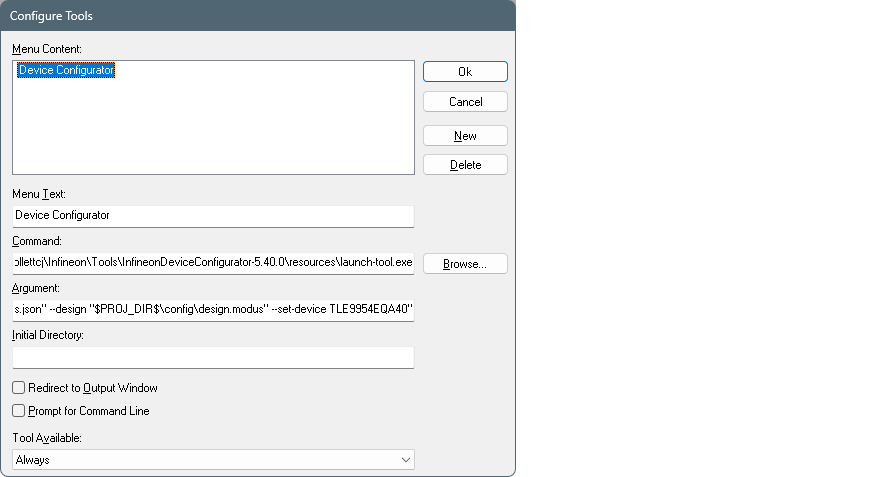
- On the dialog, enter the following:
- Menu Text: Device Configurator
- Command:
[path-to-device-configurator]\resources\launch-tool.exeYou can navigate to the executable using the [Browse…] button.
- Argument:
"--library "[path-to-IAR-CMSIS-Packs]\Infineon\TLE994x_5x_DFP\1.0.0\props.json","[path-to-IAR-CMSIS-Packs]\Infineon\TLE994x_5x_DFP\1.0.0\device-info\device-db\props.json" --design "$PROJ_DIR$\config\design.modus" --set-device TLE9954EQA40"This passes a command to the Device Configurator to use the specified library, device-db, and design.modus file, and set the device.
The variable
$PROJ_DIR$is the IAR Embedded Workbench project directory.
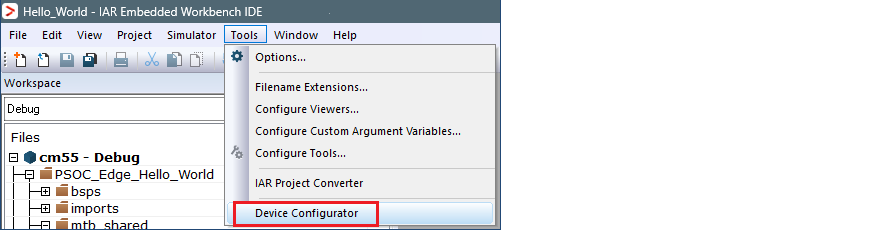
- Click OK to close the dialog, and the menu item will
be added:
Using the command line
You can use the command line to run the Device Configurator with project context by providing specific arguments. For example (replace "[...]" with real values):
C:\Users\[user-home]\Infineon\Tools\InfineonDeviceConfigurator-[version]\resources\launch-tool.exe --library "C:\Users\[user-home]\IAR-CMSIS-Packs\Infineon\TLE994x_5x_DFP\1.0.0\props.json","C:\Users\[user-home]\IAR-CMSIS-Packs\Infineon\TLE994x_5x_DFP\1.0.0\device-info\device-db\props.json" --design "[IAR EW project path]\config\design.modus" --set-device TLE9954EQA40- Mandatory:
--library "[lib-file1]","[lib-file2]"Replace [lib-file1] with the local path to the top-level CMSIS pack props.json file. For example:
"C:\Users\[user-home]\IAR-CMSIS-Packs\Infineon\TLE994x_5x_DFP\1.0.0\props.json"Replace [lib-file2] with the local path to the device-db props.json file in the CMSIS pack. For example:
"C:\Users\[user-home]\IAR-CMSIS-Packs\Infineon\TLE994x_5x_DFP\1.0.0\device-info\device-db\props.json" - Mandatory:
--design "[design-file]"Replace [design-file] with the local path to the design.modus file, usually located inside the project folder. For example:
"[your IAR EW project path]\config\design.modus" - Optional:
--set-device [part-no]Providing a valid [part-no] will update the device in the provided the design.modus file. For example,
TLE9954EQA40