Not using the extension

This section describes how to work with ModusToolbox™ applications without the extension's graphical interface, using the ModusToolbox™ command line tools and standard VS Code features such as tasks and launch configurations. These workflows also apply when you prefer to drive ModusToolbox™ manually or to script your build, program, and debug steps.

Export existing application

If you have a ModusToolbox™ application that was created for another IDE or the command line, you can export that application to be used in VS Code. Use the Open Folder command and point to the application directory containing the application Makefile.

Open a ModusToolbox™ Shell terminal in the application directory and run the command make vscode. This will add VS Code specific files, including the workspace file, that will make the application compatible with VS Code.

Open workspace in VS Code
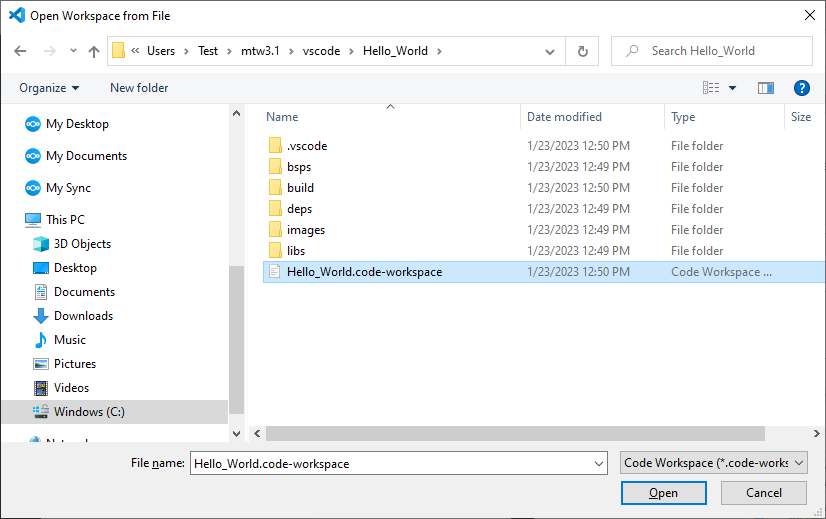
If you have a ModusToolbox™ application VS Code workspace on disk already, select File > Open Workspace from File, navigate to the location of the application, select the workspace file, and click Open.
../figures/image16.png

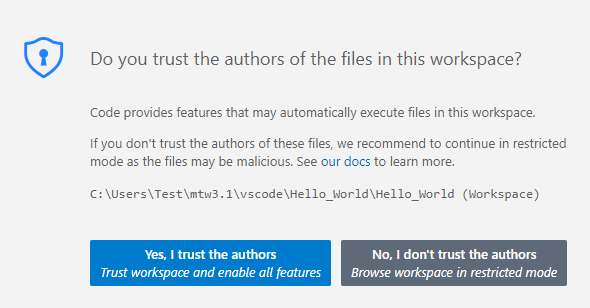
Depending on your settings in VS Code, you may see a message about trusting the authors. If so, click Yes, I trust the authors.
../figures/image17.png

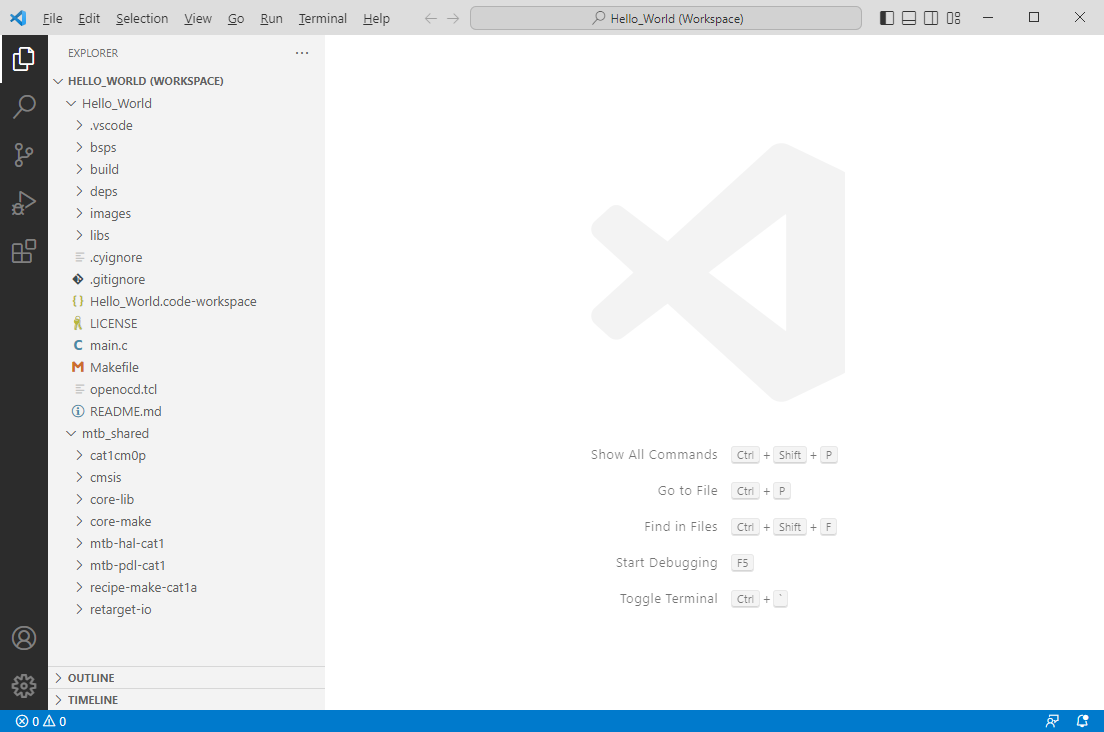
VS Code opens with the Hello_World workspace in the EXPLORER view.
../figures/image18.png

Note:
If you open the application folder directly (File > Open Folder) instead of the workspace file, the ModusToolbox™ Assistant extension automatically detects an existing VS Code workspace file (.code-workspace) in the application directory and re-opens the application using it. If no workspace file exists, the extension creates one for you so the application is ready to build, program, and debug in VS Code.

Add/modify application code

Code example applications work as they are, and there is no need to add or modify code in order to build or program them. However, if you want to update and change the application to do something else, open the appropriate file in the code editor.
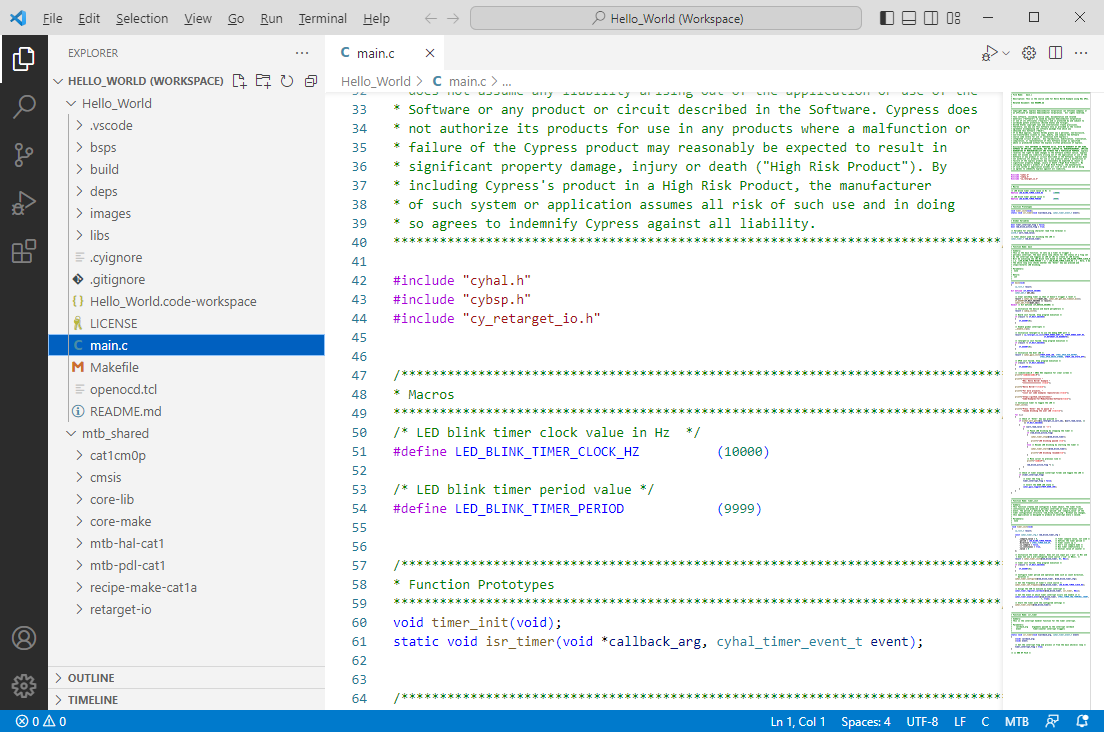

Double-click the main.c file to open it.
../figures/image19.png

As you type into the file, a dot will appear in the file’s tab to indicate changes were made. The file icon will also indicate that there are unsaved changes.
../figures/image20.png

Command line

Alternatively, you can open various ModusToolbox™ tools using make commands in the terminal. Select Terminal > New Terminal, then select the main project folder for your application (in this case, Hello_World):
../figures/image22.png

Note:
On Windows, use the modus-shell (Cygwin) terminal.

This section covers a few of the tools you might open more frequently. For a complete list of the tools available, refer to the ModusToolbox™ tools package user guide.

Library Manager

To add, remove, or modify libraries, open the Library Manager using the following command:

make library-manager

Refer to the Library Manager user guide for details about that tool.

BSP Assistant

To create or modify a BSP, open the BSP Assistant using the following command:

make bsp-assistant

Refer to the BSP Assistant user guide for details about that tool.

Device Configrator

To view peripherals, pins, clocks, etc., open the Device Configurator using the following command:

make device-configurator
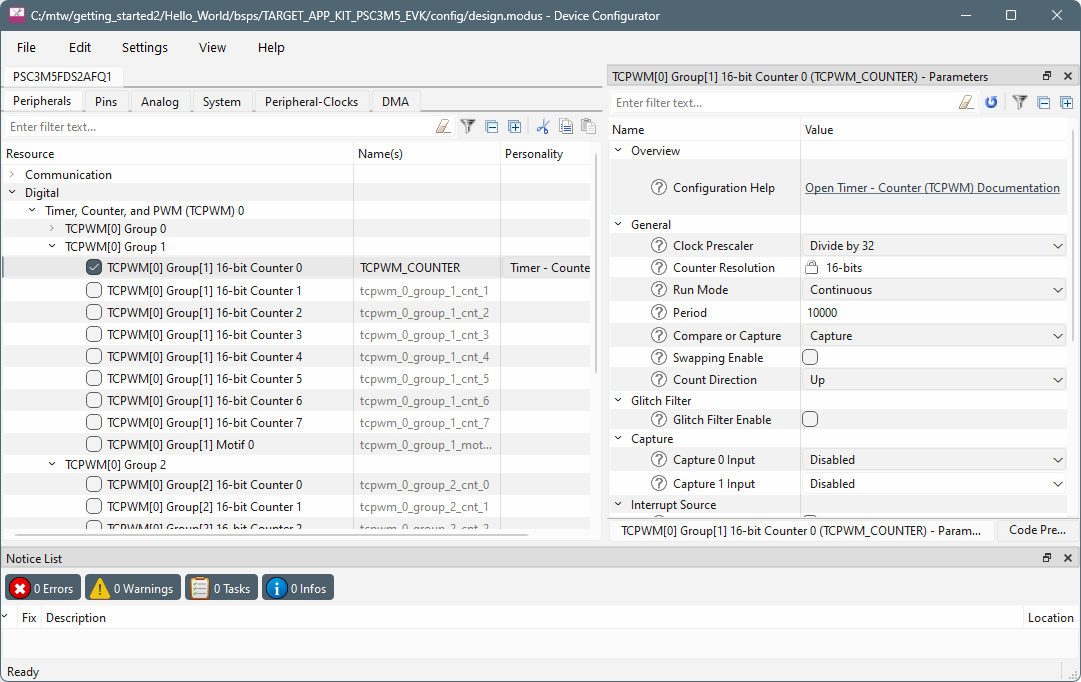
The Device Configurator provides access to the BSP resources and settings. Each enabled resource contains one or more links to the related API documentation. There are also buttons to open other configurators for CAPSENSE™, QSPI, Smart I/O, etc. For more information, refer to the Device Configurator user guide, which is also available by selecting View Help from the tool’s Help menu.

Note:
The Device Configurator cannot be used to open Library Configurators, such as Bluetooth®.

Build the Application

Building the application is not specifically required, because building will be performed as part of the programming and debugging process. However, if you are running VS Code without any hardware attached you may wish to build your application to ensure all the code is correct.
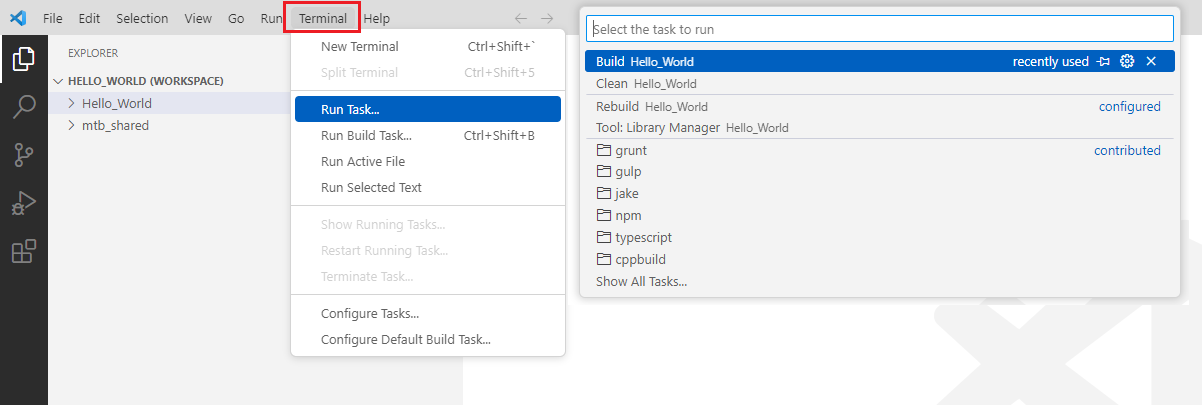
Select Terminal > Run Task. Then select Build Hello_World.
../figures/image24.png

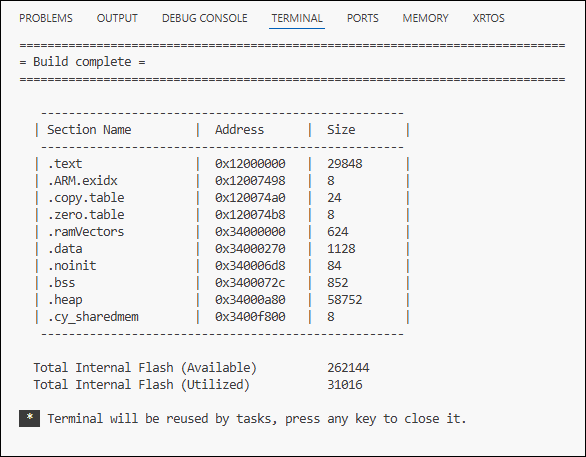
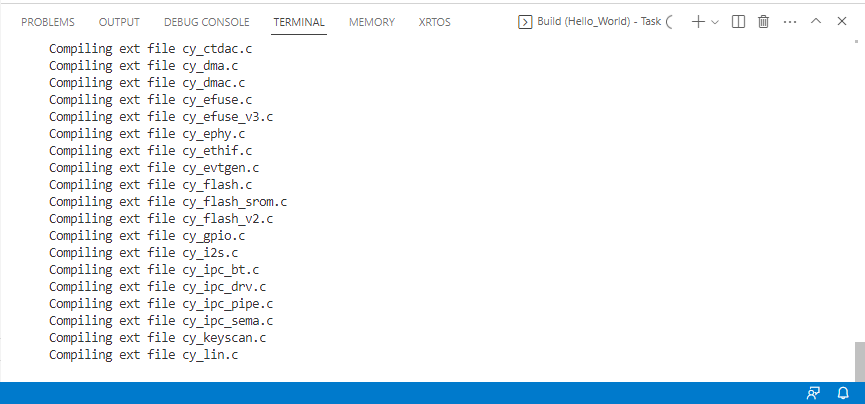
Build information will display in the Terminal.
../figures/image25.png

The build should complete successfully with messages similar to the following:

Last updated on