This chapter covers various aspects of building applications. Building applications is not specifically required, because building is performed as part of the Program and debug. However, if you are running Eclipse without any hardware attached, you may wish to build your application to ensure all the code is correct.
Build with Make
You can build applications from the command line using Make. Refer to the ModusToolbox™ tools package user guide (also located in the ~\ModusToolbox\docs_<version> directory) for more information.
Build with Eclipse
After loading an application, it is best to first build everything to generate the necessary files. Click on a project in the Project Explorer. Then in the Quick Panel, click the "Build Application" link.
Building an application will typically allow IntelliSense to work better. It may also be useful to right-click on a project and select Index > Rebuild to allow IntelliSense to find references.
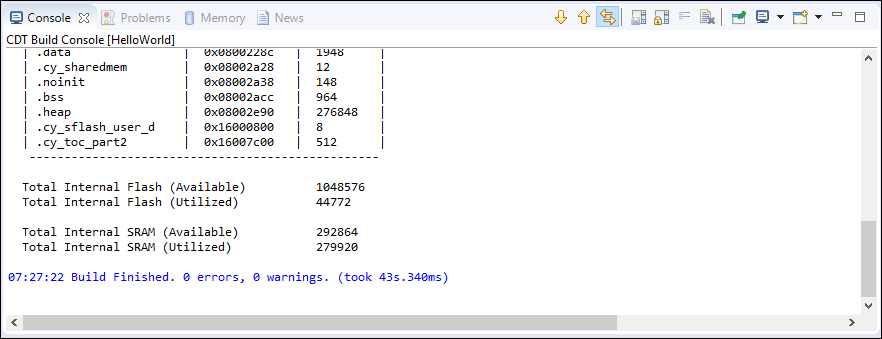
You can access the different views using the Display Selected Console
 button (or the pull-down arrow). The Global Build Console is the only way to see
all of the results in one place. If you just have the standard Console open, it resets
every time a new project in the application starts building. You won’t see any errors if
they are not on the final project that gets built.
button (or the pull-down arrow). The Global Build Console is the only way to see
all of the results in one place. If you just have the standard Console open, it resets
every time a new project in the application starts building. You won’t see any errors if
they are not on the final project that gets built.
For subsequent updates, we recommend that you use the Build Application option from the Quick Panel.