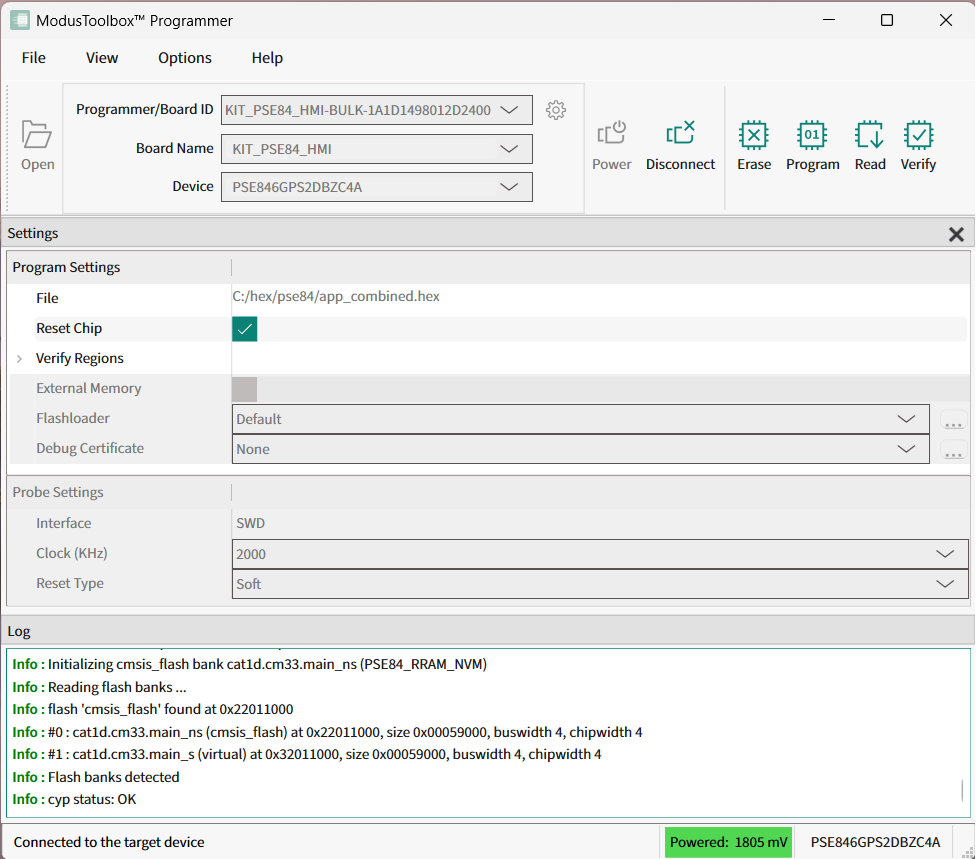
Menus
File
The File menu contains the following commands:
- Open (Ctrl+O) – Opens the programming file.
- Connect/Disconnect (Alt+Q) – Connects and disconnects the selected device.
- Program (Alt+G) – Programs the selected device with the selected file.
- Erase (Alt+E) – Erases the selected device.
- Read (Alt+R) – Reads flash of the selected device into a HEX or SREC file.
- Verify (Alt+Y) – Verifies that the selected device is programmed correctly.
- Recent Files – Lists up to five recently loaded programming files.
- Exit (Alt+F4) – Closes the ModusToolbox™ Programmer application.
View
The View menu contains the Settings check box. Select it to view the Settings section of the window; unselect it to hide the Settings section. See Settings.
Options
The Options menu contains the following commands:
- Programmer Options - Opens a
dialog to set the Upgrade Firmware mode and
other options.
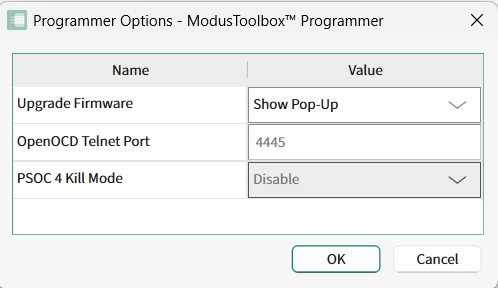
- Upgrade Firmware
mode:
- Automatically – The firmware is updated automatically when the tool opens.
- Show Pop-up – A dialog displays asking if you want to upgrade the firmware.
- Ignore – The firmware is not updated and no prompt displays.
- OpenOCD Telnet Port: This option specifies the port number of the OpenOCD telnet connection.
- Kill Mode: Use this option to enable/disable the transition into Kill mode for PSOC™ 4, PMG1, PAG2S, WLC1 and CCGx devices
- Upgrade Firmware
mode:
- Upgrade Firmware - When this command is enabled, select it to upgrade the programmer firmware on the device.
Verify Regions
The Verify Regions menu is available only if the Verify Regions option is selected in Program Settings.
Help
The Help menu contains the following commands:
- View Help (F1) – Opens this document.
- About ModusToolbox™ Programmer – Opens the About box.
Toolbar
The toolbar contains the Open, Erase, Program, Read, and Verify commands, which are also located on the File menu. There are also a few pull-down menus to select the specific device to use, and a Board Preferences button, a Power command, and a Connect/Disconnect command.
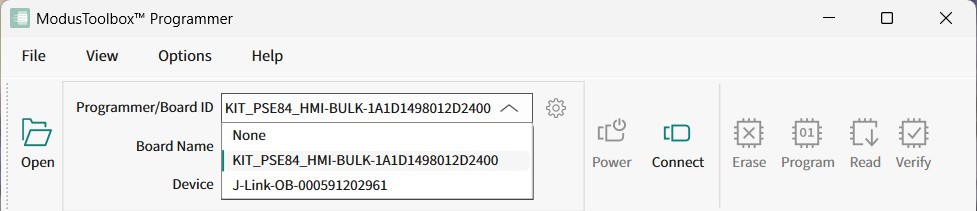
Programmer/Board ID
KitProg3 Board Preferences
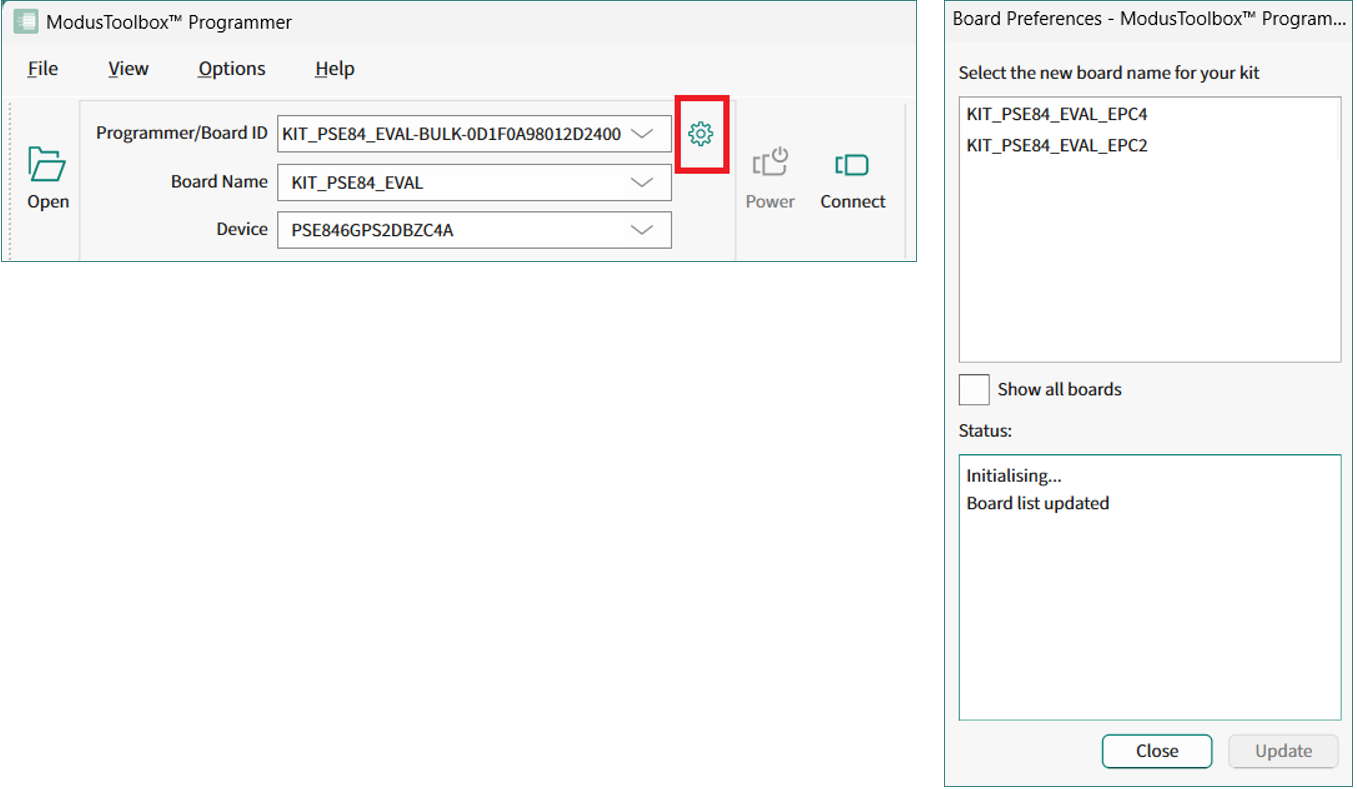
Use the Board Preferences button to update the KitProg3 board configuration or to change the name of the development kit selected in Programmer/Board ID pull-down.
Some KitProg3 development kits were released to market with missing board configuration in the EEPROM or this configuration might be out of date. In this case, the Board Preferences button is active and allows you to update the device details for such a kit.
Select the correct board name for your KitProg3 programmer device and click the Update button. See the Update KitProg3 Board Name section for more details.
Board Name
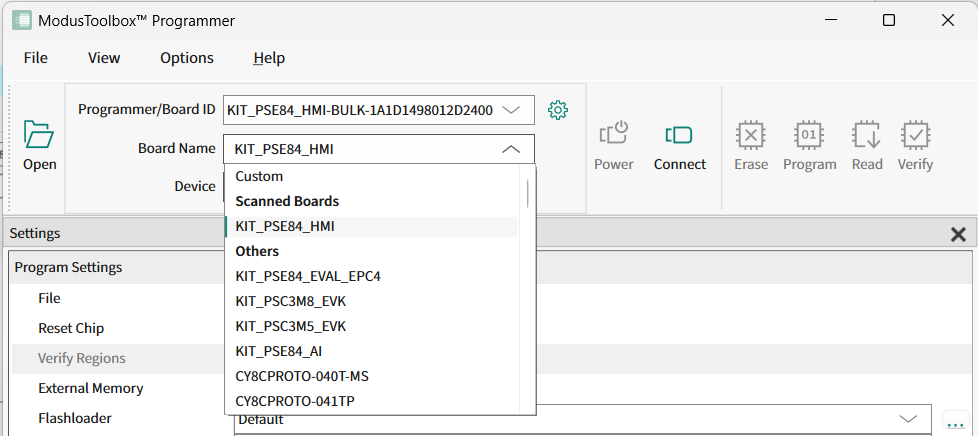
The Board Name pull-down allows you to choose the appropriate Kit name for the selected Programmer/Board ID.
- Under the Scanned Boards entry, there is a short list of best matched Kit names detected by the tool.
- Under the Others entry, there is a list of all other Kit names available for the selected programmer device.
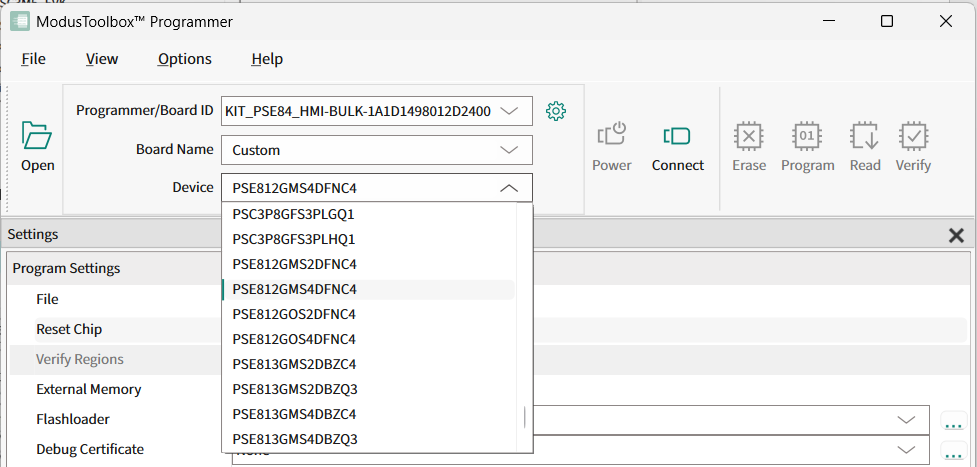
- When selecting the Custom board, the tool allows you to manually specify the particular target device connected to a stand-alone programmer (such as MiniProg4 or J-Link) or a KitProg3 with modifiable MCU module.
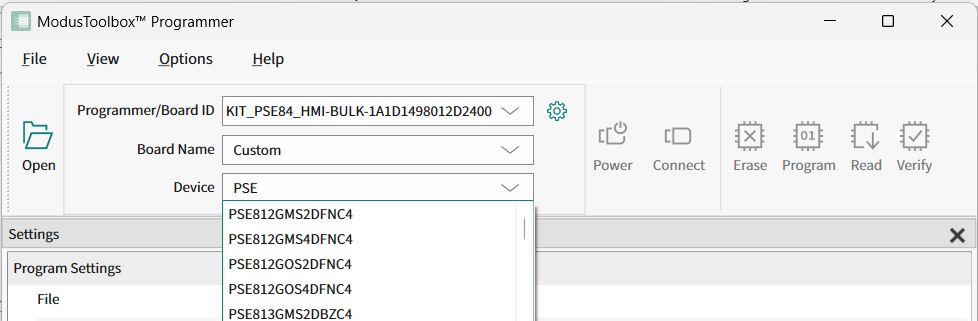
Device
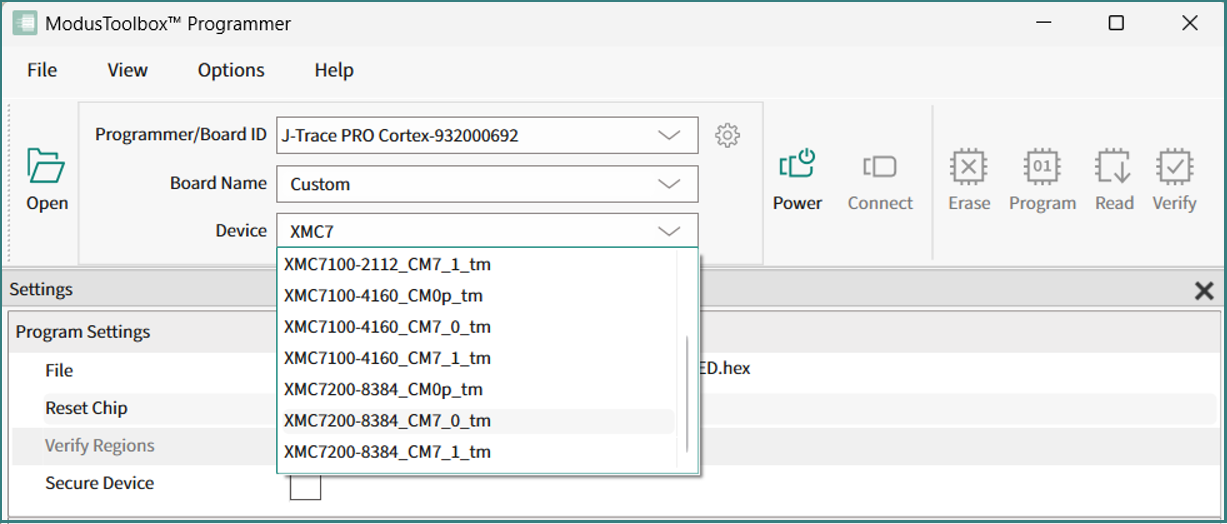
For example, the XMC7200D-E272K8384 device is selected as “XMC7200-8384_CM7_0_tm”.
SEGGER's device database does not contain a separate record for every individual Infineon part number. Instead, device family aliases are used, which describe the memory banks and their characteristics, the paths to the Flash Loaders (*.FLM), and the path to the script file (*.JLinkScript) that provides additional initialization methods.
The following table explains this naming pattern and usage recommendations, using XMC7200 as an example:
XMC<SERIES>-<FLASH>_<CORE>[_tm]
| Field | Description |
|---|---|
| XMC | Infineon product identifier = Industrial Microcontroller |
| SERIES | Series identifier: 7100, 7200 |
| FLASH |
Total flash size (KB): 1088 - 1M 2112 - 2M 4160 - 4M 8384 - 8M |
| CORE |
Cortex Core to connect to: CM0p - Cortex M0+ CM7_0 - Cortex M7 (1st instance) CM7_1 - Cortex M7 (2nd instance) |
| tm |
Test Mode acquisition/connection method. Using the _tm aliases is recommended to avoid device connection issues. It is also the only reliable way to connect when the application uses the debug pins as GPIO, disables the debug access port, or makes other system changes that can prevent debugger access. |
Not every combination is available: a given flash size may expose only a subset of the core aliases (for example, smaller variants may not provide a second Cortex M7 instance).
Power
Use the Power
 button to power on and off the selected device.
Connect/Disconnect
Use the Connect
 button to connect to and disconnect from the selected
device.
button to connect to and disconnect from the selected
device.
Settings
The Settings section of the tool allows you to update the program and probe/target settings as follows:
Program Settings
- File – Use this to select the programming file to perform actions on or with.
- Offset – This is an optional offset parameter; it can be an integer or hexadecimal value. The relocation offset is added to the base address for each section in the image when the image is programmed. This option is visible only if a binary or elf file is selected for programming operations.
- Reset Chip – Use this to reset the chip after the Program operation completes. This option resets the target chip and runs the programmed firmware on it.
- Verify Regions – Use this option to define flash regions used during device verification. This allows to verify user defined flash regions of the PSOC™ MCU. This option does not change behavior of the Program operation. See Verify custom flash regions for details.
- External Memory – Enables/disables the programming of external memory in the target device. For PSOC™ 6x MCUs, this option enables programming of the QSPI regions. This is also used for programming external memory of AIROC™ Wi-Fi devices.
- Program Security Data – Allows programming security regions if the target device supports this capability. For example, for PSOC™ 61 PSOC™ 62, and PSOC™ 63 MCUs, this option enables programming the eFuse region.
- Target AP – Allows you to select the target access port (DAP) that will be used for programming. Possible values include: CM0, CM4, and SYS_AP. This option is available only for PSOC™ 64 MCUs.
- Flash Size Limit – Limits the size of application flash available for programming operations. This option is available only for PSOC™ 64 MCUs.
- Programming Mode – Use this
option to define programming mode for PMG1 devices. The mode options include:
- Reset: This programming mode enables acquisition of the target device in the Test mode.
- PowerCycle: In this mode, the programmer cycles power to acquire the device.
- Flashloader – Use this option
to select the patched QSPI CMSIS flashloader file (in FLM format). This flashloader
is used for external flash programming. Note:To be able to program custom external flash you should also provide the appropriate QSPI configuration file (qspi_config.cfg), generated by the ModusToolbox™ QSPI Configurator tool. This file should be located in the same directory as the patched flashloader file.
- Debug Certificate – Use this option to specify the location of the debug certificate binary file. The debug certificate is used for programming AIROC™ CYW20829 targets in Secure lifecycle mode.
- ECC Config – Use this option to enable or disable the ECC error reporting. This option is only applicable for read flash operations of some MCUs.
- Chip Protection – Use this option to apply Chip Protected or Kill mode for PSOC™ 4, PMG1, PAG2S, WLC1 and CCGx devices.
- RRAM Offset – Use this option to modify the offset for RRAM memory (flash bank) for PSOC™ Edge E84 EPC4 devices. The minimal allowed RRAM offset value is 0xA000.
Probe Settings
The Probe settings allow you to configure the programming and target device before you connect to it. These settings are available when ModusToolbox™ Programmer is not connected to the device.
- Interface – To select the hardware (debug) interface for communication with the target device. The possible values include: SWD and JTAG if supported by the device.
- JTAG Chain – To select the interested target device in the JTAG chain. This option is only available for probes supporting JTAG interface. See Program PSOC™ 6/Control C3/Edge E84 MCU in JTAG chain via KitProg3/MiniProg4 for details.
- Voltage (V) –To select the power supply voltage of the target device in Volts. This option is available only if the selected probe has the power control capability.
- Clock (KHz) – To select the frequency of the hardware interface in KHz. This option is available only if the selected probe supports configurable frequencies.
- Reset Type – Specifies the
type of the Reset Chip operation. The possible values include: Soft and XRES:
- Soft is a software reset type that sends the system reset request to the ARM core.
- XRES is a hardware reset type that toggles the XRES hardware line.
- Sflash Restrictions –
Specifies the Sflash programming behavior. This option is available only for PSOC™
61/62/63, XMC7xxx/XMC5xxx, FX3G2, CYT3Bx/CYT3DL, CYT4Bx, CYT4DNJ, and CYT2Bx MCUs.
The possible values include:
- Erase/Program of Sflash is prohibited.
- Erase and Program of USER/TOC/KEY is allowed.
- Erase of USER/TOC/KEY and Program of USER/TOC/KEY/NAR is allowed.
- Erase and Program of entire Sflash is allowed.