The ModusToolbox™ Programmer application allows you to upgrade KitProg2, KitProg3, and MiniProg4 device firmware.
Upgrade KitProg2 firmware
The following upgrade process is based on the CY8CKIT-062-WIFI-BT hardware.
- Run the ModusToolbox™ Programmer application.
- Go to Options > Programmer
Options and select the Show Pop-Up
value for the Upgrade Firmware option.
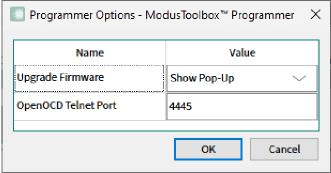
- Click OK to apply the changes.
- Connect the device with the KitProg2 firmware to the host PC. Ensure
that the KitProg2 device is in Native KP2 mode.
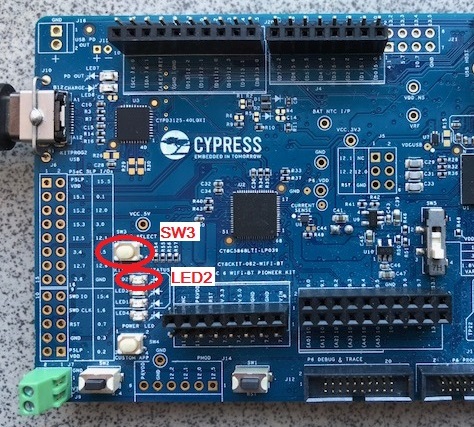
- If LED2 is off, press the
SW3 (Mode Select) button and hold it for about
1 second. When LED2 is on, the device is ready
for upgrading the firmware.
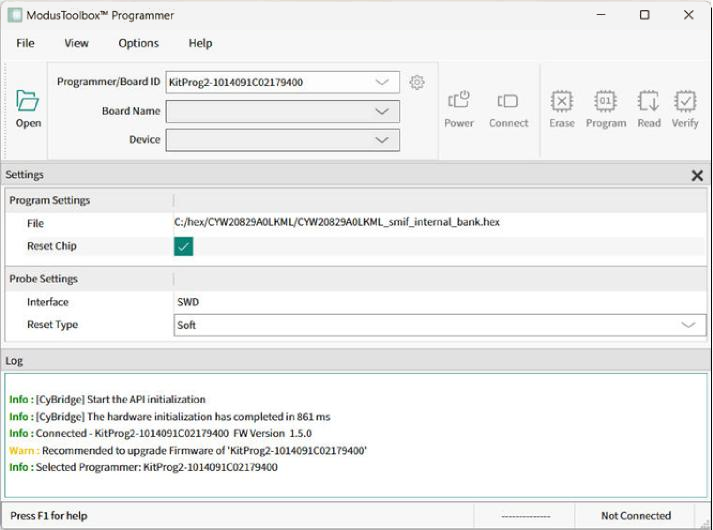
 A warning dialog displays with the "Firmware is Out of Date" message.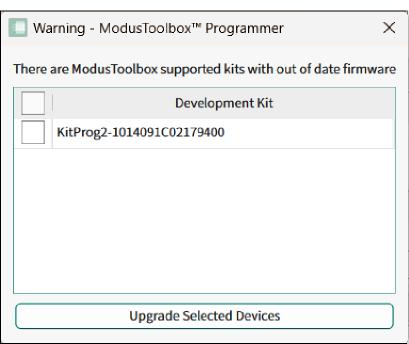
- Select the KitProg2 device in the list and click the Upgrade Selected Devices button to start the upgrade process.
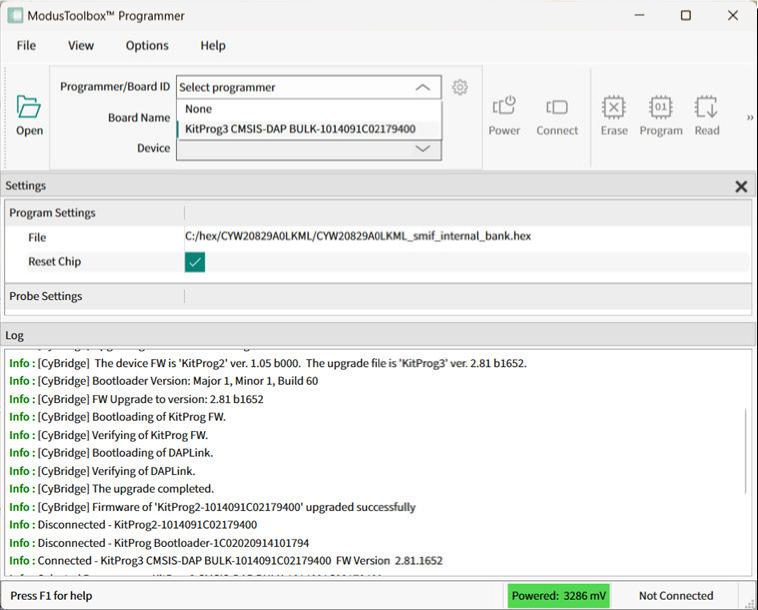
After the upgrade process completes, the message "Firmware of 'KitProg2-xx'
upgraded successfully" displays in the Log view. The
KitProg2-xx programmer disappears from the Programmer/Board
ID drop-down. The Board Name
drop-down is populated with the names of the supported KitProg3 Kits.
Upgrade KitProg3 on kit or MiniProg4 firmware
Follow this process to upgrade KitProg3 on a kit or MiniProg4 firmware:
- Run the ModusToolbox™ Programmer application.
- As needed, go to Options > Programmer Options and select the Show Pop-Up value for the Upgrade Firmware option.
- Connect the KitProg3/MiniProg4 device to the host PC. A warning dialog
with the "There are ModusToolbox supported kits with out of date firmware" message
displays.
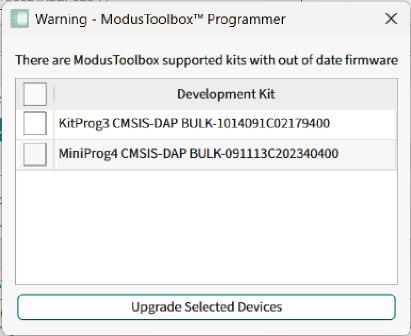
- Select the KitProg3/MiniProg4 device(s) to be upgraded.
- Click the Upgrade Selected Devices button to start the upgrade process.
After the upgrade process completes, the message "Firmware of 'KitProg3-xx' upgraded successfully" or "Firmware of 'MiniProg4 xx' upgraded successfully" displays in the Log view.