Run ModusToolbox™ Programmer
To run the ModusToolbox™ Programmer GUI application, navigate to the
ModusToolbox™ Programming tools install location, open the mtb-programmer folder, and run
the executable. The GUI opens and looks similar to this:
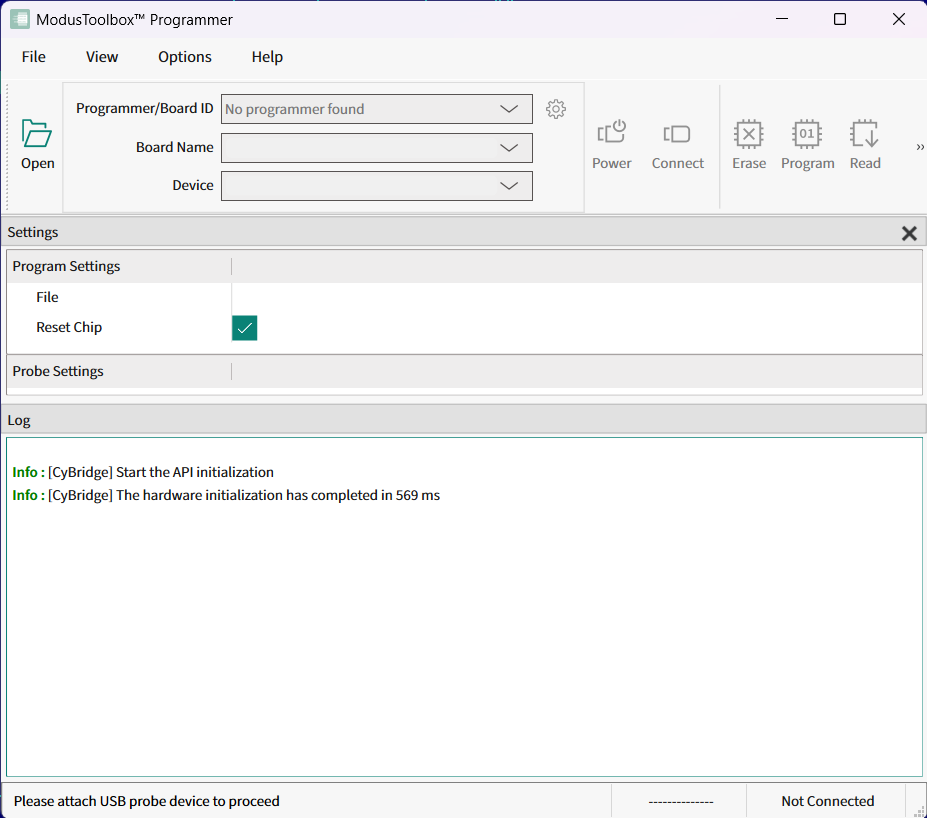
In this case, no kit or device is connected, and a message displays asking you to connect a device.
Select device
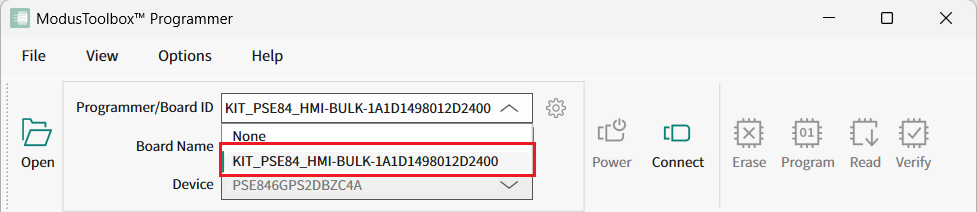
- Connect the device to the host computer. Select the hardware programmer
in the Programmer/Board ID drop-down.
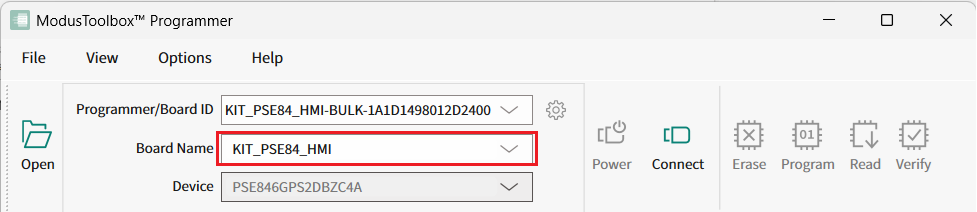
- Select the kit name in the Board
Name drop down.
 ModusToolbox™ Programmer displays information under Probe Settings.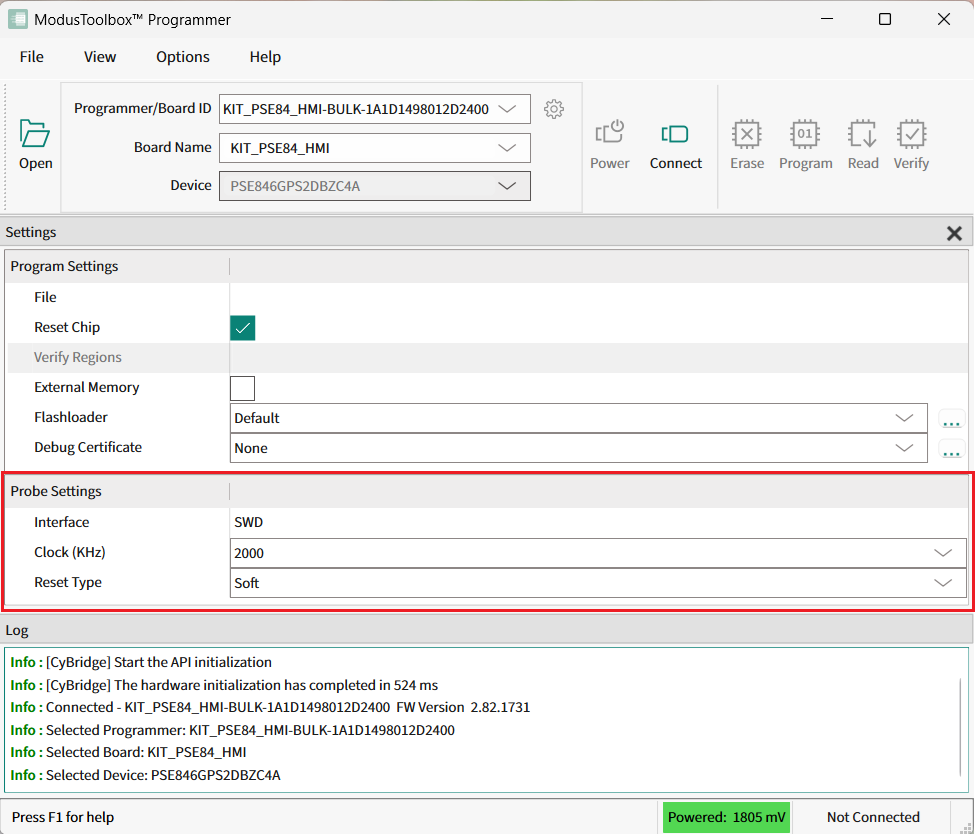
Load programming file
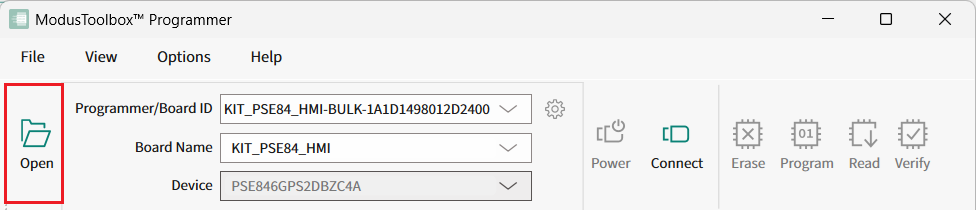
- Click Open.
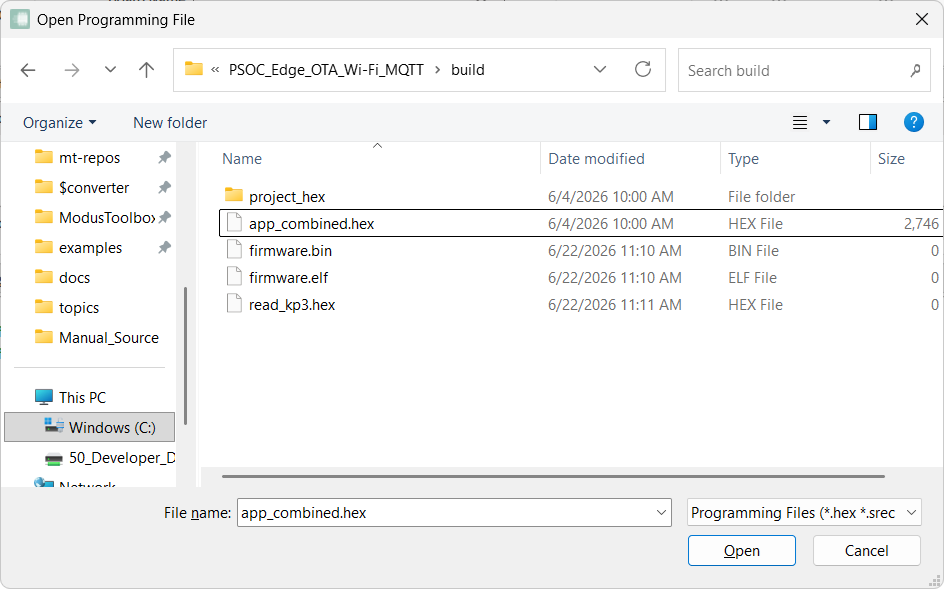
- On the Open Programming File dialog, navigate to the location of the
HEX, SREC, ELF, or BIN file to load, select it, and click Open.
Note:
The drag and drop functionality is supported in
the application allowing you to quickly load files by dragging them into the application
window. Drag and drop is supported regardless of whether the connect button is pressed.
After changing the Hex file while connected to a PSOC™ 6 device with the External Memory option enabled, we recommend to re-connect the programmer to the device (click Disconnect, then Connect).
This is required to reload the correct QSPI configuration from the updated programming file.
Connect device
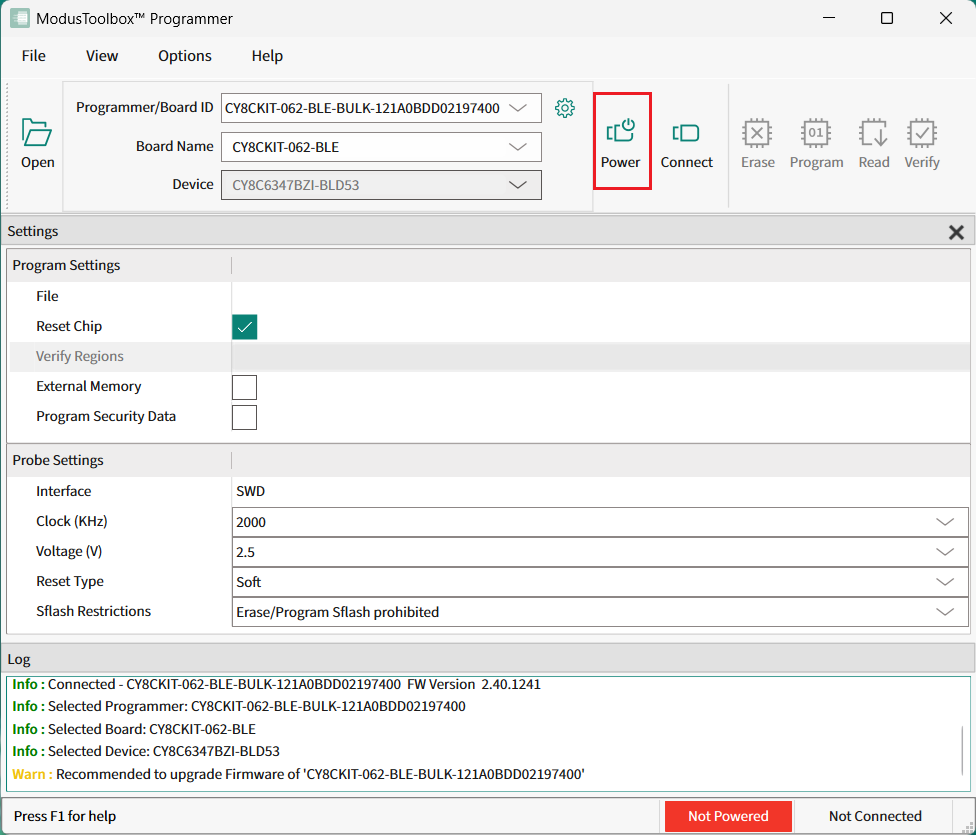
- If the device is not powered, the status message "Not Powered" is
displayed in the Status Bar. Click Power to power
up the device.
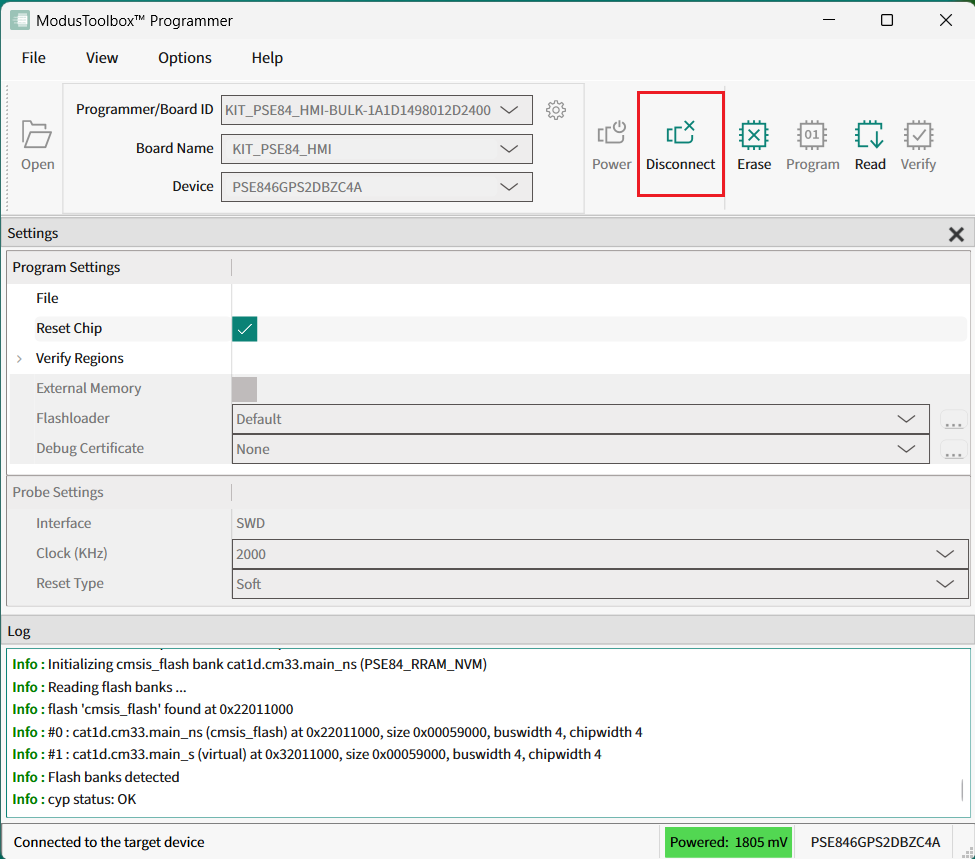
- Click Connect. ModusToolbox™
Programmer communicates with the device and displays various messages in the Log. Then, a message in the Status Bar indicates that it
is connected. The Connect button toggles to
Disconnect.
Program device
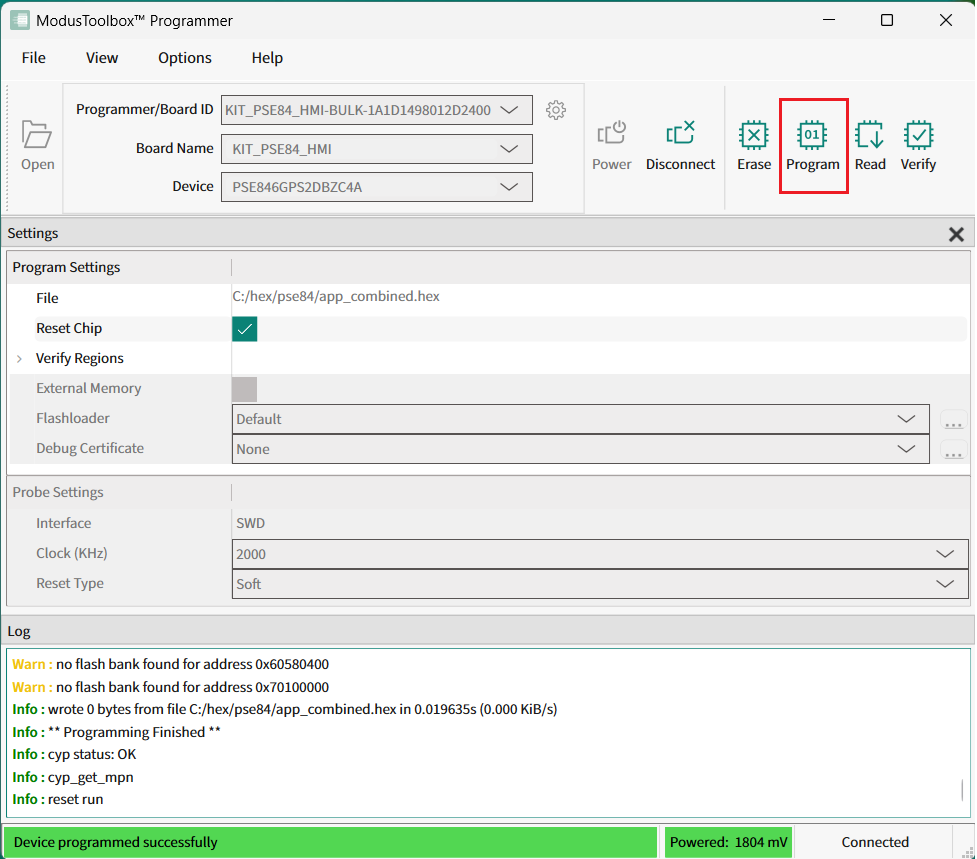
Click Program. ModusToolbox™
Programmer downloads the program file onto the device and displays messages in the
Log.
Save log file
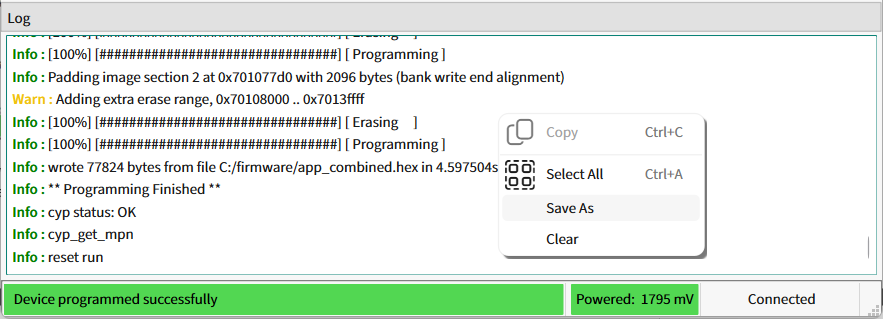
Right-click in the Log section and
select Save As.
Note:
You can also select the Select All command to select the text,
then copy and paste the text to the file you selected.