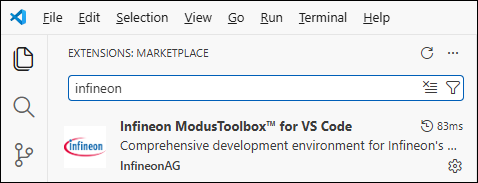
If you do not have VS Code already installed, you can download it from the website:
https://code.visualstudio.com/
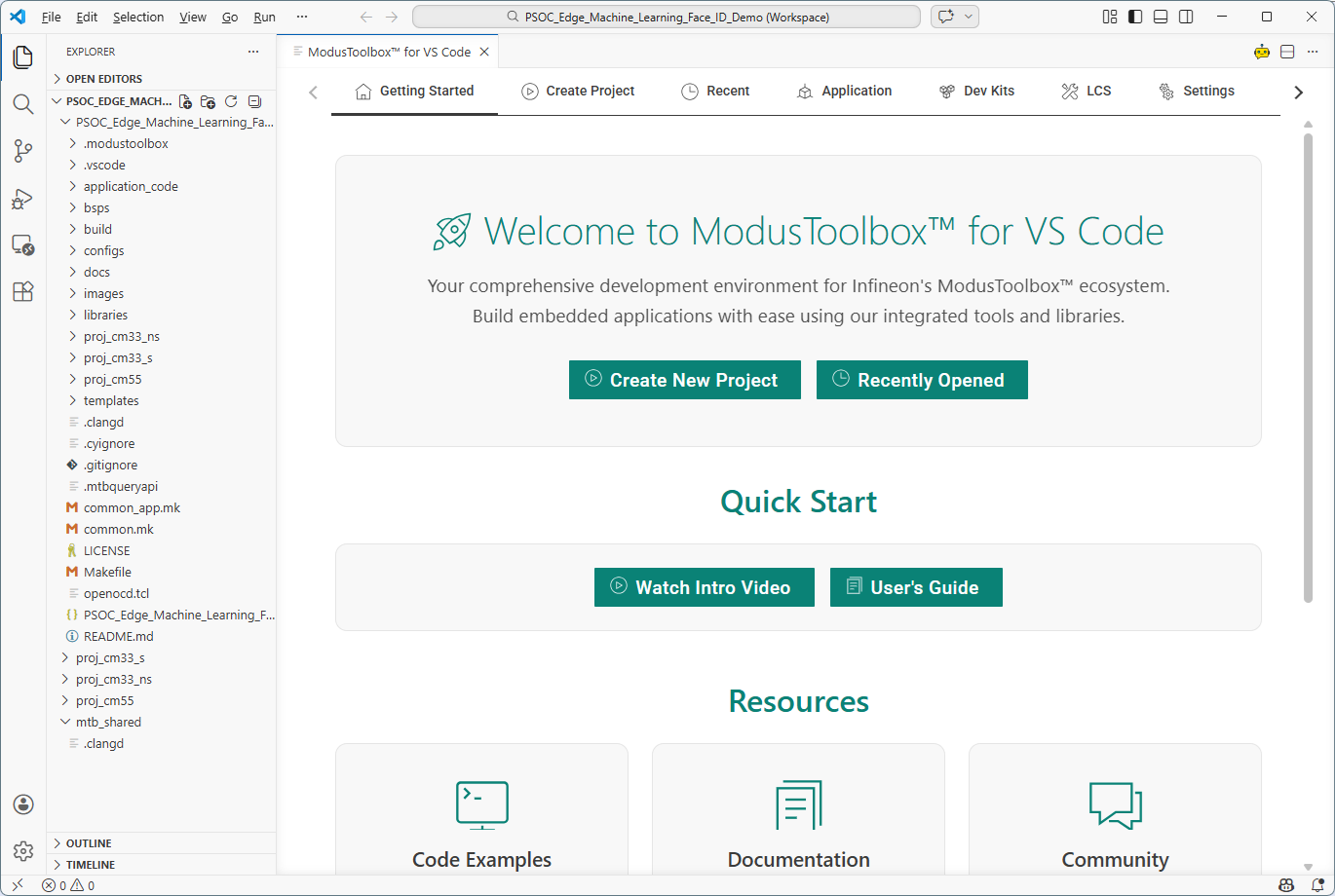
- Cortex-Debug

-
Arm® Assembly

- clangd

ModusToolbox™ software and tools
If the ModusToolbox™ software is not yet installed when you open the extension, the extension displays a software installer so you can get everything you need without leaving VS Code.
- Choose where to install the software. You can use the recommended location in your home directory, or browse to a custom path. The installer reports any problems with a location, such as insufficient disk space or missing permissions.
- Review the required tools and select any optional tools you want to install. Tools that are already installed show whether an upgrade is available.
- Download and install the selected tools. A progress bar is shown for each tool, and you can continue to the main page when the installation completes.
The extension can also install the LLVM compiler. Run the Infineon ModusToolbox™: Install the LLVM Compiler command, choose an LLVM version and installation path, and the extension downloads and installs it. When you open a PSOC™ Edge application without LLVM installed, the extension offers to install it for you; you can disable this prompt in the settings.
J-Link
For J-Link debugging, download and install J-Link software: