Follow instructions in

Create/export application for Keil µVision

. For a PSOC™ 64 secure MCU, you must also follow the instructions in the

Secure Boot SDK user guide

to provision the device and generate keys.

Then, use these instructions to configure, build, and debug your application.

  1. Build the application using the ModusToolbox™

    make build

    command. You can do this by using a stand-alone terminal (modus-shell for Windows), or by exporting the application to Eclipse or VS Code and using the terminal in the IDE.

  2. Copy the post-build command from the log. For example:

    .../python.exe C:/UG/CY8CPROTO-064S1-SB_Secure_Blinky_LED_FreeRTOS_UG/bsps/TARGET_APP_CY8CPROTO-064S1-SB/psoc64_postbuild.py --core CM4 --secure-boot-stage single --policy policy_single_CM0_CM4 --target cyb06xx7 --toolchain-path C:/Infineon/Tools/ModusToolbox/tools_3.3/gcc --toolchain GCC_ARM --build-dir C:/UG/CY8CPROTO-064S1-SB_Secure_Blinky_LED_FreeRTOS_UG/build/APP_CY8CPROTO-064S1-SB/Debug --app-name mtb-example-psoc6-secure-blinkyled-freertos --cm0-app-path ../mtb_shared/cat1cm0p/release-v1.0.0/COMPONENT_CAT1A/COMPONENT_CM0P_SECURE --cm0-app-name psoc6_01_cm0p_secure


    Note: Python was removed from the tools package in version 3.2 and later. The path here is a suggestion. Refer to this KBA for more details:

    https://community.infineon.com/t5/Knowledge-Base-Articles/Using-Python-with-a-ModusToolbox-application/ta-p/709737


  3. Paste the command into an appropriate editor, and make the following edits:

    • Change

      --toolchain-path

      to the ARM toolchain; for example,

      C:/Keil_v5/ARM/ARMCLANG

    • Change

      --toolchain

      to ARM

    • Change

      --build-dir

      to Keil µVision build directory

    Example of command after edit:

    [path-topython]/python.exe C:/UG/CY8CPROTO-064S1-SB_Secure_Blinky_LED_FreeRTOS_UG/bsps/TARGET_APP_CY8CPROTO-064S1-SB/psoc64_postbuild.py --core CM4 --secure-boot-stage single --policy policy_single_CM0_CM4 --target cyb06xx7 --toolchain-path C:/Keil_v5/ARM/ARMCLANG --toolchain ARM --build-dir C:/UG/CY8CPROTO-064S1-SB_Secure_Blinky_LED_FreeRTOS_UG/mtb-example-psoc6-secure-blinkyled-freertos_Objects --app-name mtb-example-psoc6-secure-blinkyled-freertos --cm0-app-path ../mtb_shared/cat1cm0p/release-v1.0.0/COMPONENT_CAT1A/COMPONENT_CM0P_SECURE --cm0-app-name psoc6_01_cm0p_secure

  4. Copy the edited command.

  5. In µVision, select

    Project > Options for Target 'Target 1'…

    to open the Options dialog.

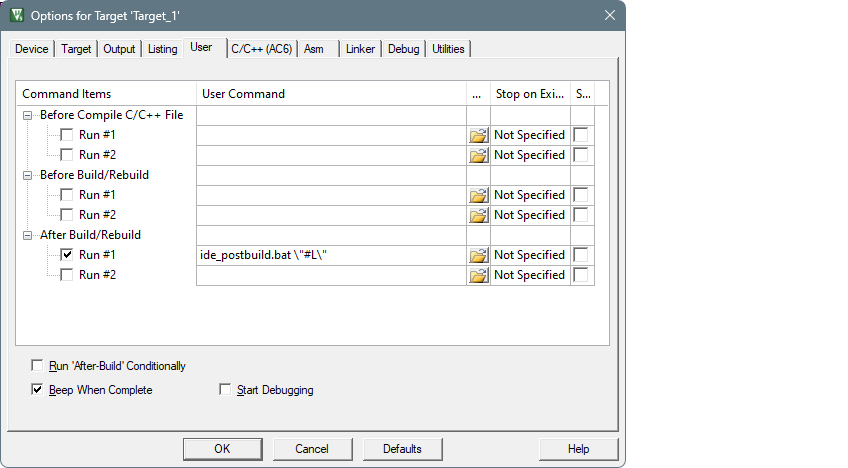
  6. Select the

    User

    tab and enable the

    Run #1

    check box under

    After Build/Rebuild

    . Then, paste the edited command.


    ../figures/image16.png

  7. Select the

    Output

    tab and enable the

    Create HEX File

    check box.


    ../figures/image17.png

  8. On the same

    Output

    tab, add an ".elf" extension in the

    Name of Executable

    field.


    ../figures/image18.png

  9. Create an empty

    project.ini

    file in the project root folder.

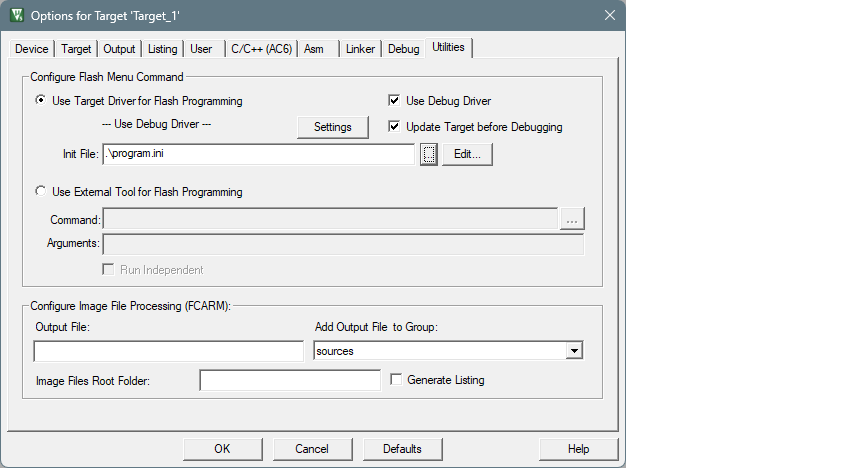
  10. On the Options dialog, select the

    Utilities

    tab and select the

    project.ini

    file using the [

    ] button. Then, click

    Edit

    to open the file and click

    OK

    to close the options dialog.


    ../figures/image19.png

  11. Type

    LOAD $L@L.hex

    in the

    project.ini

    file and save the file.


    ../figures/image20.png

  12. Select

    Project > Build Target

    to build the application and execute post-build commands.

After performing these steps, you should be able to run debug, erase, and program for PSOC™ 64 secure MCUs.