The CAPSENSE™ Tuner application contains Menus, Main toolbar and Tabs toolbars, Widget Explorer pane and Widget/Sensor Parameters pane, all used to tune a CAPSENSE™ application.
Menus
File
- Open – Opens a <file_name>.cycapsense configuration file. This command is visible only when running the Tuner independently from the Eclipse IDE.
- Apply to Device – Commits changed values
of a widget/sensor parameter to the device. Becomes active if a value of any
configuration parameter from the Tuner application changes (that is, if the
parameter values in the Tuner and the device are different). This is an indication
to apply the changed parameter values to the device. For Read Only mode of the
communication interfaces, this command is grayed out.Note:These changes are temporary. They are stored in the device operational memory.
To save the changes:
- apply them to the project
- rebuild the project
- re-program the device
- Apply to Project – Commits currently changed values of widget/sensor parameters to the CAPSENSE™ project.
- Open in System Explorer – This opens your computer’s File Explorer window to the folder that contains the *.cycapsense file.
- Import... – Imports a specified configuration file.
- Export... – Exports the current configuration file into a specified file.
- Export Register Map to PDF – Exports the current configuration register map in PDF format for the latest version of the middleware available on the date of the CAPSENSE™ Tuner release.
- Recent files – Shows recent files that you can open directly.
- Exit – Asks to save changes if there are any and closes the Tuner. Changes are saved to the configuration file.
Edit
- Undo – Undoes the last action or sequence of actions.
- Redo – Redoes the last undone action or sequence of undone actions.
View
- Widget Explorer – Hides or shows the Widget Explorer pane where widgets and sensors tree display.
- Notice List – Hides or shows the Notice List pane. The pane displays by default.
- Widget/Sensor Parameters – Hides or shows the Widget/Sensor Parameters pane.
- Gesture Event History – Logs the detected gestures information. Displays in the View when any gesture is available.
- Gesture Monitor – Provides visual indication for a detected gesture. Displays in the View when any gesture is available.
- OpenOCD Log – Hides or shows the OpenOCD Log pane.
- Toolbar – Hides or shows the toolbar. Enabled
by default.Note:You can dock the Tuner panes and toolbars anywhere on the interface.
- Reset View – Resets the view to the default.
Communication
- Power – This button powers on/off the target device.
- Connect – Connects to the device via a communication channel selected in the "Tuner Communication Setup" dialog. If the channel was not previously selected, the dialog displays.
- Disconnect – Closes the communication channel with the connected device.
- Start – Starts reading data from the device.
- Stop – Stops reading data from the device.
- Restart – Restarts reading data from the device.
Tools
- Tuner Communication Setup… – Opens the configuration dialog to set up a communication channel with the device.
- Options… – Opens the configuration dialog to set up the Tuner preferences: Display, SNR, Logging, Advanced.
- Custom Data Settings... – Opens either from under Tools or from the Custom Data graph. The name, data type, and byte offset of the variables are defined by the user.
- Logging – Starts/stops data logging into a specified file.
Help
- View Help – Opens the CAPSENSE™ Tuner guide (this document).
- About CAPSENSE™ Tuner – Opens the About box to display the version information, with links to open https://www.infineon.com and the current session log file.
Notice List
The Notice List pane combines notices (errors, warnings, tasks, and infos) from many places in the configuration into a centralized list. You can double-click a notice location to show the parameter causing the error or warning. For more information about the Notice List, refer to Device Configurator user guide.
Main toolbar
The main toolbar contains buttons for the commands that duplicate the Menus items.

Also, the main toolbar contains:
- Read mode – Selects the Tuner communication mode
with a device (I2C and UART with LP).
- Synchronized – Application firmware
periodically calls a corresponding Tuner function:
Cy_CapSense_RunTuner(). The Tuner synchronizes data reading and firmware execution to preserve data coherency. CAPSENSE™ middleware waits for the Tuner read/write operation to be completed prior to execution of sensor scan and processing tasks. The Tuner does not read/write data until CAPSENSE™ middleware completes scanning and data processing tasks for all widgets in the application. The SNR and noise measurements are most accurate, and most tuning parameters can be edited in real time updating in this mode. - Asynchronized – The Tuner reads data asynchronously with sensor scanning and data processing. Due to this, data coherency may be corrupted. So, the Tuner may read only partially updated sensor data. For example, the device completed scanning of only the first sensor in a row. At this moment, the Tuner reads data of the latest scan from the first sensor and data of previous scans from the remaining sensor. This can occur to all sensors, when the Tuner reads data prior to the completion of data processing tasks, such as baseline update and filter execution. SNR and noise measurements are less accurate due to non-coherent data reading and only a limited set of tuning parameters can be edited in real time in this mode. Asynchronized mode may work unreliably with Low Power widgets configurations when the application is mostly in Deep Sleep. The Tuner may miss the time window when the device awakes and is able to communicate with the Tuner.
- Synchronized – Application firmware
periodically calls a corresponding Tuner function:
Tabs toolbars
The toolbars options of the CAPSENSE™ Tuner tabs by tab:
| Option | Description | Widget View tab | Graph View tab | SNR Measurement tab | Liquid Level Measurement tab | Touchpad View tab | Gesture View tab |
|---|---|---|---|---|---|---|---|
| Zoom in/Zoom out (Graph functionality) |
Zooms in/out the widgets. Press the [Esc] key to undo zoom. |
√ | √ | √ | |||
| Graph |
Shows or hides the Touch Signal Graph. |
√ | |||||
| Save image |
Opens the dialog to save the tab view as an image. To save the whole main window as an image, press and hold the [Ctrl] key. The supported formats: .PNG, .JPG, BMP. |
√ | √ | √ | √ | √ | √ |
| Number of samples |
Defines the total amount of data samples shown on a single graph. |
√ | |||||
| Legend |
Shows or hides the sensor series descriptions (with names and colors) in graphs |
√ | √ | √ | |||
| Clear graph/Clear |
Clears all graphs. |
√ | √ | √ | √ | √ | |
| Spike |
Highlights spikes on the graph. |
√ | |||||
| Opaque |
The level of opacity of the area below the line series. |
√ | |||||
| Chart settings (Graph View tab toolbar) |
Opens the menu for editing the chart line series parameters |
√ | |||||
| Reset position |
Resets the image position and zoom. The image is moved to the center of the panel. |
√ | |||||
| Open image |
Opens a custom image. |
√ | |||||
| Save logged data |
Saves data to a .csv file, by default to the design.lls.csv file. |
√ | |||||
| Load logged data |
Logs data to a .csv file, by default to the design.lls.csv file. |
√ | |||||
| Thresholds (Graph View tab toolbar) |
Displays on the sensor charts with labels that correspond to the widget threshold names selected on the drop-down list. |
√ | √ |
Widget Explorer pane
The Widget Explorer pane contains a tree of widgets and sensors used in the CAPSENSE™ application. You can expand/collapse the Widget nodes to show/hide widget’s sensor nodes. You can check/uncheck individual widgets and sensors in the Widget Explorer pane. The widget checked status affects its visibility in the Widget View tab and the position graph series in the Graph View tab while the sensor checked status controls the visibility of the sensor raw count/baseline/signal/status graph series in the Widget View tab and signals in the Touch Signal Graph on the Widget View tab.
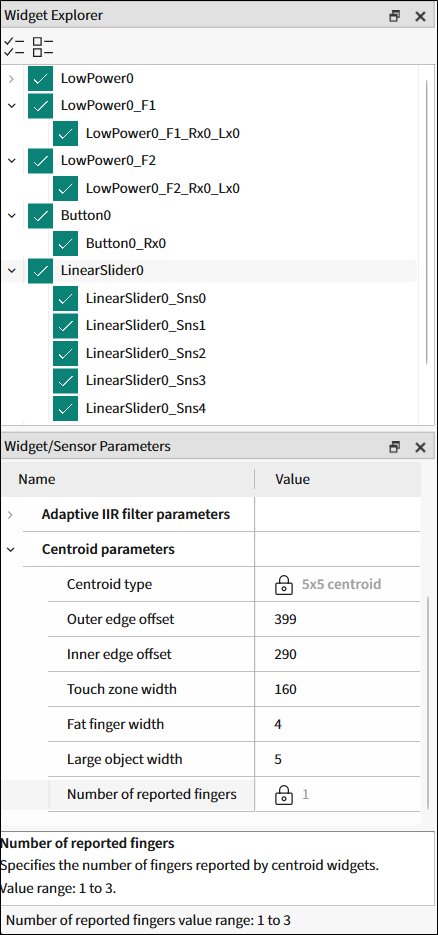
Selecting a widget or sensor in the Widget Explorer pane updates the selection in the Widget/Sensor Parameters pane.
Widget/Sensor Parameters pane
- without connection to a device – values are taken from the configuration file
- with connection to a device – values are read directly from the device; for parameters set to Auto, the actual device value displays.
You can modify any editable parameters and apply changes to the device at run-time. Select a parameter to see its description on the panel below the parameters list.
The Widget/Sensor Parameters pane includes groups of parameters described in the Widget parameters and Sensor parameters sections.
Widget parameters
Widget general parameters
Most of these parameters are read-only in the CAPSENSE™ Tuner because corresponding parameter values reside in the application flash widget structures that cannot be modified at run-time.
Widget hardware parameters
These parameters can be tuned for the widgets without SMARTSENSE. Require hardware re-initialization. In Manual tuning mode, the availability of changing the Widget hardware parameters and Apply to Device command depends on the mode and communication protocol.
| Protocol | I2C | UART | RTT |
|---|---|---|---|
| Mode | Read/Write | ||
| Apply to Device | √ | √ | √ |
| Widget hardware parameters | √ | √ | √ |
| Mode | Read only | ||
| Apply to Device | √ | ||
| Widget hardware parameters | √ | √ | |
Capacitive DAC parameters
These parameters are read-only for the widgets with SMARTSENSE or appropriate CDAC mode set to Auto in the CAPSENSE™ Configurator.
Scaled capacitive DAC parameters
- available for the 5th generation LP devices
- applicable for the CSD sensing method
- read-only.
Widget threshold parameters
These parameters are read-only for widgets with SMARTSENSE– Full. In Manual tuning mode (for all widgets), the availability of changing Widget threshold parameters and Apply to Device command depends on the mode and communication protocol.
| Protocol | I2C | UART | RTT |
|---|---|---|---|
| Mode | Read/Write | ||
| Apply to Device | √ | √ | √ |
| Widget threshold parameters | √ | √ | √ |
| Mode | Read only | ||
| Apply to Device | √ | ||
| Widget threshold parameters | √ | √ | √ |
|
Note:
Except ON debounce
parameter (requires hardware re-initialization). |
|||
Position filter/Adaptive IIR filter/Ballistic multiplier/Centroid parameters
These parameters cannot be modified at run-time from the Tuner because corresponding parameter values reside in the application flash widget structures that cannot be modified at run-time.
Sensor parameters
Sensing parameters
- When IDAC/CDAC is enabled, the parameter is read-only and displays values as calibrated by the firmware.
- When the auto-calibration is disabled, the IDAC/CDAC value entered in the CAPSENSE™ Configurator displays and the parameter becomes writable in Read/Write mode.
Capacitance (fF)
When BIST is enabled in the CAPSENSE™ Configurator, the sensor/electrode capacitance is read-only, and displays values calculated by the firmware. The application code must have BIST-related function calls. When BIST is disabled, the Capacitance (fF) group is hidden
Tabs
The CAPSENSE™ Tuner consists of the following tabs:
- Widget View tab – Displays the widgets, their touch status, and the touch signal bar graph.
- Graph View tab – Displays the sensor data charts.
- SNR Measurement tab – Provides the SNR measurement functionality.
- Liquid Level Measurement tab – Provides the liquid level measuring functionality.
- Touchpad View tab – Displays the touchpad heatmap.
- Gesture View tab – Displays the Gesture operation.