See also Advanced ModusToolbox™ installation instructions KBA for various advanced installation cases.
Installing using non-silent option
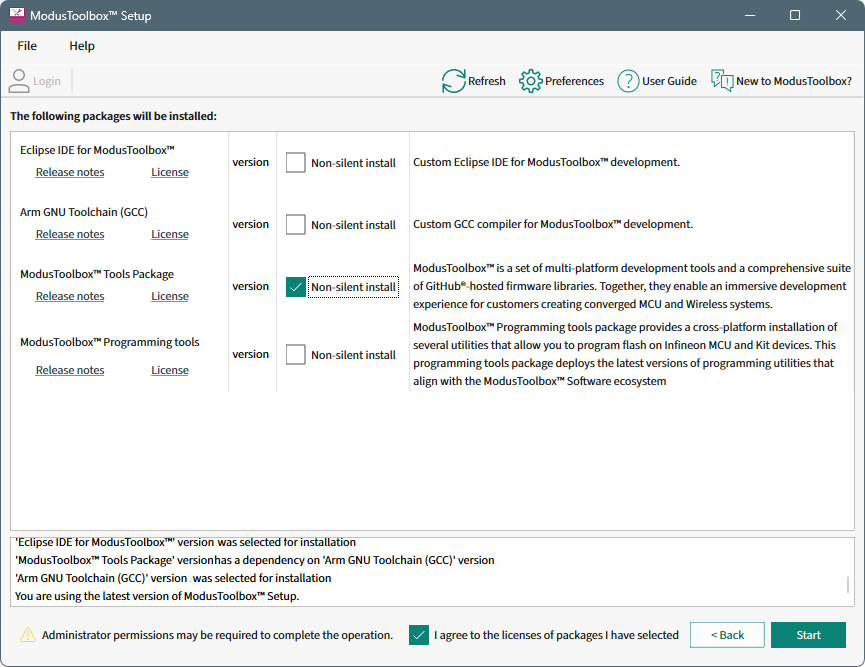
If possible, create a new user account and user home directory that doesn’t contain spaces or illegal characters. Then, you can just use the default process for that account. If you cannot create a new user home directory, then you must perform some extra installation steps.
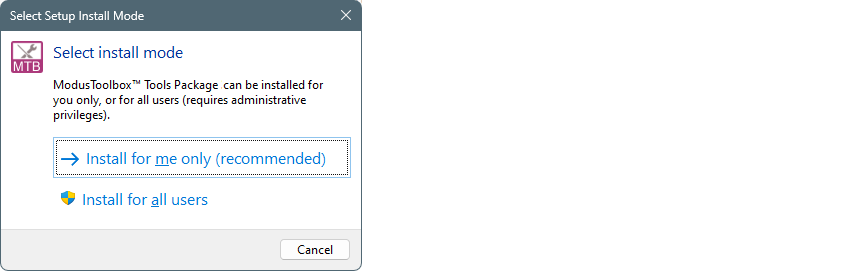
We recommend to install for the current user, but if you need to install for all users, then Admin permission will be required. Follow the instructions in this section to proceed.
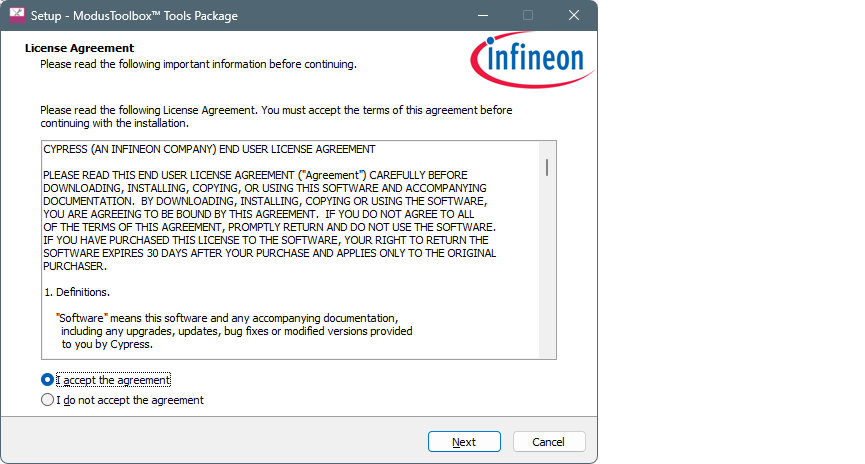
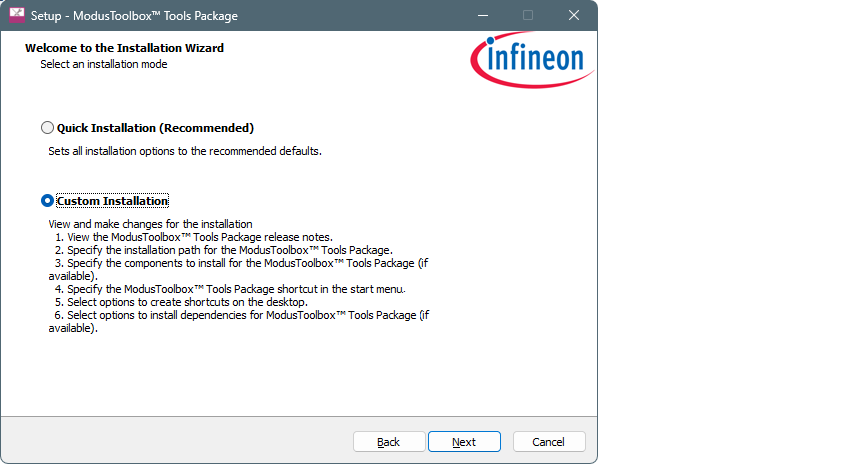
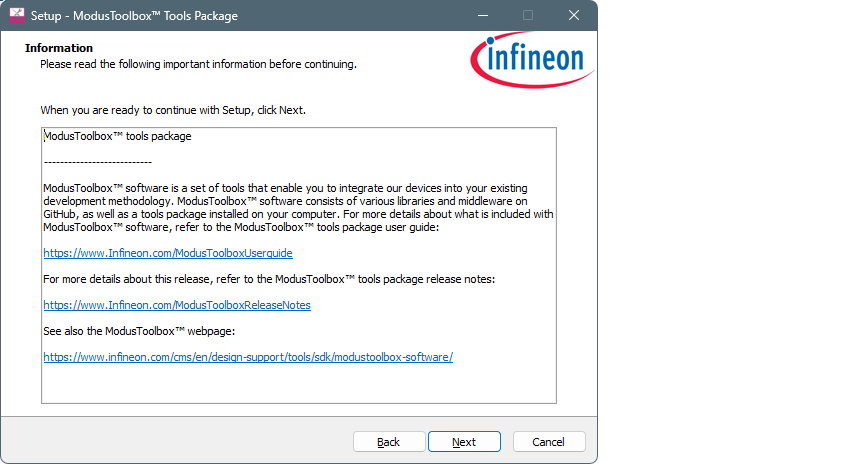
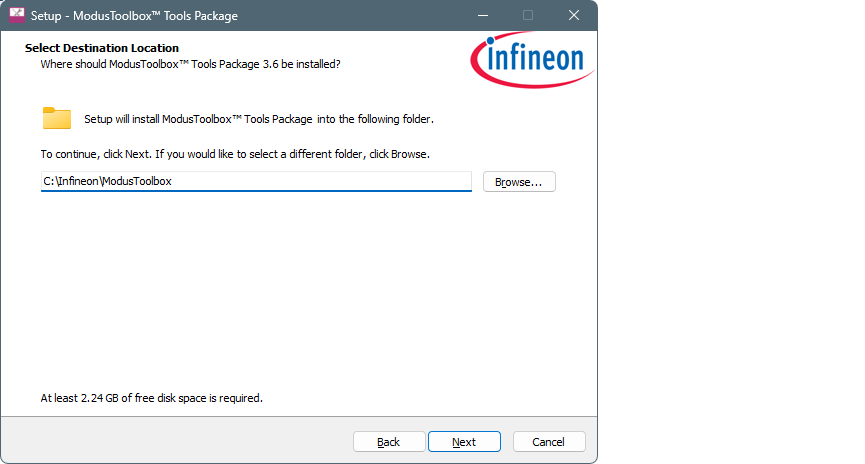
Specify a path that does not include spaces. For example: C:\Infineon\ModusToolbox
Any path without spaces or illegal characters will work. The same is true if you install for all users in a non-default user home directory.
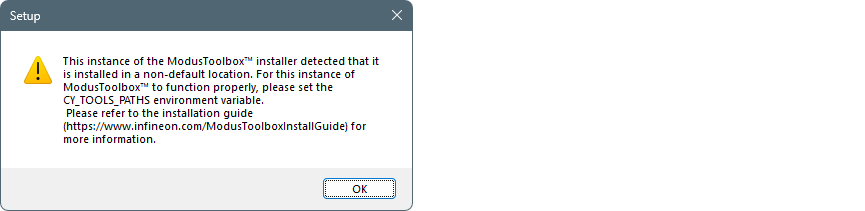
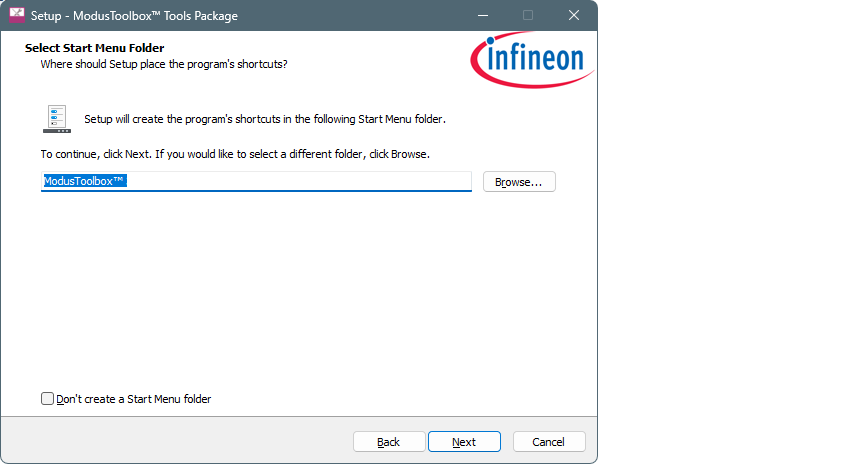
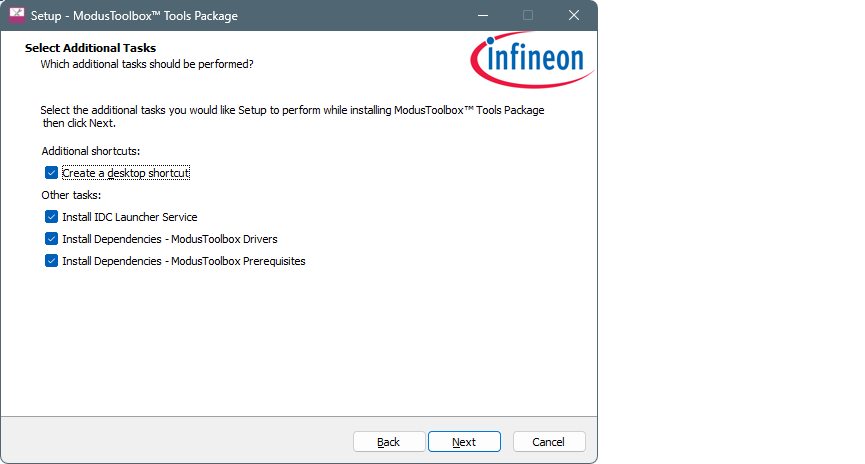
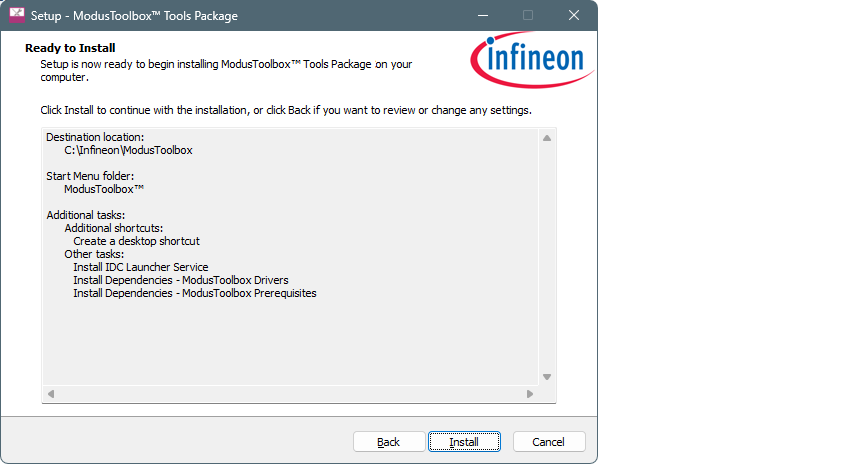
Review the settings and click Install to begin the installation, or click Back to go back to previous pages to make changes.
After installation is complete, review and follow the instructions in the following subsections as applicable.
Create directories
When installing in a non-default location, you should create a couple directories. You can choose any path as long as it doesn’t contain spaces.
- Create a hidden "dot" directory named ".modustoolbox" for variable
locations described later in this section. For example:
C:\MyPath\.modustoolbox
- Also, create a directory to store your workspaces. For example:
C:\MyPath\mtb-projects
Create variable to specify the path to Tools
Because you are installing ModusToolbox™ into a non-default location, you need to specify the path to your "tools" directory using an Environment Variable. Open the Environment Variables dialog, and create a new System or User Variable, depending on your installation type (current user or all users). For example:
CY_TOOLS_PATHS = C:/MyPath/ModusToolbox/tools_[version]Create variable to specify the global path
You also need to specify the global path using an Environment Variable. Open the Environment Variables dialog, and create a new System or User Variable, depending on your installation type (current user or all users). For example:
CY_GETLIBS_GLOBAL_PATH = C:/MyPath/.modustoolbox/globalSpecify the custom path to use for Local Content Storage
If you use Local Content Storage (LCS) to enable work without access to the Internet, set this variable to specify where the content will be stored. For example:
MTB_LOCAL_CONTENT_PATH = C:/MyPath/.modustoolbox/lcs