This section covers the ways to get started using Keil µVision with ModusToolbox™ software.
Create/export ModusToolbox™ application
Create new application
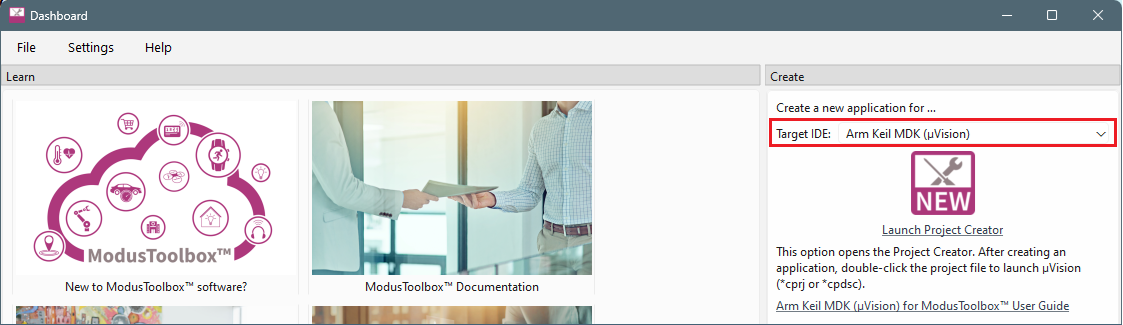
- Use the Dashboard to open the Project Creator tool and create a
ModusToolbox™ application for Keil µVision. Refer to the Dashboard user guide for more details for
this tool.
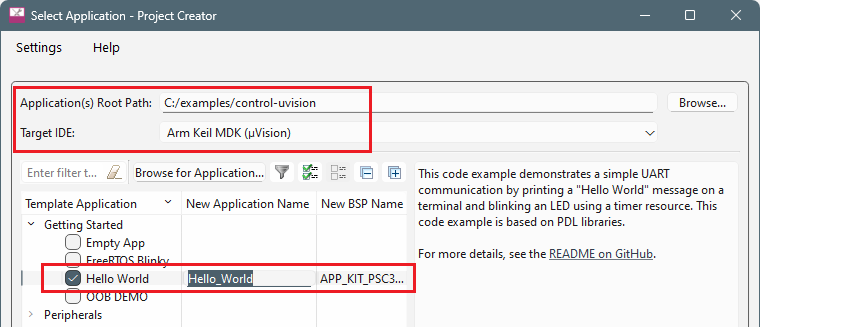
- In the Project Creator tool, make sure to select the
Application(s) Root Path and that the Target
IDE is set to Arm Keil MDK (µVision), in addition to choosing the
Template Application. Refer to the Project Creator user guide for more details.
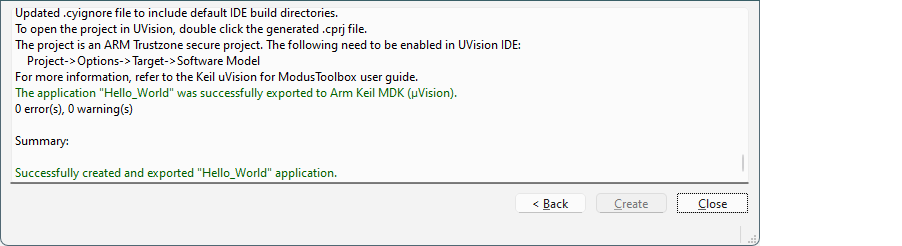
- After the project creation process completes, check the messages in
the console.
- Close the Project Creator and the Dashboard. Proceed to the section in this document for your device family.
Export existing application
make uvision CY_IDE_PRJNAME=[project-name] TOOLCHAIN=ARMmake uvision5 command instead.This sets the TOOLCHAIN to ARM in the
Keil µVision configuration files but not in the ModusToolbox™
application's Makefile. Therefore, builds inside Keil µVision will use the ARM
toolchain, while builds in the ModusToolbox™ environment will continue to use the
toolchain that was previously specified in the Makefile. You can edit the Makefile's
TOOLCHAIN variable if you also want ModusToolbox™
builds to use the ARM toolchain.
Check the output log for instructions.
Postbuild script
CY_COMPILER_ARM_DIR environment variable. For
example:CY_COMPILER_ARM_DIR=C:/Keil_v5/ARM/ARMCLANGUse forward slashes (even on Windows) because of UNIX/Linux path rules.
Create Keil µVision project(s)
Creating or exporting the application generates a *.cprj file in the application/project directory. The cprj file extension should have the association enabled to open it in Keil µVision.
- Double-click the *.cprj file. This launches the
Keil µVision IDE.The first time you do this, a dialog similar to the following displays:
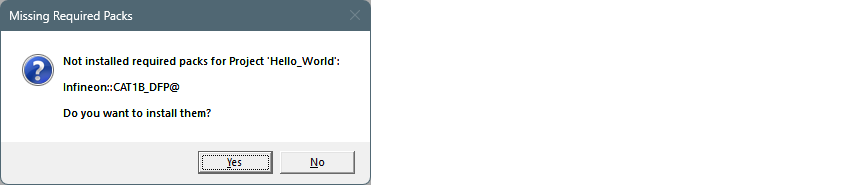
- Click Yes to install the device
pack. You only need to do this once per device type.
- Follow the steps in the Pack Installer to properly install the device
pack.
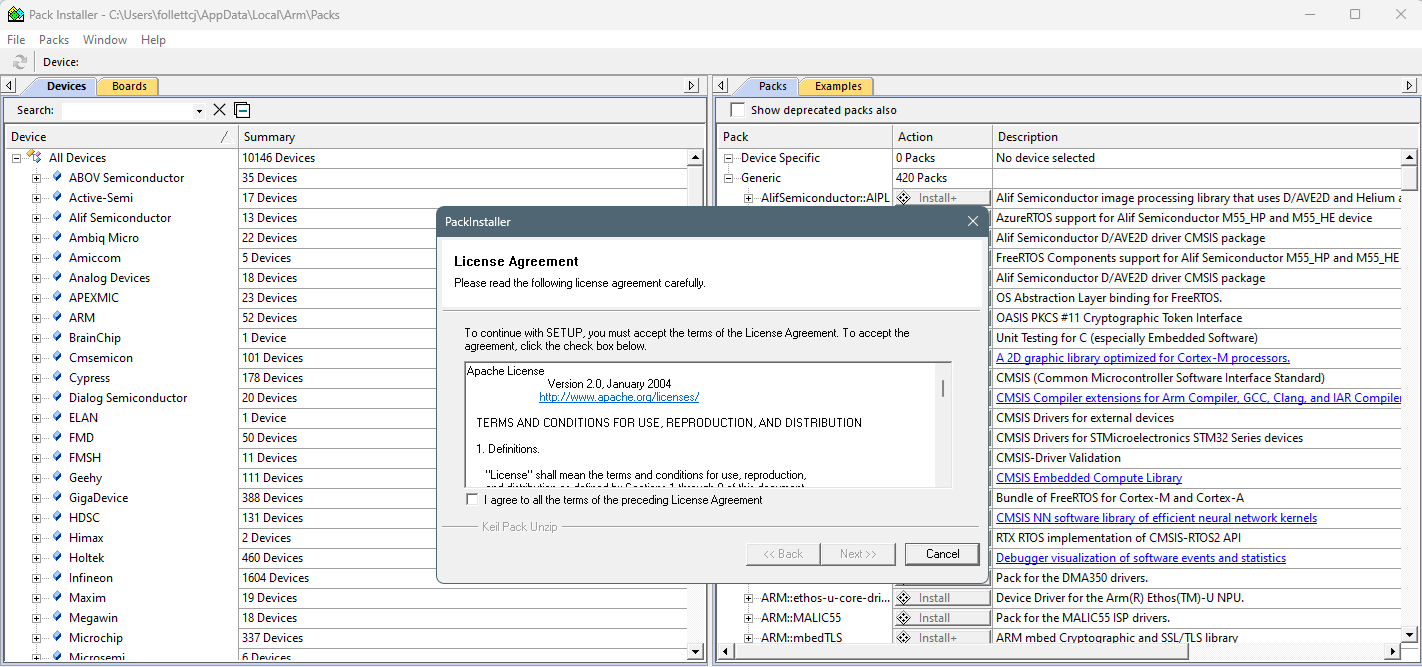 Note:In some cases, you may see the following error message:
SSL caching disabled in Windows Internet settings. Switched to offline mode.
See this link for how to solve this problem: https://developer.arm.com/documentation/ka002253/latest
- When complete, close the Pack Installer and the application will be
created for you in the IDE.
- If you're working with a multi-core or multi-project application, a cprj file is created in each sub-project directory. Double-click the *.cprj file in each folder (for example, PSOC™ Edge: cm33s, cm33ns, and cm55, XMC7xxx: cm0p, cm7_0, and cm7_1).