After opening or creating a BSP, the GUI shows various settings. The following sections provide details about editing these settings.
Making changes
When you make a change within the BSP Assistant, such as device information, libraries, defines, etc., the Save button becomes active to submit the change. You must save these types of changes before making changes to configuration data, because configuration changes happen in separate tools.
When you make a change that involves configuration data (CAPSENSE™, QSPI, etc.), you save those changes in that particular tool. The BSP Assistant automatically incorporates those changes without needing to use Save.
You can use the Undo <action> menu to revert any change. If that change was saved (either manually or automatically), you must click Save to submit the undo. The same is true for Redo <action>.
BSP Sections
There are various BSP sections to edit and view different parts of the current BSP's information.
Devices

MCU/SOC/SIP
The MCU/SOC/SIP pull-down menu contains all of the central devices that are compatible with the chip architecture of the current BSP. You can also search for such devices by typing into the field. If you change MCU/SOC/SIP significantly, a warning will indicate that you should run the Device Configurator and fix any errors displayed there. Refer to the Device Configurator user guide for more details about that tool.
The MCU/SOC/SIP can be changed to any device within the same chip architecture. If you want a device in a different chip architecture, you must create a new BSP.
Connectivity module
The values displayed in the Connectivity module field depend on the selected MCU/SOC/SIP.
- If the MCU/SOC/SIP has built-in connectivity, this field will be greyed out. Information from the database specifying the built-in connectivity hardware will be displayed.
- Otherwise, this pull-down menu will contain the value "None", a list of all connectivity modules compatible with the central device, and the value "Custom..."
The connectivity module can be set to "None," any module that is supported for the selected MCU/SOC/SIP, or "Custom." In the case of "Custom," you must then specify the exact connectivity device that you are using and you must manually supply the required Bluetooth® and/or Wi-Fi firmware files for your device and hardware in your BSP or application. If you choose a supported module, the appropriate files will be automatically provided.
Connectivity device
The Connectivity device pull-down menu will display as follows:
- If the module is "None," then this menu will be empty and greyed out.
- If the module is set to a specific module, then this menu will be greyed out but will have the name of the connectivity device in the module.
- If the module is "Custom...," then this menu will contain a list of all connectivity devices compatible with the central device.
Other settings
The remaining rows in the Devices section are options that are specific to the MCU/SOC/SIP and connectivity selections that you have made. These are used to select the settings required to get the desired behavior of the devices.
For PSOC™ 6 only, there is a "CM0+ pre-build firmware image" setting used for
single-core applications. If the current BSP is for a PSOC™ 6 multi-core application,
the Makefile uses a DISABLE_COMPONENTS option to disable the default
CM0+ image, and therefore overrides this setting.
Configurations
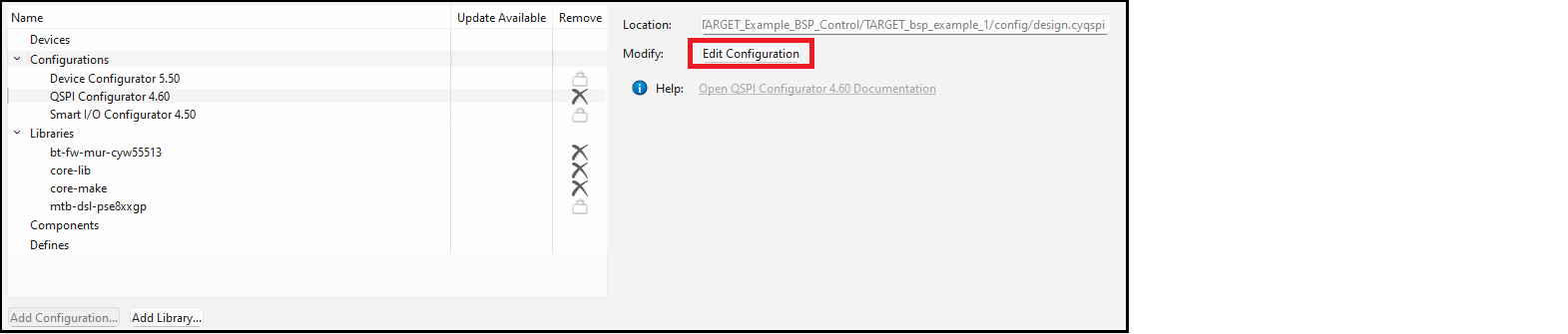
The Configurations section allows you to edit, remove, or add BSP configuration settings for the selected MCU/SOC/SIP and connectivity device. The list on the left shows all configurators that currently have files in the BSP. The Location field on the right shows the path to the selected configuration file.
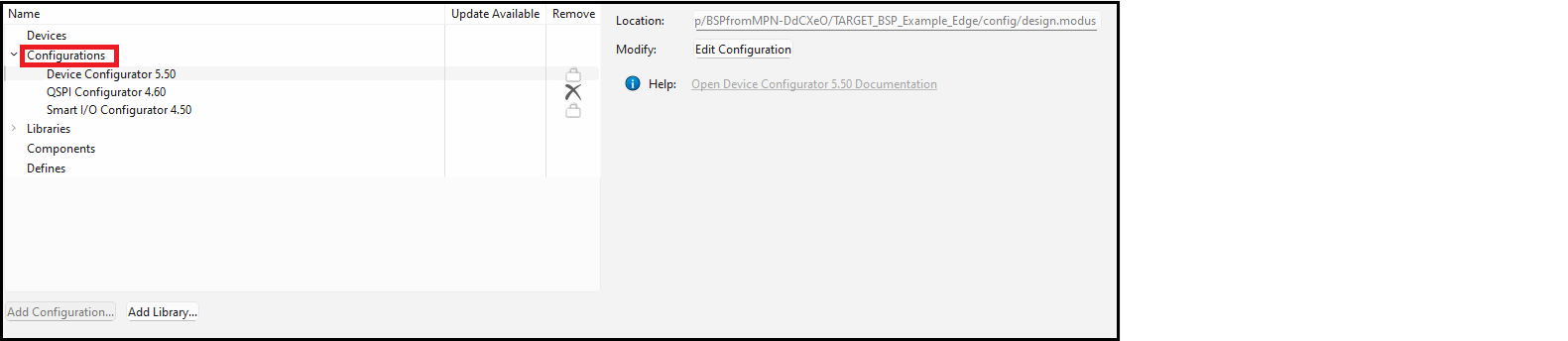
Add configuration
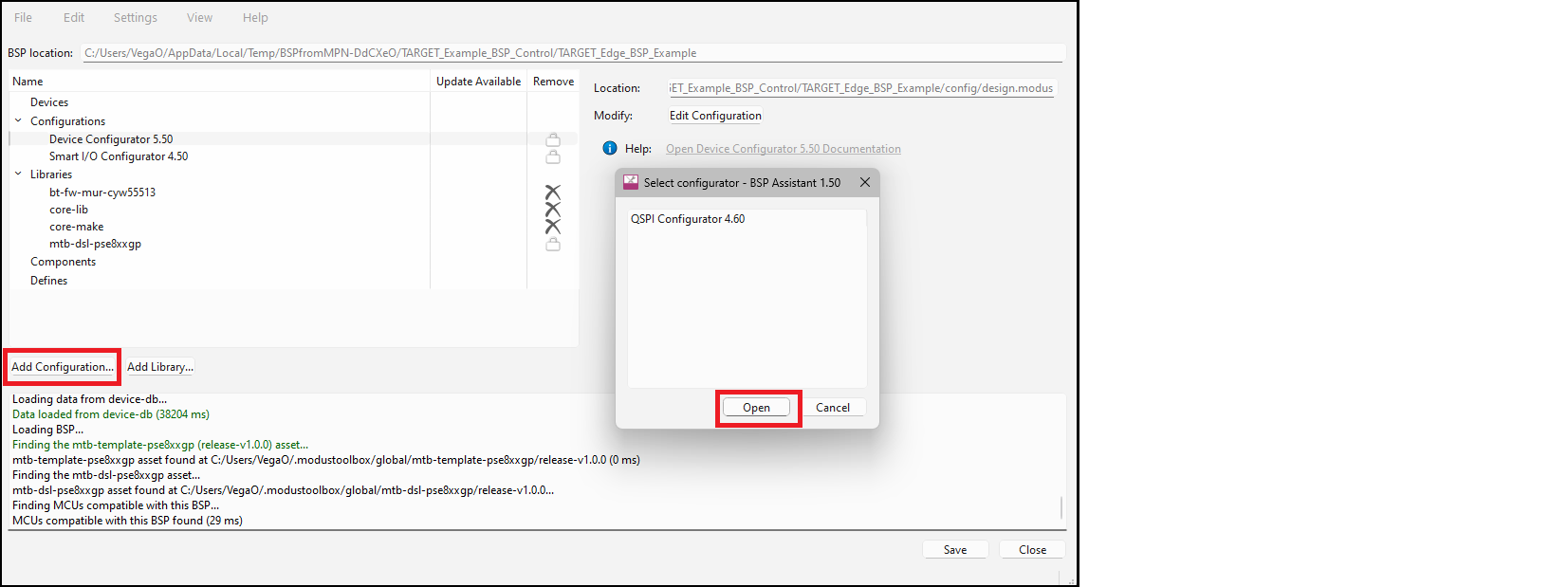
Select the desired configurator from the list and click Open. This will open the applicable configurator.
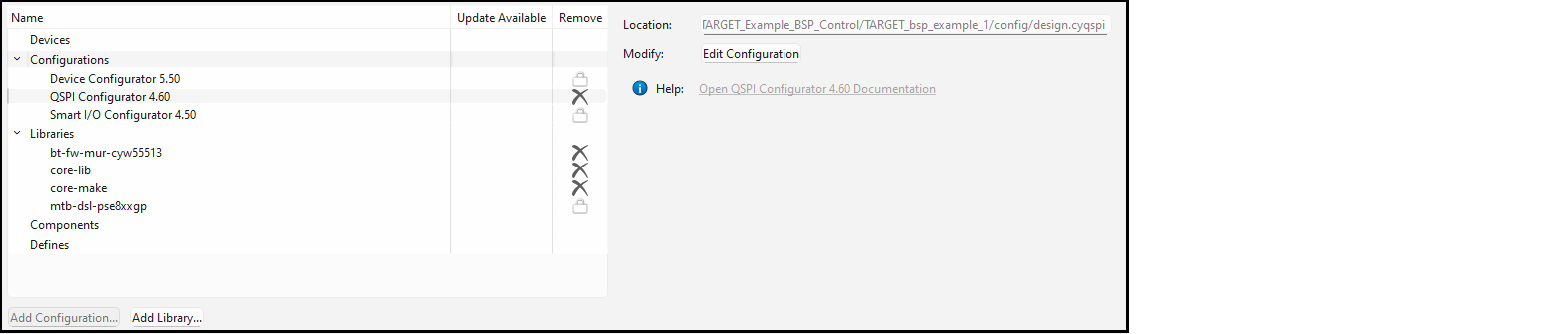
Remove configuration
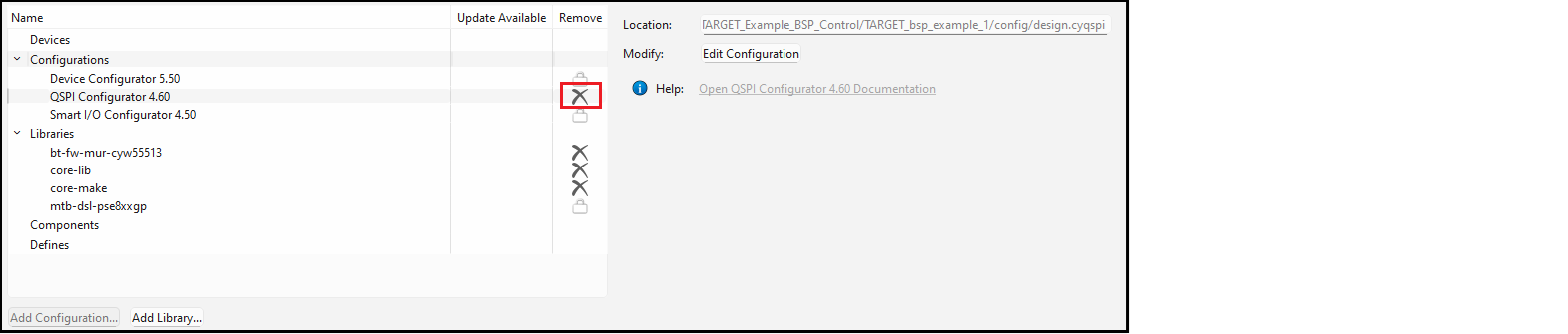
Edit configuration
Libraries
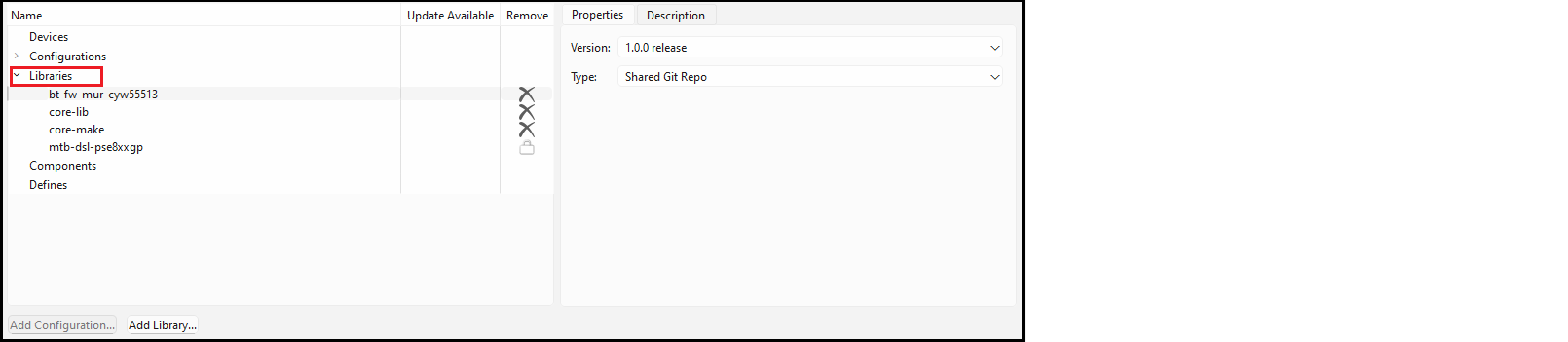
When you add additional Libraries, the default is "Latest V.X release" where "V" is the major version number. This means that those libraries will be set to the latest versions when the BSP is used to create an application. If you want fixed versions in the BSP, you can use the drop-down to select the release version that you require.
If you modify the libraries in a BSP, any application(s) that use the BSP
must be updated to include those libraries. This can be done by running the Library
Manager and clicking Update or by running
make getlibs from the application's root directory on
the command line.
You can remove a library, change a library from shared to local, and select a different version.
- To remove a library, click the X icon, if applicable. Some have a lock symbol and cannot be removed.
- To add libraries, click the Add Library… button to open the Add Libraries dialog.
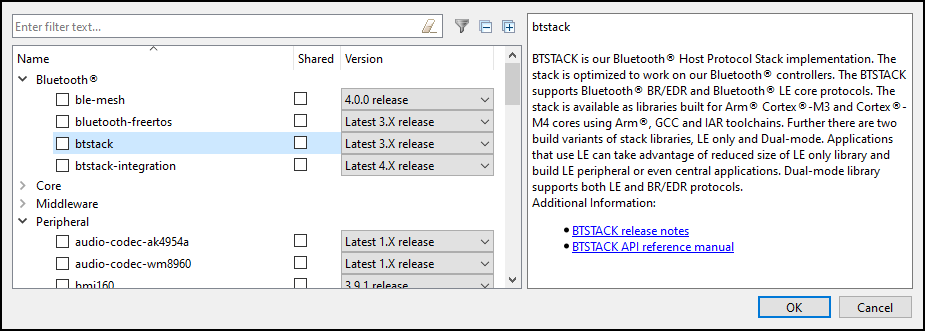
- Enable the Filter
 button to show only the libraries that are already included in the BSP.
 - Use the plus and minus buttons to expand or collapse all categories.
Components
COMPONENTS variable in the bsp.mk
file. 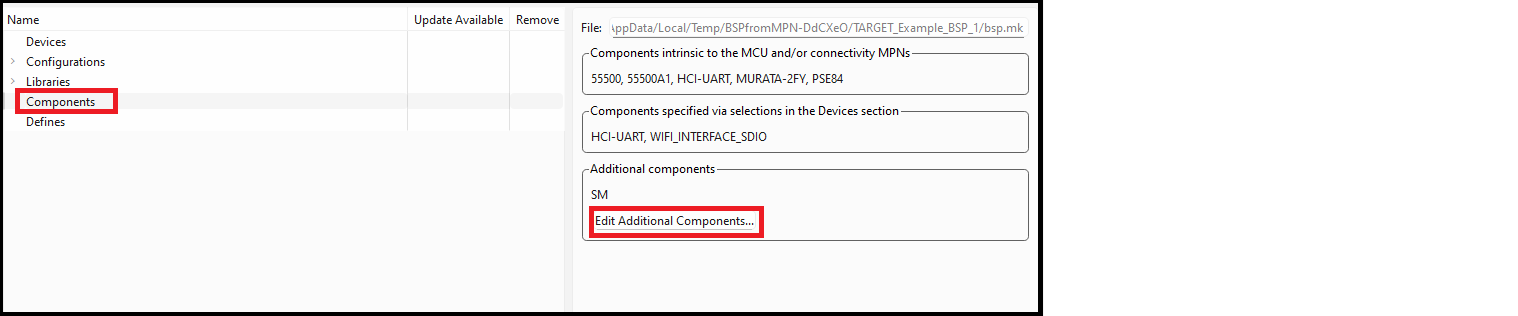
There are three sections: components that are required by the devices that your BSP contains, components that are required based on option selections from the Devices section, and any additional component values. The first two sets are set based on the devices section, so they cannot be modified in the Components section.
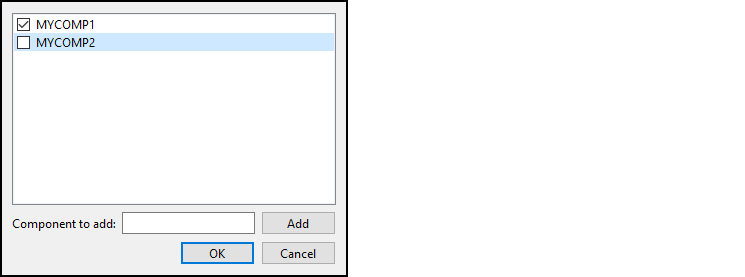
Type the name of a component to add in the box and click Add to add it to the list. Deselect the box next to any existing components to remove them. Click OK when you are done making changes.
Defines
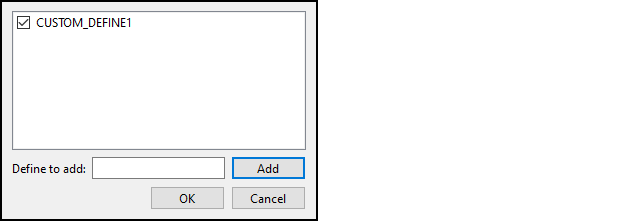
DEFINES variable in the bsp.mk file. 
Viewing changed files
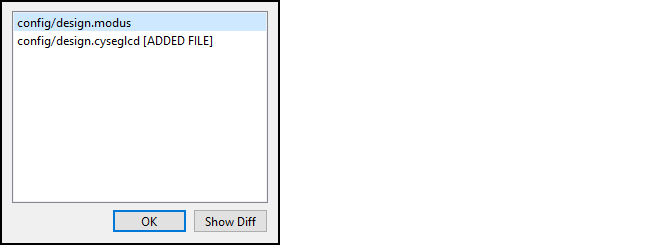
Show Diff
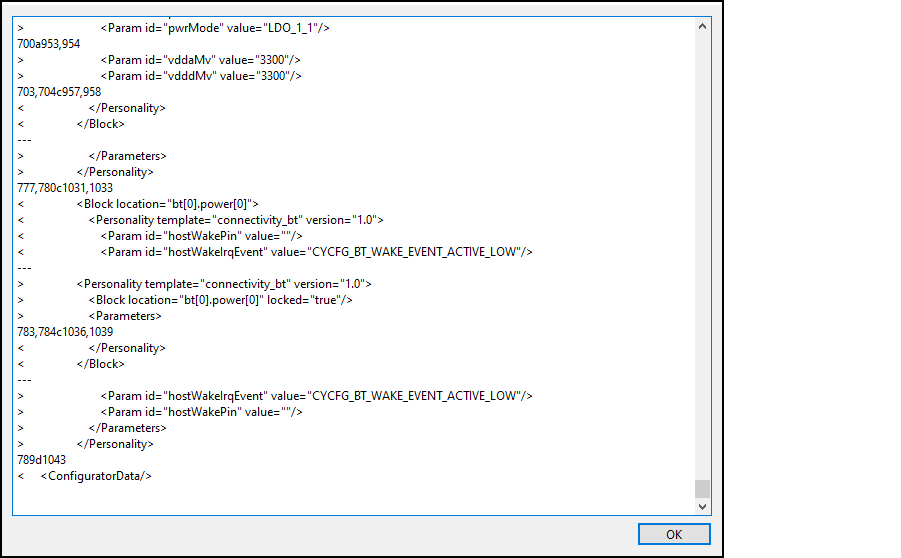
This dialog shows the output of the "diff" command, comparing the file as it existed when the BSP Assistant opened the BSP to the file as it exists now. Deleted lines include the "<" character while added lines include the ">" character.
Updating launch settings
If you are using an IDE, you may need to regenerate the launch settings to reflect the new
BSP. Use the appropriate command(s) for the IDE(s) that are being used. For example:
make vscode for VS Code or click the Generate
Launches… link in the Quick Panel for Eclipse. This step must be done
whenever the target device is changed since the launch settings may change from device to
device.