
Setting up a transient analysis

To set up a transient analysis, only the duration of the analysis has to be specified. Optionally additional settings can be made.

Before you begin

Set up the simulation as described in Setting up a simulation.

About this task

Set up a transient analysis when you want to analyze the state of a device in rest.

Procedure

  1. In the Analyses tab of the Simulation Environment view, check Transient if it is not already checked.


    You can check additional analyses (such as OP or DC). If you do so, an additional Waveform Viewer window will open for each analysis when the simulation is run.
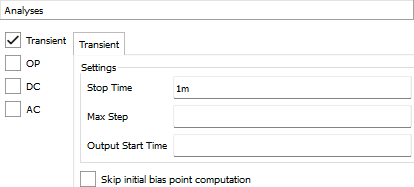
  2. In the Stop Time field of the Transient tab, specify how much time should be simulated.

    For information on the number format, see Values and expressions.

  3. Optionally, specify the maximum step size as an interval (for example, 5u).

    The step size of the simulation is dynamically determined during the simulation; steps may have different sizes. By specifying a maximum step size, you ensure that no individual step is larger than this interval.

    Shorter maximum step sizes increase the resolution of the simulation but also the running time and the size of the result files.

  4. Optionally, specify a starting time for the result data in the Output Start Time field.

    This does not influence the start of the simulation (which always starts a 0 s), but the simulation results will only be displayed and saved to disk after this point. This is useful, for example, if you are interested in the behavior of the device only after the settling time.

Results

The transient analysis is now set up, and you can run the simulation as described in Running a simulation. Evaluating the simulation results is described in Evaluating simulations.
Last updated on