No additional setup is necessary for an operating point analysis. If desired, additional in time can be specified.

Before you begin

Set up the simulation as described in

Setting up a simulation

.

About this task

Set up a operating point analysis .

Note that a transient analysis automatically performs an operating point analysis at 0 s.

Procedure

  1. In the

    Analyses

    tab of the

    Simulation Environment

    view, check

    OP

    if it is not already checked.


    You can check additional analyses (such as DC or AC). If you do so, an additional Waveform Viewer window will open for each analysis when the simulation is run.
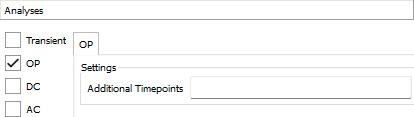
  2. Optionally, specify additional points in time at which an operating system is performed.

    InfineonSpice

    always performs an operating point analysis at 0 s. You can specify additional points in time.

    Specify each point as an interval from 0 s, in the number format described in

    Values and expressions

    . Separate individual numbers with spaces.

    For example, to specify operating point analyses at 0.1 s and 2 s, enter

    100m 2

    .

Results

The operating point analysis is now set up, and you can run the simulation as described in Running a simulation . Evaluating the simulation results is described in Evaluating simulations .