The Print Preview window, shows how the printout of a schematic will look and lets you adjust output parameters.
The window is opened by choosing in a schematic-editing view.
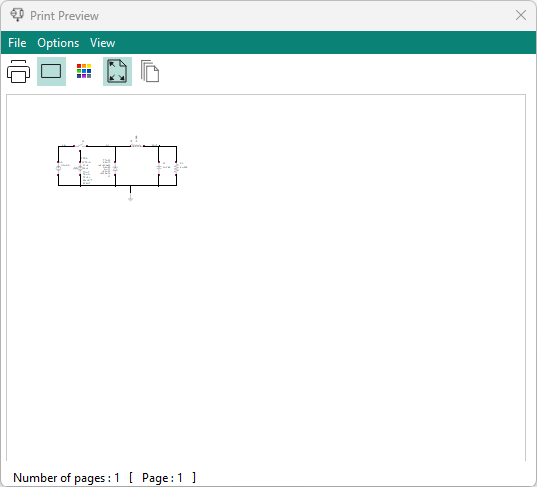
Menus
The three menus in the Print Preview window let you access the same commands as the toolbar, in addition to the Close command.
- File
-
-
Opens the Windows print dialog, where you can print the schematic with the current settings from this window.
For details about the dialog, see the documentation for Windows and for your printer.
- Close
-
Closes the Print Preview window without printing anything.
- Options
-
- Frame
-
Lets you toggle a frame that is printed around the schematic.
- Colors
-
Opens the Colors dialog in which you can specify in which colors to print the foreground (that is, the elements of the schematic) and the background.
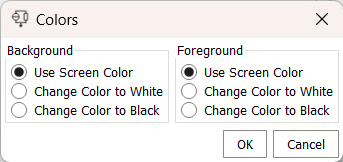
If you choose Use Screen Color, elements are printed in the same colors in which they are displayed in the schematic editing tab.
- View
-
- Fit to Page
-
Toggles the resizing of the schematic printout between the schematic’s original size and a reduced size that fits on one printer page.
If the schematic in its original size is smaller than a printer page, it is not resized.
- All Pages
-
Toggles the dialog between displaying one page and all pages of the schematic printout.
Toolbar
The toolbar of the Print Preview window lets you access the same commands as the menus, except for the Close command.
-

-
Opens the Windows print dialog, where you can print the schematic with the current settings from this window.
For details about the dialog, see the documentation for Windows and for your printer.
-

-
Lets you toggle a frame that is printed around the schematic.
-

-
Opens the Colors dialog which is described in the Colors command, above.
-

-
Toggles the resizing of the schematic printout between the schematic’s original size and a reduced size that fits on one printer page.
If the schematic in its original size is smaller than a printer page, it is not resized.
-

-
Toggles the dialog between displaying one page and all pages of the schematic printout.
Status bar
The status bar at the bottom of the window displays the number of printed pages the schematic will require using the current settings, and it displays the number of the currently shown page.