The File menu provides the usual options for managing documents and closing the application.
The File menu is a dynamic menu, that is, only commands that apply in the current situation are shown in the menu. See the descriptions of the individual commands for information on when they are available.
- New
-
This submenu contains commands for creating new documents of various types:
- New Project
-
Choosing this command opens the New Project dialog, in which you can specify the name of the new project.
Clicking OK in that dialog creates the new project, which appears as a folder in the Workspace view.
- New Schematic
-
Choosing this command opens the New Schematic dialog, in which you can specify the name of the new schematic.
Clicking OK in that dialog creates the new schematic, which appears as a document in the current project in the Workspace view and is opened in the work area.
This command can only be chosen when a project is selected in the Workspace view.
- New Library
-
Choosing this command opens the New Library dialog, in which you can specify the name of the new library.
Clicking OK in that dialog creates the new library, which appears as a document in the current project in the Workspace view and is opened in the work area.
This command can only be chosen when a project is selected in the Workspace view.
- New Symbol
-
Choosing this command opens the New Symbol dialog, in which you can specify the name of the new symbol.
Clicking OK in that dialog creates the new symbol, which appears as a document in the current project in the Workspace view and is opened in the work area.
This command can only be chosen when a project is selected in the Workspace view.
- New Local Component
-
Choosing this command opens the New Device dialog, in which you can specify the name of the new component.
Clicking OK in that dialog creates the new component, which appears as a document in the current project in the Workspace view and is opened in the work area.
This command can only be chosen when a project is selected in the Workspace view.
- Import Project
-
Choosing this command lets you import projects that do not yet appear in your InfineonSpice workspace.
Choosing the command opens the Import Project dialog, in which you can import previously exported InfineonSpice projects. For details, see Import Project dialog.
The imported project appears as a folder in the Workspace view.
- Check and Save
-
Choosing this command verifies the formal correctness of the active schematic and saves it.
If any issues are found during the verification, they are written to the Output view.
This command is only active when the active tab in the work area contains a schematic.
- Save
-
Choosing this command saves the changes that have been made in the active view, for example, Simulation Environment.
This command is only available if the active view contains changes that can be saved.
- Save As
-
The Save As command works the same as Save but lets you specify a new name for the saved document.
- Print Preview
-
Choosing this command opens the Print Preview window in which you can specify various aspects of how the currently active schematic is printed.
This command is available only if the active tab is a schematic editor.
-
Choosing this command opens the operating system's Print dialog. For details on this dialog, see the operating system documentation.
Clicking Print in the dialog prints the schematic according to the settings made in the Print Preview window.
This command is available only if the active tab is a schematic editor.
- Export as SVG
-
Choosing this command opens the Export as SVG dialog.
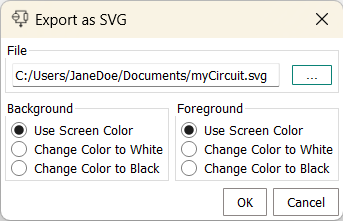
The dialog has three areas:- File
-
Enter here the path and name under which you want to save the SVG version of the schematic.
Clicking the … button opens an operating system dialog in which you can choose a directory and specify the name.
- Background
-
You can choose the background color for the exported SVG graphic. You can specify that the same color as on screen, white, or black are to be used.
- Foreground
-
You can choose the color for the schematic elements in the exported SVG graphic. You can specify that the same colors as on screen, white, or black are to be used.
This command is available only if the active tab is a schematic editor.
- Save All
-
Choosing this command saves all changes in open views as if the Save command had been used for each of them.
- Exit
-
Closes InfineonSpice.
If any documents contain unsaved changes, you are prompted to save them.