In this dialog, you can configure the key combinations that trigger various functions of InfineonSpice.
The dialog is opened by choosing .
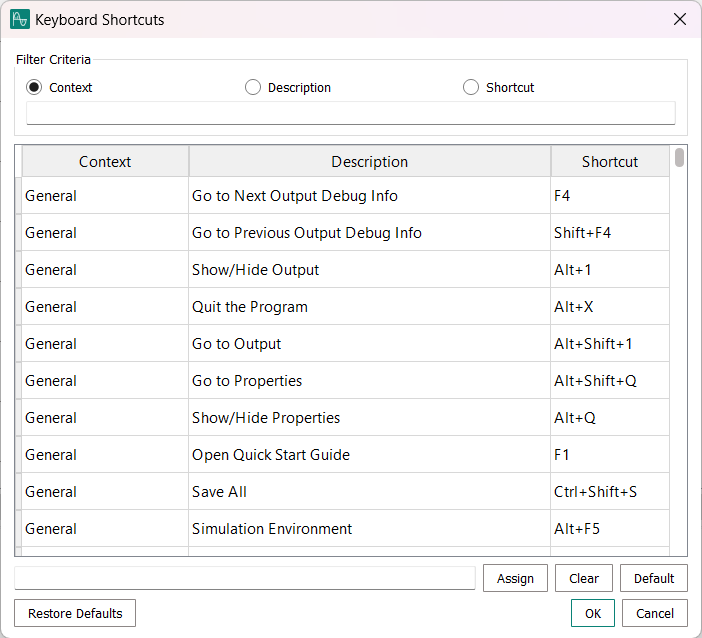
- Filter Criteria
-
The Context, Description, and Shortcut options specify one of the columns of the table.
When you enter text into the text field in the lower half of this section, only shortcuts that contain this text in the specified column are displayed in the table. All other shortcuts are hidden.
- Main table
-
The main table in the dialog displays all available actions to which keyboard shortcuts can be assigned in three columns:
- Context
-
The part of the application in which the action can be used.
- Description
-
A brief explanation of what the action does.
- Shortcut
-
The key combination assigned to the action, if any. If this field is empty, no key combination is currently assigned.
- Text field below the table
-
This field lets you specify the shortcut for the action selected in the table.
To enter a shortcut, click in the field and press the desired keys together.
- Assign
-
Assigns the key combination specified in the text field to the selected action.
- Clear
-
Removes the key combination from the selected action.
- Default
-
Assigns the default key combination to the selected action.
- Restore Defaults
-
Assigns the default key combinations to all actions.
Note that the defaults are also assigned to actions that are not currently displayed in the table.
- OK
-
Closes the dialog and sets the shortcuts of all actions to the key combination configured in the dialog.
- Cancel
-
Closes the dialog without changing any key combinations.