Right-click on a project icon,  which is in the
vertical list, and you will get a menu with the following commands from which you
can choose:
which is in the
vertical list, and you will get a menu with the following commands from which you
can choose:
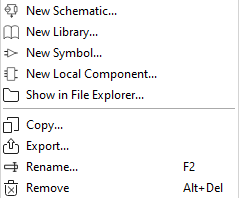
- New Schematic
-
Create a new schematic in the work area by right clicking on the project and select New Schematic
- New Library
-
Create a new library in the work area by right clicking on the project and select New Library
- New Symbol
-
Create a new symbol in the work area by right clicking on the project and select New Symbol
- New Local Component
-
You can only create a new component when one Library file containing one model is included.
- Show in File Explorer
- By right-clicking on the schematic, you can locate the directory to which the schematic is saved.
- Copy
- You can copy the project and choose the location to which it should be copied. If you do not give it a new name, it will rename itself by adding a digit to the original name.
- Export
-
You can export/save the project and choose the location to which it should be exported. If you do not give it a new name, it will rename itself by adding a digit to the original name.
When you click Export, a window opens with several options. The name of the folder appears on the top left, in this example it shows Export which is the name of the command, Project is the starting point of where you selected this command. Collection is the name of your project.
Within this folder, you will have a number of components and symbols, for example, that you potentially want to export.
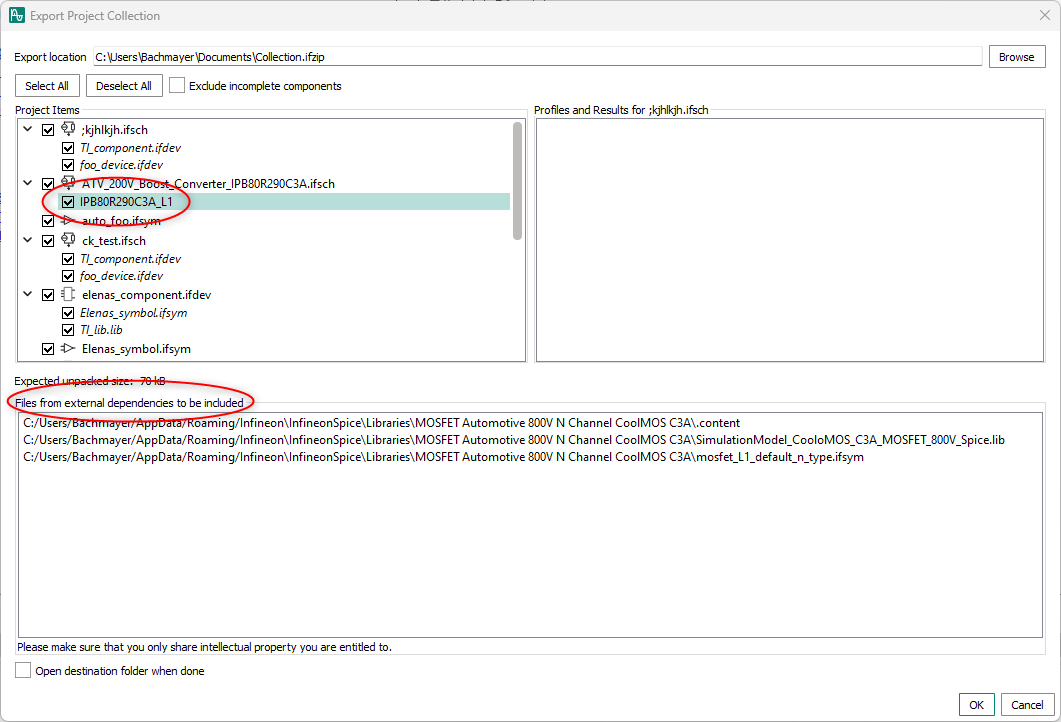
Within the window, you give your Export location of your choice. You can Browse for the location of your choice. Secondly, you may Select All or Deselect All or only mark the boxes of the selection of your choice, manually. You have the option also to Exclude incomplete components by checking the box. The window contains Project Items, Profiles and Results for <Name of schematic>.
The Expected unpacked size: xx kB is shown.
A window List of files from external dependencies that will be included: shows all external files that are dependent on your export. In this event, be aware that these files cannot be edited.
Bottommost on the left hand side, you are reminded not to share intellectual property that you are not entitled to. Underneath this statement, you have the choice to Open destination folder when done by checking the box. Click OK to proceed or Cancel to abort.
- Rename
- You can rename a file.
- Remove
- Delete the file from view.