The Properties dialog lets you view and modify properties of components in a schematic.
The dialog is opened by selecting the desired component in a schematic and choosing .
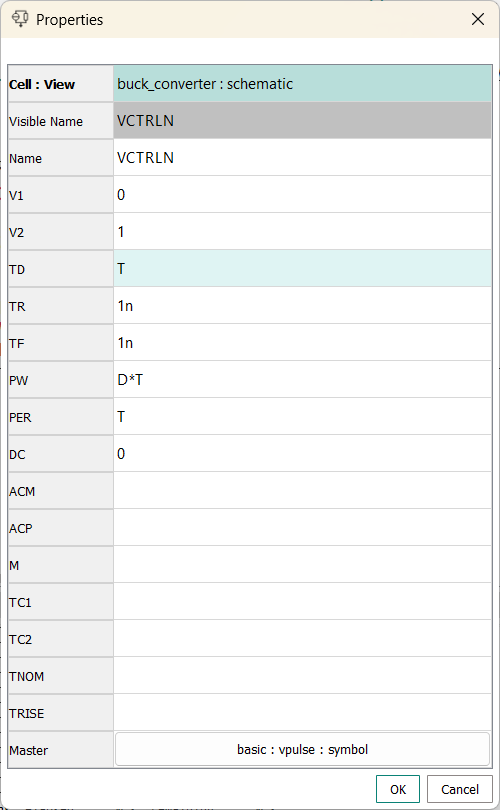
The dialog contains a column with cell names along the left side and one column showing the associated values.
You can select cells by clicking them. You can edit white (but not light or dark gray) cells by double-clicking them.
Buttons
- OK
-
Applies the changes made in the dialog to the selected components and closes the dialog.
- Cancel
-
Asks you whether you want to save any changes you have made before closing the dialog.