The Place menu of a symbol tab lets you put graphic elements into a symbol.
(For information on the Place menu in schematic tabs, see Place menu (schematics tab).)
Choosing a command from the menu selects the corresponding graphic tool with which you can draw the desired shape in the symbol view. Drawing tools stay selected until you choose a different tool or press the Escape key.
The Pin, Arrow, Subst. Field, and Text commands work in a similar way but first open a dialog in which you can configure the element to be placed.
- Select
-
Switches to the select tool, which lets you select elements in the symbol graphic.
- Pin
-
Lets you place grounds in the schematic.
Choose a different command from the Place menu or press the Escape key to stop placing grounds.
- Line
-
Lets you place resistors in the schematic using a symbol that is common in the EU.
Choose a different command from the Place menu or press the Escape key to stop placing grounds.
- Ellipse
-
Lets you place grounds in the schematic using a symbol that is common in the US.
Choose a different command from the Place menu or press the Escape key to stop placing grounds.
- Rectangle
-
Lets you place capacitors in the schematic.
Choose a different command from the Place menu or press the Escape key to stop placing grounds.
- Arc
-
Lets you place inductors in the schematic.
Choose a different command from the Place menu or press the Escape key to stop placing grounds.
- Polyline
-
Lets you place DC current sources in the schematic.
Choose a different command from the Place menu or press the Escape key to stop placing grounds.
- Polygon
-
Lets you place DC voltage sources in the schematic.
Choose a different command from the Place menu or press the Escape key to stop placing grounds.
- Chord
-
Lets you place diodes in the schematic.
Choose a different command from the Place menu or press the Escape key to stop placing grounds.
- Pie
-
Lets you place narrow wires in the schematic.
Choose a different command from the Place menu or press the Escape key to stop placing grounds.
- Arrow
-
Lets you place wide wires in the schematic.
Choose a different command from the Place menu or press the Escape key to stop placing grounds.
- Subst. Field
-
Lets you name wires in the schematic.
Choosing the command opens the Wire Name dialog:
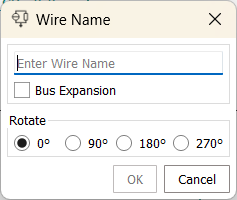
- Enter Wire Name
-
The name that you want to give the wire.
- Bus Expansion
-
- Rotate
-
The orientation of the text in the schematic graphic.
- OK
-
Clicking OK closes the dialog and turns the mouse pointer into a representation of the wire name. Clicking a wire applies the name to it.
Choose a different command from the Place menu or press the Escape key to stop naming wires.
- Cancel
-
Clicking Cancel closes the dialog and chooses the select tool (as if you had chosen Select from the Place menu).
- Text
-
Lets you place solder dots in the schematic.
Choose a different command from the Place menu or press the Escape key to stop placing solder dots.
- Selection Box
-
Lets you place lines in the schematic. Click once for placing the start of the line, and click again to place the end.
Choose a different command from the Place menu or press the Escape key to stop placing lines.