The Options menu lets you configure the look and operation of .InfineonSpice
- Shortcuts
-
Opens the Keyboard Shortcuts dialog in which you can customize the key combinations for triggering InfineonSpice functions.
For details, see Keyboard Shortcuts dialog.
- Display
-
Opens the Display Options dialog, in which you can configure numerous aspects of how you interact with InfineonSpice.
For details, see Display Options dialog.
- Default
-
This submenu contains a command to specify default document settings.
- Schematic Template
-
Opens the Schematic Template dialog, in which you can configure the dimensions of new schematic documents and the frame around the schematic.
This dialog is similar to the Schematic Page Setup dialog, except that it does not include the Apply button. However, any settings you make in the Schematic Template dialog apply to future new schematic documents instead of existing ones.
- Check Rules
-
Opens the Schematic Rules Check dialog, in which you can configure how certain kinds of issues in schematics are handled.
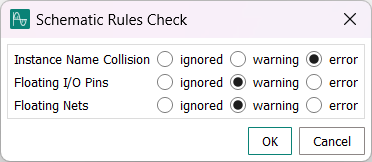
You can configure the handling of three types of issues:
- Instance name collision
-
An instance name collision occurs when multiple components of a schematic have the same name in the schematic. This makes simulating the schematic unreliable or impossible.
- Floating I/O pins
-
Floating I/O pins are input or output pins of a schematic that are not connected to any schematic components.
- Floating nets
-
Floating I/O pins are wires of a schematic that are not connected to any schematic components.
For each issue, you can choose between three different handling options:
- Ignored
-
The issue is not reported. Note that simulation results may be incorrect or misleading when any of these issues are ignored.
- Warning
-
A message about the issue is displayed when the schematic is checked, but you can still start a simulation.
- Error
-
A message about the issue is displayed when the schematic is checked and the simulation is not started.