The Display Options dialog lets you specify numerous aspects of how you interact with InfineonSpice.
The dialog is opened by choosing .
It contains multiple tabs for configuring different parts of the interaction, which are described below.
- Default
-
Sets all options in the current tab to their default settings. Options in other tabs are unaffected.
- OK
-
Closes the dialog and applies the settings that were made.
- Cancel
-
Closes the dialog without applying any settings,
- Apply
-
Applies the settings that were made in the dialog and keeps the dialog open.
Main tab
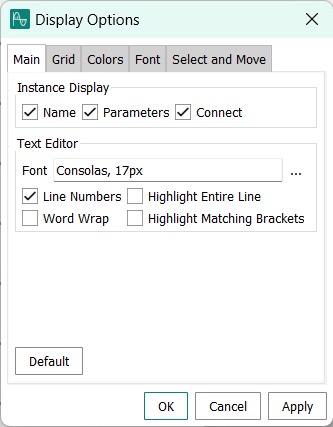
- Instance Display
-
The information that is displayed alongside components in a schematic:
- Name
-
The name of the component instance in the schematic.
- Parameters
-
The parameters that have been set for this instance.
- Connect
-
(Currently under review.)
- Text Editor
-
Settings for the display and behavior of text-editing tabs, such as library tabs.
- Font
-
The font used to display text in text-editing tabs.
Clicking the ellipsis (…) at the right of the section opens a font picker. For details, see Select Font dialog.
- Line Numbers
-
Whether line numbers are displayed in text-editing tabs.
- Word Wrap
-
Whether lines of text wrap around when they reach the edge of the tab or continue beyond the edge (requiring scrolling to see all of such a line).
- Highlight Entire Line
-
Whether clicking in a text-editing tab highlights the entire line.
- Highlight Matching Brackets
-
Whether selecting a bracket or parenthesis of a pair – ( ) { } [ ] – in text-editing tabs highlights the other bracket in the pair.
Grid tab
Settings for the grid to which you can align placed components in a schematic.
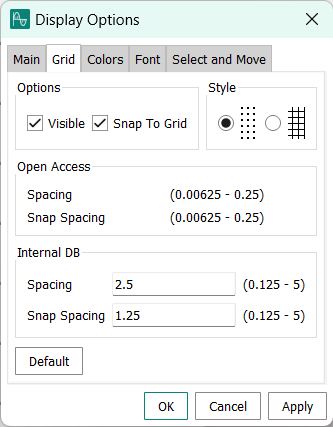
- Options
-
Basic settings for the grid:
- Visible
-
Whether the grid is displayed behind the components in the schematic view.
- Snap to Grid
-
Whether components that are placed or move are automatically aligned with the grid.
- Style
-
The graphical display of the grid.
You can choose between dots (which mark the intersection of the grid lines) or full grid lines.
This setting only makes a difference when the grid is visible.
- Open Access
-
(Currently under review.)
- Internal DB
-
(Currently under review.)
Colors tab
Lets you specify colors for various kinds of elements in schematics.
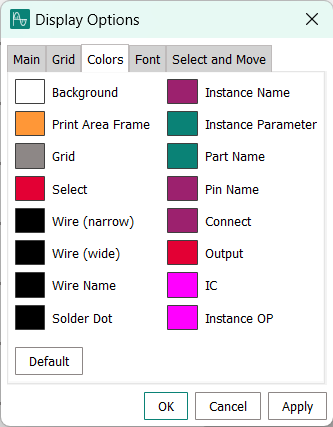
Clicking a swatch opens the Set Net Color dialog, with a modified title to indicate the element the color of which you are setting.
Font tab
Lets you specify the font used to display labels of elements of a schematic.
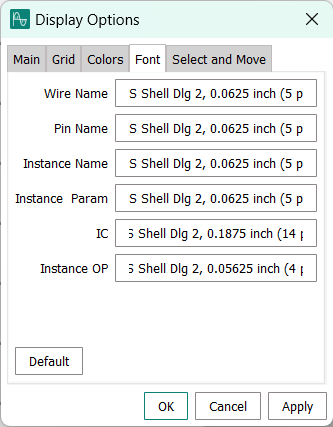
Clicking any of the text fields opens the Font dialog (with the name reflecting the type of label you are configuring):
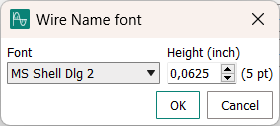
The Font menu lets you select the desired font from the fonts installed on your computer. The Height field lets you set the desired font size.
Clicking OK applies the current setting to the specified component and closes the Font dialog. Clicking Cancel closes the Font dialog without making any changes.
Select and Move
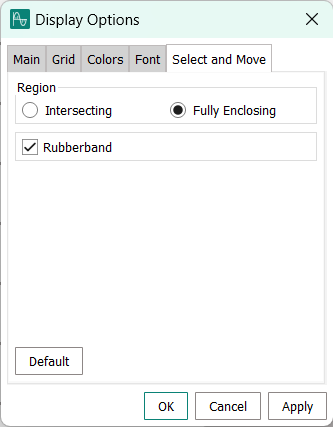
Lets you specify how click-dragging to draw a selection rectangle around elements in schematic or symbol tabs behaves.
- Region
-
Which elements are selected:
- Intersecting
-
An element is selected if any part of it lies inside the selection rectangle.
- Fully Enclosing
-
An element is selected only if it is completely surrounded by the selection rectangle and no part of it lies outside the rectangle.
- Rubberband
-
(Currently under review.)