The Place Text dialog lets you enter, modify, and format text that you want to place in a schematic.
The Place Text dialog is opened by choosing or by clicking the Drawing Text tool ( ) in
the toolbar of a schematic tab.
) in
the toolbar of a schematic tab.
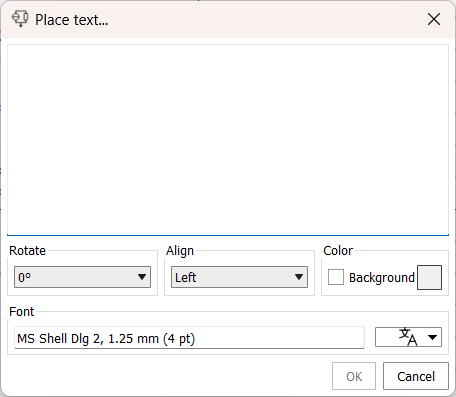
- Text field
-
The text field at the top of the dialog lets you enter and modify the text that you want to add to the schematic.
- Rotate
-
The orientation that the text has in the schematic.
- Align
-
The alignment of the text.
- Color
-
Whether the text has a background.
If Background is checked, the text is displayed on a gray background. Otherwise, a transparent background is used.
- Font
-
The font in which the text is shown in the symbol.
The menu at the right of the dialog section lets you modify the font:- Choose Font
-
Opens the Font dialog:
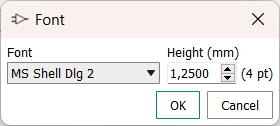
The Font menu lets you select the desired font from the fonts installed on your computer. The Height field lets you set the desired font size.
Clicking OK applies the current setting to the Text Attributes dialog and closes the Font dialog. Clicking Cancel closes the Font dialog without making any changes in the Text Attributes dialog.
- Use Default Font
-
Sets the font information to the default font.
- OK
-
Lets you place the specified text.
- Cancel
-
Closes the dialog and chooses the select tool (as if you had chosen Select from the Place menu).