The Import Project dialog lets you import existing projects into your workspace.
The dialog is opened by choosing .
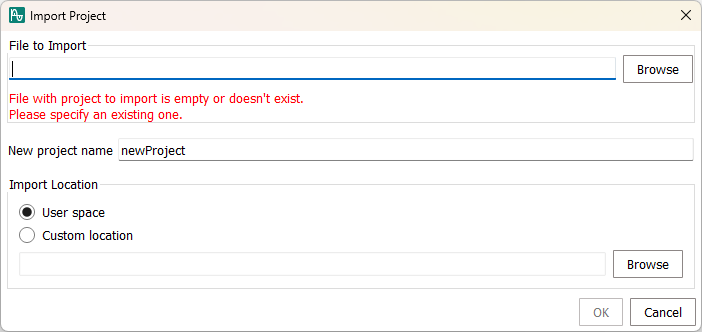
- File to Import
-
The project file that you want to import. You can import any exported InfineonSpice project file (.ifzip file).
You can specify the file to import by entering its full path into the text field. Alternatively, you can click the Browse button to the right, which opens Windows’ file dialog, and choosing the desired file.
- New project name
-
The name that the imported project has in your workspace.
Enter the desired name without any filename extensions.
- Import location
-
The place where you want to store the imported project:
- User space
-
The project is stored in InfineonSpice’s application data folder, in the same location where projects you create in the app are stored.
- Custom location
-
The project is stored in a place you specify.
You can specify the desired directory by entering its full path into the text field. Alternatively, you can click the Browse button to the right, which opens Windows’ file dialog, and choose the desired folder.
The project folder is created inside the specified directory.
- OK
-
Imports the specified project and closes the dialog.
The project appears in the Workspace view. The project folder on disk is created in the location you have specified in Import location.
- Cancel
-
Closes the dialog without importing anything.