The commands in the View menu let you configure which views and toolbars are visible onscreen. You can also enlarge and reduce tab contents.
- Descend Hierarchy
-
Lets you open a component in a new symbol or library tab.
Selecting a component and choosing Descend Hierarchy opens the Descend dialog.
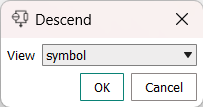
The dialog contains a menu from which you can choose whether you want to view the symbol or the library of the component. Note that no library tab is available for some basic components.
Clicking OK opens the symbol tab or library tab (depending on your choice from the menu) and closes the dialog.
Clicking Cancel closes the dialog without opening a new view.
This command is only available in schematic tabs.
- Zoom In
-
Displays the content of the active editing tab in a larger size.
This command is not available in text views and tabs.
- Zoom Out
-
Displays the content of the active editing tab in a larger size.
This command is not available in text views and tabs.
- Zoom Region
-
Lets you focus the active editing tab on a chosen part of the graphic.
Choosing Zoom Region turns the mouse pointer into a cross-hairs. Selecting a part of the graphic with the mouse zooms in on tha part so that it fills the view.
This command is available only in schematics tabs.
- Zoom All
-
Zooms out in the active editing tab so that the entire graphic is visible.
This command is available only in schematics tabs.
- Reset View Layout
-
Returns all views to their default sizes and positions.
- Workspace
-
Toggles the visibility of the Workspace view.
- Model Libraries
-
Toggles the visibility of the Model Libraries view.
- Simulation Environment
-
Toggles the visibility of the Simulation Environment view.
By default, this view is shown in the same frame as the Properties view as a separate tab.
- Output
-
Toggles the visibility of the Output view.
- Properties
-
Toggles the visibility of the Properties view.
By default, this view is shown in the same frame as the Simulation Environment view as a separate tab.
- Workspace Toolbar
-
Toggles the toolbar of the Workspace view on and off.
- Model Libraries Toolbar
-
Toggles the toolbar of the Model Libraries view on and off.
- Schematic Toolbar
-
Toggles the toolbar of schematics tabs on and off.
Choosing this command affects all open schematics tabs.
- Symbol Toolbar
-
Toggles the toolbar of symbol tabs on and off.
Choosing this command affects all open symbol tabs.
- Status Bar
-
Toggles the status bar in the lower right corner of the InfineonSpice window on and off.