The net color dialog lets you specify a color for a selected wire or net.
The dialog is opened by selecting one or more connected wires and choosing . (If you select multiple unconnected wires, the Net Colors dialog opens instead.)
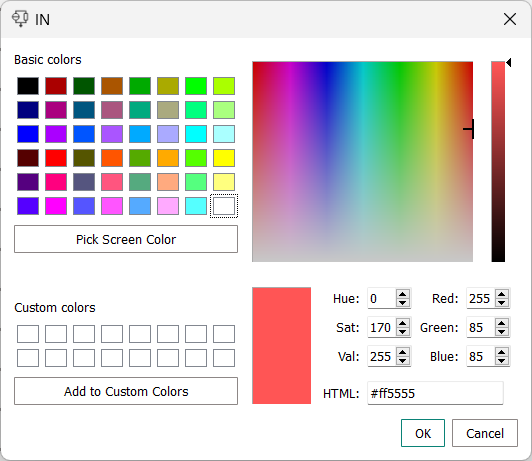
This dialog is, In principle, a standard color picker.
- Basic colors
-
This is a grid of predefined colors. Clicking any color assigns it to the color swatch (see below).
- Pick Screen Color
-
Clicking this button turns the mouse pointer into a cross-hairs. Clicking the mouse anywhere on screen turns the color swatch (see below) into the color at that location.
- Custom colors
-
This grid can be filled with colors you specify yourself. Any color saved as a custom color is thereafter available for assigning to wires in the same way as basic colors.
- Color fields
-
Two color fields are located at the top left of the dialog. Clicking anywhere within these fields turns the color swatch (see below) into the color at that location.
- Color swatch
-
The large rectangular color swatch at the bottom center of the dialog indicates the color that will be assigned to the selected wires by clicking OK.
- Numerical controls
-
The numerical controls at the bottom right of the dialog let you specify the color of the color swatch by its color space coordinates. You can choose between:
-
Hue, saturation brightness: Use the Hue, Sat, and Val fields.
-
RGB: Use the Red, Green, and Blue fields.
-
Web colors: Enter the six-digit hexadecimal number for the color (prefixed with #) into the HTML field.
Changing the color by any of these methods dynamically adapts the values for the other methods.
-
- OK
-
Clicking OK assigns the color displayed in the color swatch to the selected wires and closes the dialog.
- Cancel
-
Clicking Cancel closes the dialog without changing the color of the wires.