The Attributes dialog lets you view and modify properties of elements in a symbol.
The dialog is opened by selecting the desired element in a symbol view and choosing . The command is not available when multiple elements are selected.
-
Pin: Attributes dialog with Pin Attributes tab
- Substitution field: Substitution Field dialog
-
Drawing text: Text Attributes dialog
-
Closed shapes: Attributes dialog with Pen Attributes and Brush Attributes tabs
-
Line shapes: Attributes dialog with Pen Attributes tab
-
Arrows: Attributes dialog with Arrow Attributes, Pen Attributes, and Brush Attributes tabs
Clicking the OK button applies the settings in the dialog to the selected element and closes the dialog. Clicking Cancel closes the dialog without making changes to the element.
Pin Attributes tab
The Pin Attributes tab lets you modify the properties of a pin.
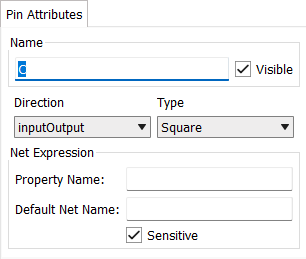
- Name
-
The name of the pin.
- Visible
-
Whether the pin name is visible in the symbol.
- Direction
-
The direction of the pin: input output, or both.
- Type
-
Whether the pin is represented in the symbol by a square or a circle.
- Property Name
-
(Currently under review.)
- Default Net Name
-
The default name for the wires that are connected to the pin.
This information is optional.
- Sensitive
-
(Currently under review.)
Pen Attributes tab
The Pen Attributes tab lets you modify the stroke properties of a closed shape, a line, or an arrow.

- Style
-
Whether the shape has an uninterrupted (solid) stroke or the stroke is composed of dots, dashes, or a combination of the two.
- Width
-
The width of the stroke.
Brush Attributes tab
The Brush Attributes tab lets you modify the fill properties of a closed shape or an arrow.

- Brush Style
-
Whether the selected shape is just an outline (hollow) or filled (solid).
Arrow Attributes tab
The Arrow Attributes tab lets you modify the dimensions of an arrow tip.
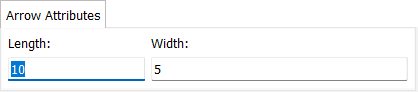
- Length
-
The length of the tip of the arrow. Higher numbers create longer tips.
- Width
-
The width of the tip of the arrow. Higher numbers create tips with wider bases.