Memory tab
The
Memory
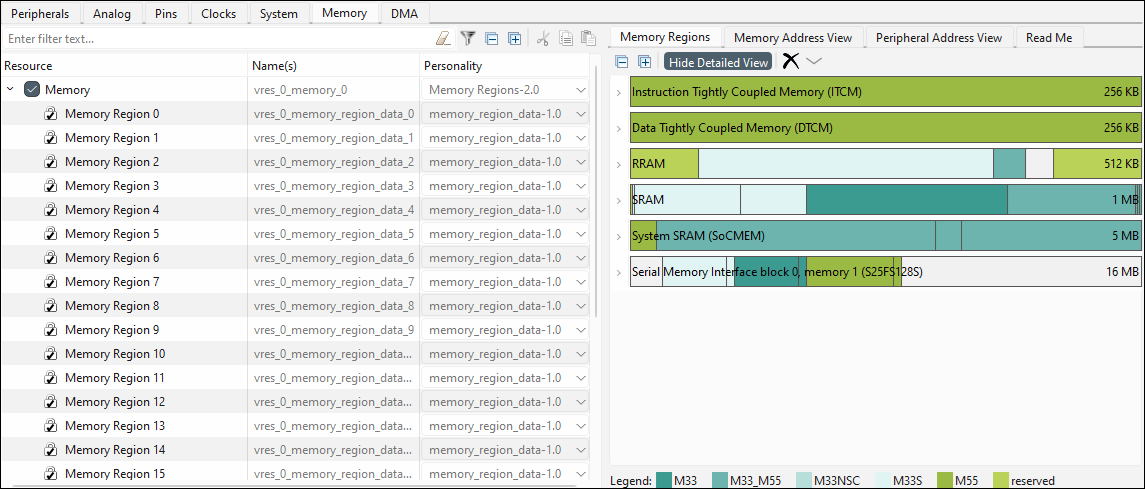
tab becomes visible for supported devices to configure and visualize memory regions for each core in the device. Similar to other tabs, there is a
Resource
section to enable/disable the Memory, as well as the
Protection
section for the Memory Protection Controllers (MPC), Memory Protection Units (MPU), and Security Attribution Units (SAU). This tab allows you to enter one or more
Name(s)
for the resource. It also shows the selected
Personality
where applicable.
The main section of this tab contains various subtabs:
Memory Regions
,
Memory Address View
,
Peripheral Address View
, and
Read Me
Note:
The
Parameters pane
for this tab is similar to other tabs, except this area contains mostly information, as well as a button to launch the QSPI Configurator.
Memory Regions subtab
The
Memory Regions
subtab displays if the Memory resource has been enabled. It consists of a toolbar, table, and legend. The toolbar allows you to expand and collapse the available memory bars in the table area, as well as
Show/Hide Detailed View
of the memories,
Delete All
memory regions, and
Autocorrect All Overlaps
.
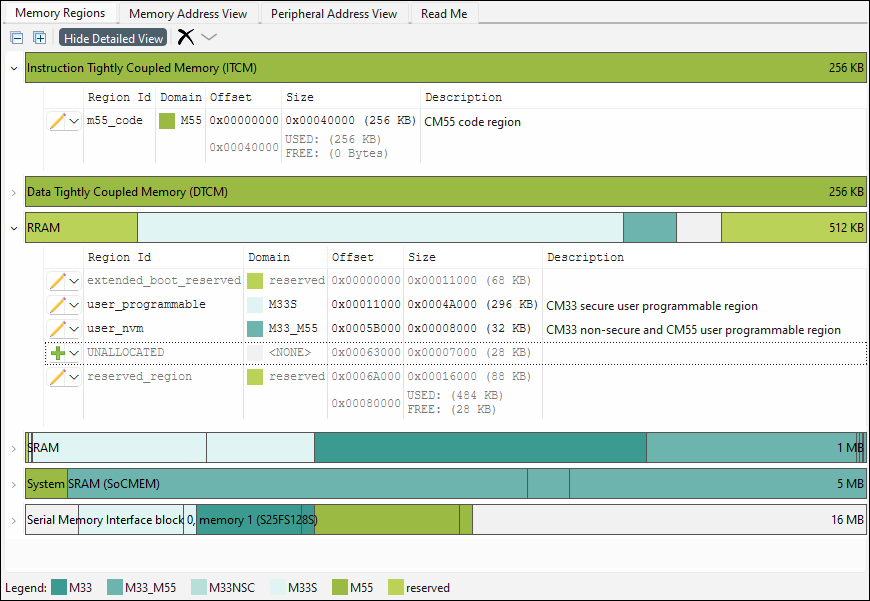
Each memory shows as a usage bar that when expanded displays the details of how it is being used. The bar itself shows the display name of the memory along with its overall size. Hover the cursor over a used section to displays a tooltip that corresponds to the same information provided in the rows under the memory.
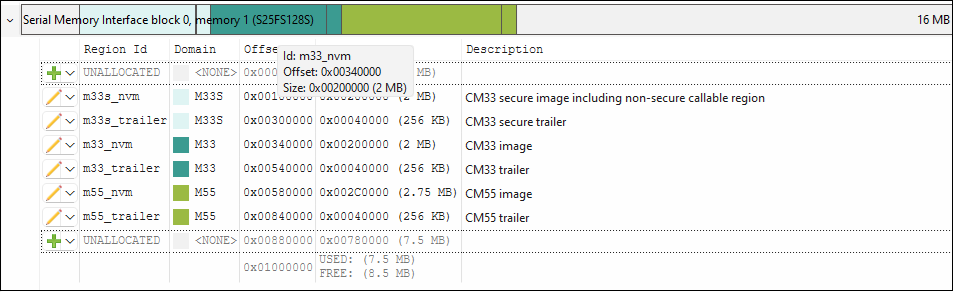
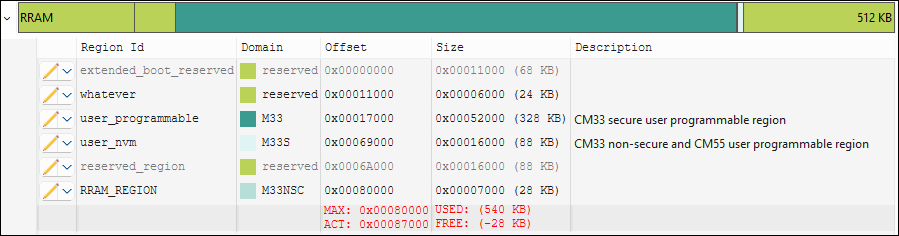
The rows show allocated and unallocated ranges of the memory. The final row shows the end offset of the memory along with a summary of used/free space. If the ending offset is outside the allowed range, the text becomes red and displays the maximum allowed offset along with the currently set offset that is in violation of the max. If more size is allocated then is available, that text will be in red as well.
Show/hide detailed view
Click the
Hide Detailed View
button to toggle it off and on to show/hide detailed address maps. If any of the addresses do not apply (that is, the core that uses that map is not selected), the values will be stricken out.
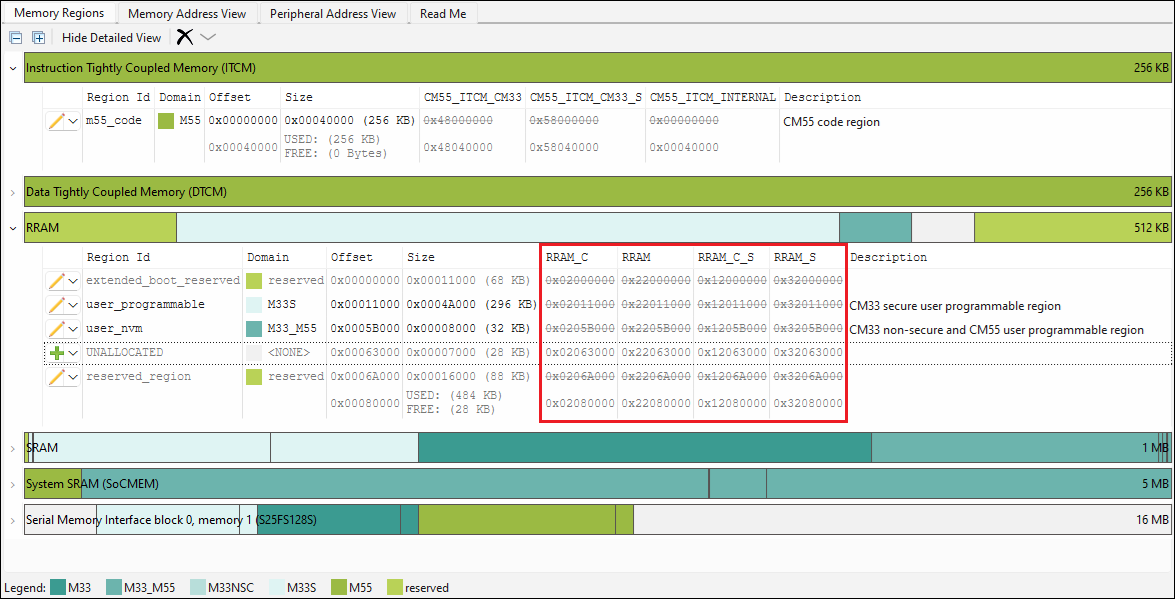
Add/edit memory allocations
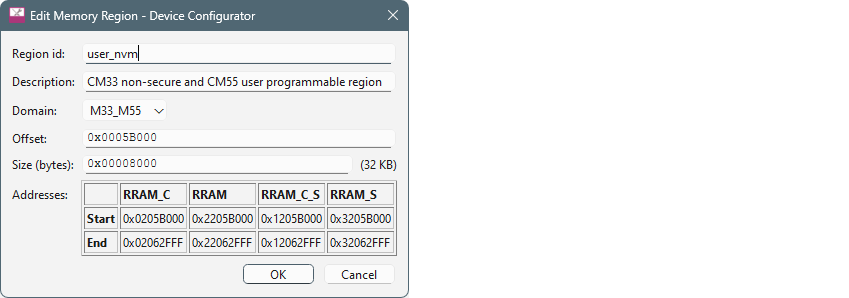
To edit allocations, double-click an allocated row to open Edit Memory Region dialog.
To add an allocation, double-click an unallocated row to open the Add New Memory Region dialog.
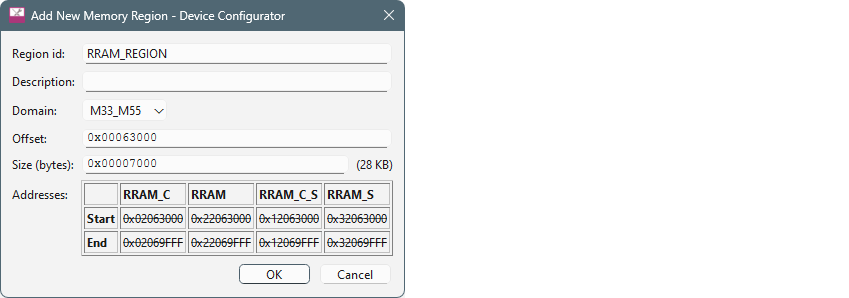
Once the dialog is open, enter values:
As needed, type the name of the
Region id
.
Select a
Domain
from the pull-down menu.
Enter the
Offset
and
Size
.
The
Size
entry allows for hex or decimal entry. It also accepts specifying units, which will always be converted to bytes. Units are case insensitive and can be entered as follows:
bytes or b = byte
kb or k = kilobyte (1 KB = 1,024 Bytes)
mb or m = megabyte (1 MB = 1024KB = 1,048,576 Bytes)
gb or g = gigabyte (1 GB = 1024MB = 1,048,576 KB = 1,073,741,824 Bytes)
tb or t = terabyte (1 TB = 1024 GB = 1,048,576 MB = 8,388,608 KB = 1,099,511,627,776 Bytes)
pb or p = petabyte (1 PB = 1024 TB = 1,048,576 GB = 1,073,741,824 MB = 1,099,511,627,776 KB = 1,125,899,906,842,624 Bytes)
eb or e = exabyte (1 EB = 1024 PB = 1,048,576 TB = 1,073,741,824 GB = 1,099,511,627,776 MB = 1,125,899,906,842,624 KB = 1,152,921,504,606,846,976 Bytes)
zb or z = zettabyte (1 ZB = 1024 EB = 1,048,576 PB = 1,073,741,824 TB = 1,099,511,627,776 GB = 1,125,899,906,842,624 MB = 1,152,921,504,606,846,976 KB = 1,180,591,620,717,411,303,424 Bytes)
yb or y = yottabyte (1 YB = 1024 ZB = 1,048,576 EB = 1,073,741,824 PB = 1,099,511,627,776 TB = 1,125,899,906,842,624 GB = 1,152,921,504,606,846,976 MB = 1,180,591,620,717,411,303,424 KB = 1,208,925,819,614,629,174,706,176 Bytes)
If there are obvious errors, the dialog will not allow you to click
OK
. There may also be an error message.
You can also open the dialog using the drop-down button at the beginning of a row or right-clicking on a row. Unallocated regions will start with an
Add region
option while allocated regions will have the
Edit region
option. Both options launch the same edit dialog.
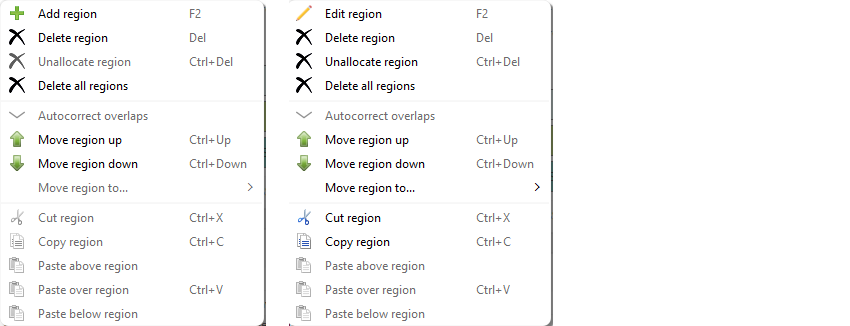
If you prefer, use the keyboard shortcuts defined on the menus.
Rearrange memory regions
On the context menu, there are various options to move regions, as well as cut, copy, and paste regions.
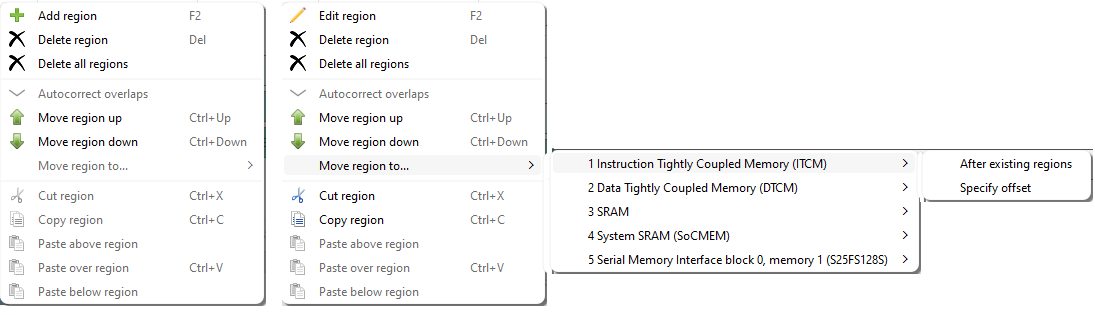
When moving a region, there are two options:
After existing regions
and
Specify offset
.
When you select
Specify offset
, this dialog displays to enter the offset.

Use the Legend
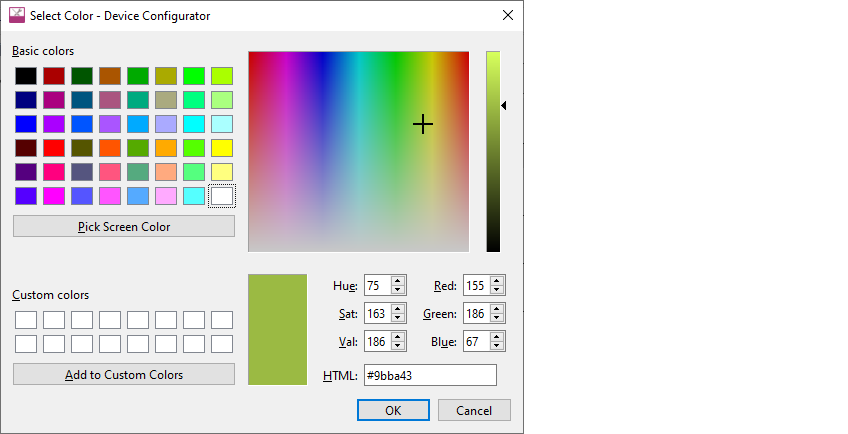
The legend shows you the color for each core. You can change the color associated with a used combination of cores. Just click on any of the colors in the legend to open the color picker.
How to find out which region the main goes in from the main ld
Code that doesn't have an explicit section name goes in .text (or .text.function_name when using -ffunction-sections). Search for .text in the linker script or search the .map file for the function name.
How to read the build output and associate it with the regions defined in the tool
For each project in an application, “make build” will display a summary of the output sections:
Memory region             Used Size  Region Size  %age Used
 m55_data_INTERNAL:         3796 B        256 KB      1.45%
 m55_code_INTERNAL:        12024 B        256 KB      4.59%
        user_nvm_C:            0 GB        32 KB      0.00%
           m55_nvm:        24900 B       2816 KB      0.86%
       m55_trailer:            0 GB       256 KB      0.00%
m55_code_secondary:            0 GB       256 KB      0.00%
m55_data_secondary:         2800 KB      2800 KB    100.00%
    m33_m55_shared:          256 KB       256 KB    100.00%

           gfx_mem:            0 GB      1808 KB      0.00%

          m33_data:            0 GB       256 KB      0.00%

m33s_allocatable_shared:       0 GB         4 KB      0.00%

m33_allocatable_shared:        0 GB         4 KB      0.00%

m55_allocatable_shared:     1088 B          4 KB     26.56%
The “.map” file generated by the linker contains details about which input sections the linker placed into each output section. To find the memory region corresponding to each output section, search for the memory region that contains the section's address.
Example of “.map” file from GNU ld:
.appText_1      0x60580400     0x1f70
...
.text.main     0x6058094c       0x14 build/APP_KIT_PSE84_EVAL/Debug/main.o
               0x6058094c                main
.text.Cy_PDL_Init
               0x60580960        0xc build/APP_KIT_PSE84_EVAL/.../cy_device.o
               0x60580960                Cy_PDL_Init
.appText_1 is the output section name. It is followed by the output section start address (0x60580400) and the output section total size (0x1f70).
.text.main is the input section name. It is followed by its address (0x6058094c) and size (0x14).
Initialized data in volatile memory also consumes space in a non-volatile memory.
.data 0x20000000 0x24 load address 0x60582658
The .data section consumes 0x24 bytes at both its writable address 0x20000000 and its non-volatile address 0x60582658.
How to define a new region for some data buffer variable
For uninitialized data:
In the memory tab, add a new region named “CUSTOM_DATA” in a writable memory such as SRAM.
In the linker script, add a section for the region:
GNU ld or LLVM lld
.custom_data :
{
    *(.custom_data*)
} >CUSTOM_DATA
armlink
LOAD_CUSTOM_DATA CYMEM_CM55_0_CUSTOM_DATA_START CYMEM_CM55_0_CUSTOM_DATA_SIZE
{
    EXEC_CUSTOM_DATA CYMEM_CM55_0_CUSTOM_DATA_START UNINIT CYMEM_CM55_0_CUSTOM_DATA_SIZE
    {
        *(.custom_data*)
    }
}
ilinkarm
do not initialize { section .custom_data* }
place in CUSTOM_DATA { section .custom_data* }
In the source code, assign the variable to the section (GCC, armclang, or iccarm)
__attribute__((section ".custom_data"))
uint32_t data_buffer[DATA_BUFFER_COUNT];
For data in volatile memory
For data in volatile memory that requires run-time initialization, the linker script must configure a non-volatile location to initialize the data. For this example, create a region named “CUSTOM_CODE” in a non-volatile memory.
GNU ld or LLVM lld
.custom_data :
{
    *(.custom_data*)
} >CUSTOM_DATA AT>CUSTOM_CODE

.copy.table :
{
    /* ... */
    LONG(LOADADDR(.custom_data))
    LONG(ADDR(.custom_data))
    LONG(SIZEOF(.custom_data)/4)
    /* ... */
}
Note:
If ADDR(.custom_data) is read-only, the .copy.table entry must use a writable address.
armlink
LOAD_CUSTOM_CODE CYMEM_CM55_0_CUSTOM_CODE_START CYMEM_CM55_0_CUSTOM_CODE_SIZE
(
    EXEC_CUSTOM_DATA CYMEM_CM55_0_CUSTOM_DATA_START CYMEM_CM55_0_CUSTOM_DATA_SIZE
    (
        *(.custom_data*)
    )
)
ilinkarm
initialize by copy { section .custom_data* }
place in CUSTOM_DATA { rw section .custom_data* }
place in CUSTOM_CODE { ro section .custom_data* }
How to define a new region for the code and then assign code to the
particular region
In the memory tab, add a new region named “CUSTOM_CODE” in a non-volatile memory such as RRAM.
In the linker script, add a section for the region:
GNU ld or LLVM lld
a.	.custom_code :
{
    *(.custom_code*)
} >CUSTOM_CODE
armlink
LOAD_CUSTOM_CODE CYMEM_CM55_0_CUSTOM_CODE_START CYMEM_CM55_0_CUSTOM_CODE_SIZE
{
    EXEC_CUSTOM_CODE +0
    {
        *(.custom_code*)
    }
}
ilinkarm
place in CUSTOM_CODE { section .custom_code* }In the source code, assign the variable to the section (GCC, armclang, or iccarm)
__attribute__((section ".custom_code"))
void custom_code_function1(void);
How to assign a function or variable into a custom memory section
Variables and functions may be assigned to a section using the section attribute. The linker script must assign the section to an output section.
__attribute__((section ".custom_data"))
uint32_t data_buffer[DATA_BUFFER_COUNT];

__attribute__((section ".custom_code"))
void custom_code_function1(void);
How to modify the linker to include a specific file into a custom memory section
GNU ld or LLVM lld
.custom_code :
{
    main.o(.text* .rodata*)
} >CUSTOM_CODE
.custom_data :
{
    main.o(.data*)
    main.o(.bss*)
} >CUSTOM_DATA AT>CUSTOM_CODE
Note:
The toolchain does not automatically initialize data. Sections that require initialization must be added to the .zero.table and/or .copy .table manually.
armlink
LOAD_CUSTOM_CODE CYMEM_CM55_0_CUSTOM_CODE_START CYMEM_CM55_0_CUSTOM_CODE_SIZE
{
    EXEC_CUSTOM_CODE +0
    {
        main.o(+RO)
    }
    EXEC_CUSTOM_DATA CYMEM_CM55_0_CUSTOM_DATA_START CYMEM_CM55_0_CUSTOM_DATA_SIZE
    {
        main.o(+RW,+ZI)
    }
}
ilinkarm
place in CUSTOM_CODE { ro object main.o }
place in CUSTOM_DATA { rw object main.o }
How to modify the linker to include an entire middleware library into a custom memory section
The linker script example assigns all of the code and data from object files matching mtb_hal_*.o to the .custom_code and .custom_data sections respectively. If the middleware’s object files cannot be described in a single pattern, it may be necessary to use multiple patterns.
GNU ld or LLVM lld
.custom_code :
{
    mtb_hal_*.o(.text* .rodata*)
} >CUSTOM_CODE
.custom_data :
{
    mtb_hal_*.o(.data*)
    mtb_hal_*.o(.bss*)
} >CUSTOM_DATA AT>CUSTOM_CODE
Note:
The toolchain does not automatically initialize data. Sections that require initialization must be added to the .zero.table and/or .copy .table manually.
armlink
LOAD_CUSTOM_CODE CYMEM_CM55_0_CUSTOM_CODE_START CYMEM_CM55_0_CUSTOM_CODE_SIZE
{
    EXEC_CUSTOM_CODE +0
    {
        mtb_hal_*.o(+RO)
    }
    EXEC_CUSTOM_DATA CYMEM_CM55_0_CUSTOM_DATA_START CYMEM_CM55_0_CUSTOM_DATA_SIZE
    {
        mtb_hal_*.o(+RW,+ZI)
    }
}
ilinkarm
place in CUSTOM_CODE { ro object mtb_hal_*.o }
place in CUSTOM_DATA { rw object mtb_hal_*.o }
How to re-balance the memory between the cores based on the build output
This is highly dependent on the needs of the customer’s application. Solutions may include:
Resizing existing regions
Double-click on the region to open the Edit dialog.
Update the Size. If the region needs to be moved, also update the Offset.
Moving existing regions to another memory
Updating linker scripts to place code or data in different regions
How to switch between internal and external memory
In the
Memory Regions
tab, use the context menu to move the desired memory region ID to another memory category.
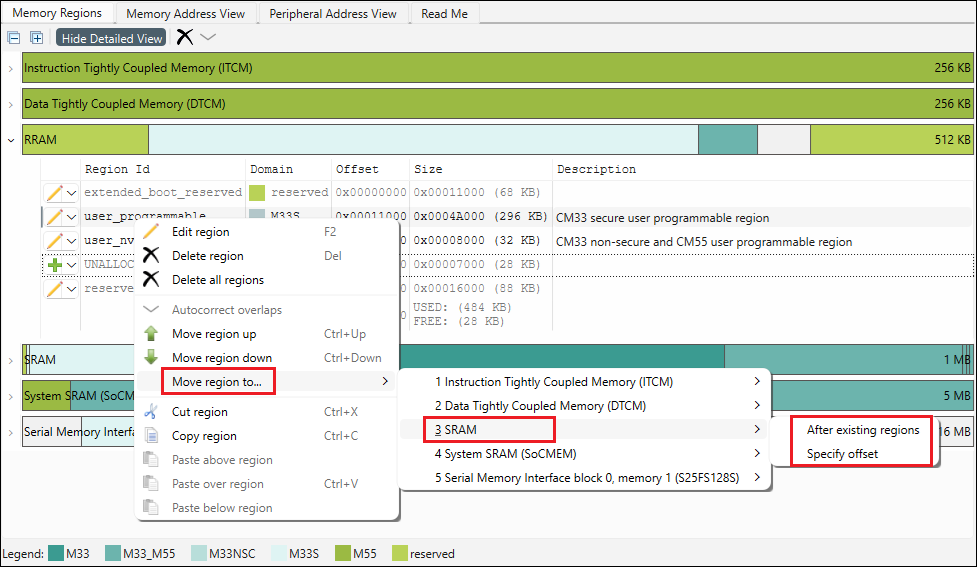
If you want to let the tool just place it at the end of the other regions in the destination, select
After existing regions
.
If you want to specify exactly what offset to put it at, then select
Specify Offset
. Then enter the value in the dialog.
Note:
The regions required for initial application start up must be in a non-volatile memory.
Note:
Some toolchains including GNU and LLVM do not initialize data automatically. If a region is moved to a volatile memory, entries must be added to .zero.table and/or .copy.table manually.
Memory Address View subtab
The
Memory Address View
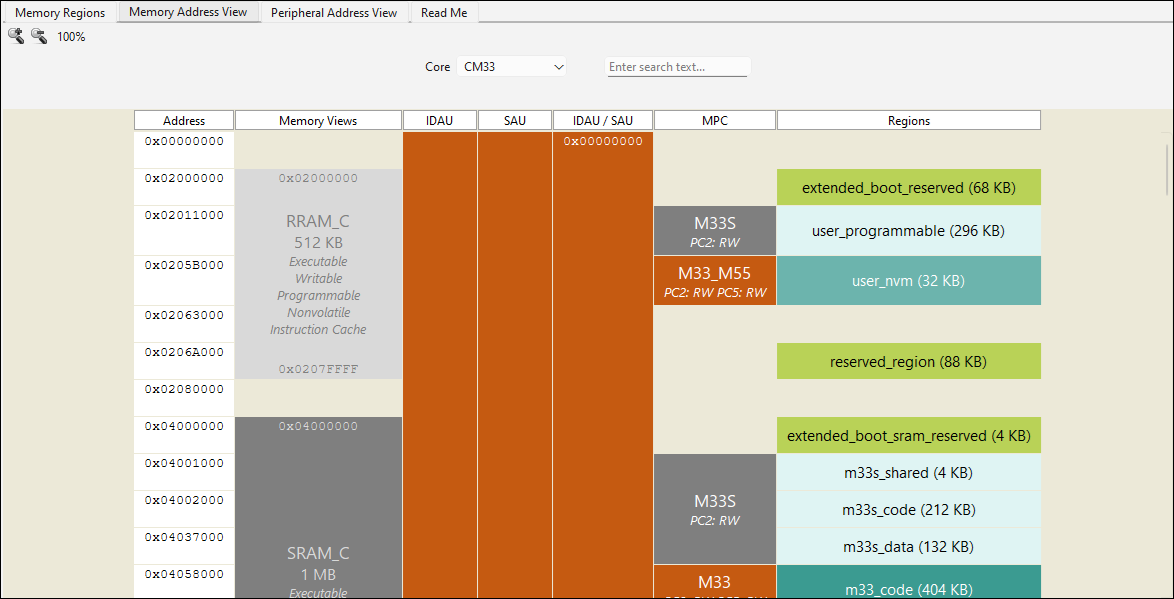
subtab displays the security status and access permissions enforced by the IDAU, SAU, and MPC at a given address or memory region. The
Core
pull-down allows you to switch to other cores, and the
Search
shows all occurrences of an entered term with
Forward
and
Back
buttons to jump to the next or previous term. This subtab also contains zoom commands.
The
Address
column shows the start address of every segment shown in the other columns.
The
Memory Views
column depicts all the physical memories and external memory reservations for the device, along with the size and capabilities for each. Possible capabilities include Executable, Writable, Readable, Programmable, Nonvolatile, Secure, and Instruction Cache.
The
IDAU
column shows the security across all address ranges determined by the device's IDAU. Each range lists a security status code and corresponding background color (S/green for Secure, NS/orange for Non-Secure, NSC/yellow for Non-Secure Callable, and X/gray for Exempted) and the address range size.
The
SAU
column depicts the security across all address ranges as configured in the designs SAU entries. Each range lists a security status code and corresponding background color (S/green for Secure, NS/orange for Non-Secure, NSC/yellow for Non-Secure Callable) and the address range size.
The
IDAU / SAU
column depicts the effective security across all address ranges combining the (fixed) device's IDAU and configured SAU entries. Each range lists a start address, end address, security status code and corresponding background color (S/green for Secure, NS/orange for Non-Secure, NSC/yellow for Non-Secure Callable, and X/gray for Exempted) and the address range size.
The
MPC
column shows the address ranges that will be under MPC control according to the configured Protection Domains and access details for each. Each range lists the name of the governing Protection Domain and a background color corresponding the range's security (S/green for Secure in the context of a secure core or S/gray in the context of a non-secure core, NS/orange for Non-Secure, NSC/yellow for Non-Secure Callable) and the access permissions (R for Read, W for Write) for each Protection Context granted by the Protection Domain. E.g., the access permission string "PC2: RW PC5: RW" denotes read and write access is granted to Protection Contexts PC2 and PC5.
The
Regions
column shows the memory regions that are configured in the
Memory Regions subtab
. For each region, the region id and size is shown, and has the same user-configured color coding from the Memory Regions tab.
In each of the columns, if the described content is not applicable – either because there is no such configuration or the device doesn't support it – the column will be omitted.
Peripheral Address View subtab
The
Peripheral Address View
subtab displays all peripheral regions and locations and (where used) the access permissions enforced by the PPC. The
Core
pull-down allows you to switch to other cores, and the
Search
shows all occurrences of an entered term with
Forward
and
Back
buttons to jump to the next or previous term. This subtab also contains zoom commands.
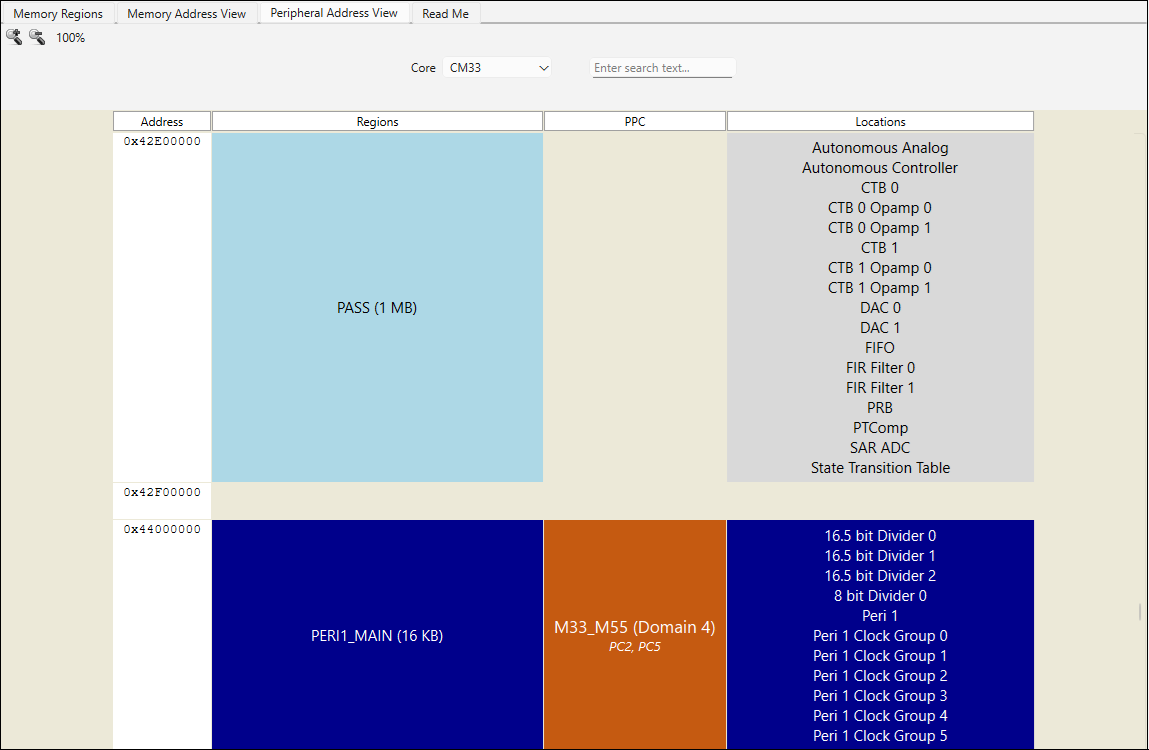
The
Address
column shows the start address of every segment shown in the proceeding columns.
The
Regions
column depicts all of the peripheral regions defined for the device. There is no meaning in the background colors of these regions; the colors simply alternate between two shades of blue for visual contrast.
If a PPC is configured, the
PPC
column shows the address ranges that will be under PPC control according to the configured Protection Domains and access details for each. Each range lists the name of the governing Protection Domain and a background color corresponding the range's security (S/green for Secure in the context of a secure core or S/gray in the context of a non-secure core, NS/orange for Non-Secure, NSC/yellow for Non-Secure Callable) and the Protection Contexts having access to the peripherals in the region per the Protection Domain.
The
Locations
column show all of the peripheral locations in the corresponding region. If there is no configured access to the locations in this region, they will be depicted with a gray background; if at least one Protection Context is granted access to the region and its locations, it will have the same blue or light blue coloring in the corresponding region.
Note:
For applications using the MCUboot library, memory ranges used to define the primary slot will be shown on the right side of the view.
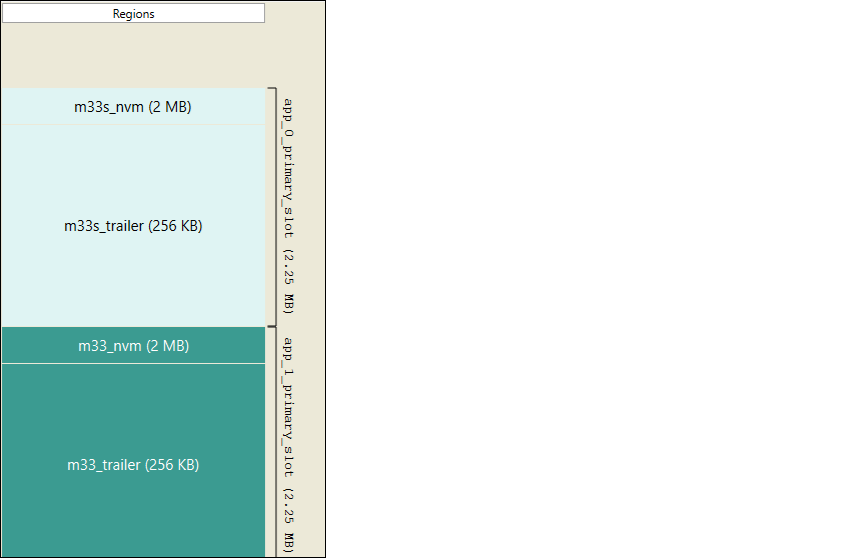
In the
Memory Regions subtab
, there is a corresponding table with links to the
Solution
parameters where the range is defined.
Read Me subtab
This subtab displays an HTML generated document with information from the device-db’s
memories.cydata
file, combined with memory data exported from the QSPI configurator.
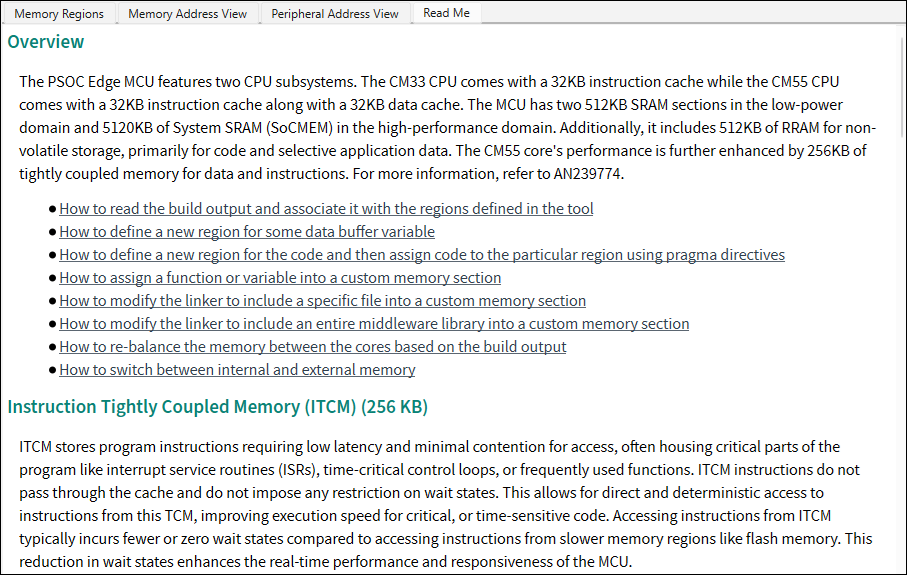
This file provides links to "how to" HTML topics to guide you how to configure memories.