Analog-Routing tab
For older devices, the
Analog-Routing
tab shows the various analog resources in your application. Enabled resources are green.
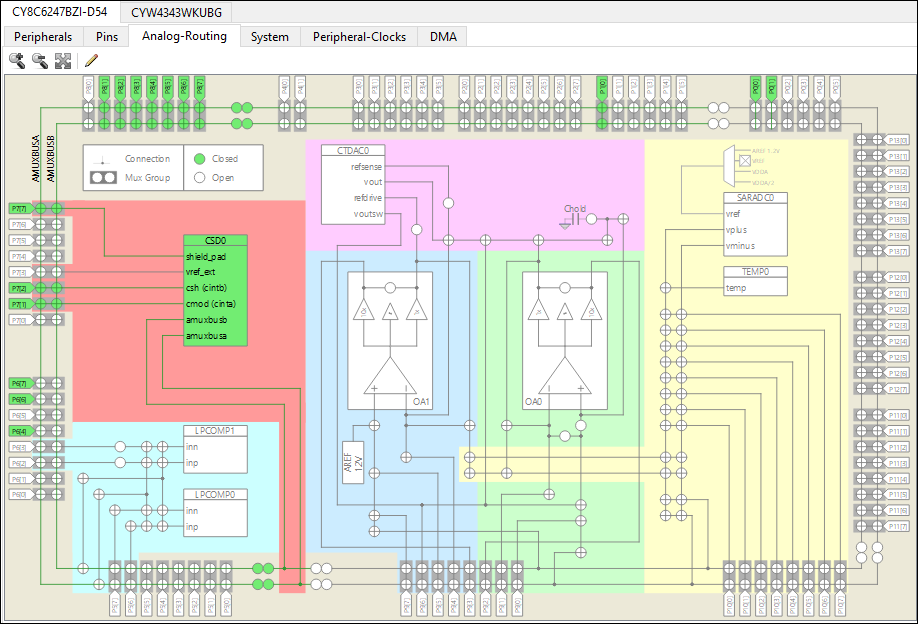
The
Edit

command opens the
Analog Route Editor
.
Analog Route Editor
The Analog Route Editor allows you to manually edit the routing of analog resources in your application. It also provides the ability to lock-down all or some of the results.
Note:
The Analog Editor can some times be unresponsive during route recalculation. Please wait for it to finish algorithm execution.
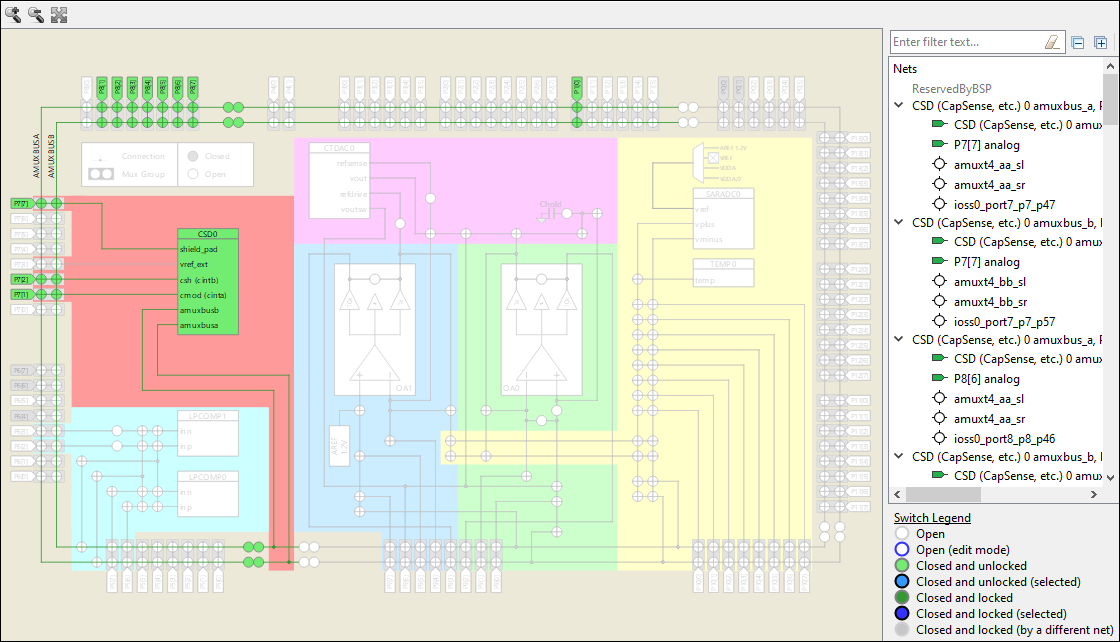
Note:
If there are configuration errors, complete routing results will not be available; only locked resources. If you open the Analog Editor in this error state, a warning message will display. You can still lock and unlock switches, but you won’t get complete routing results as long as the configuration has errors.
Select a resource
To select an analog resource, click on it. Any enabled (green) element in the tree can be selected. The resource and the associated route(s) become blue. Also, the
Edit Route
command appears on the toolbar. See
Edit Route
.
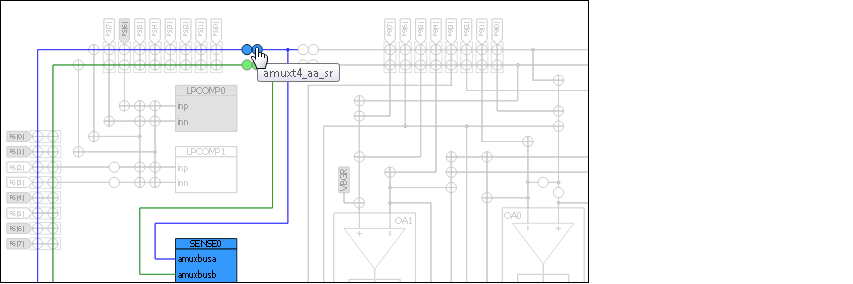
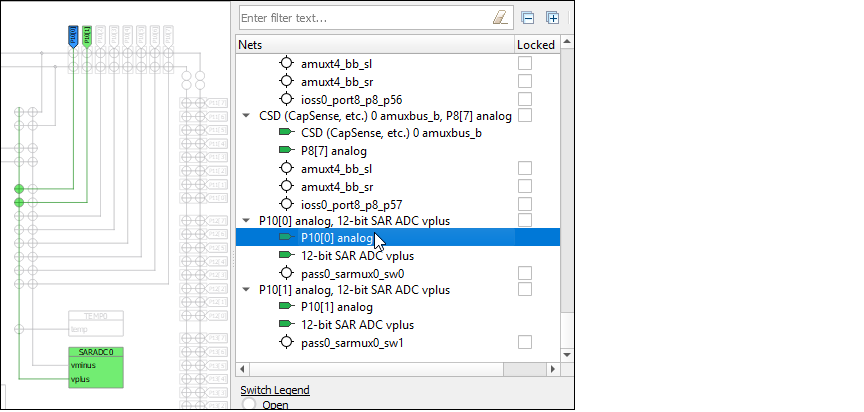
At the same time, the selected analog resource(s) is highlighted in the Nets tree.
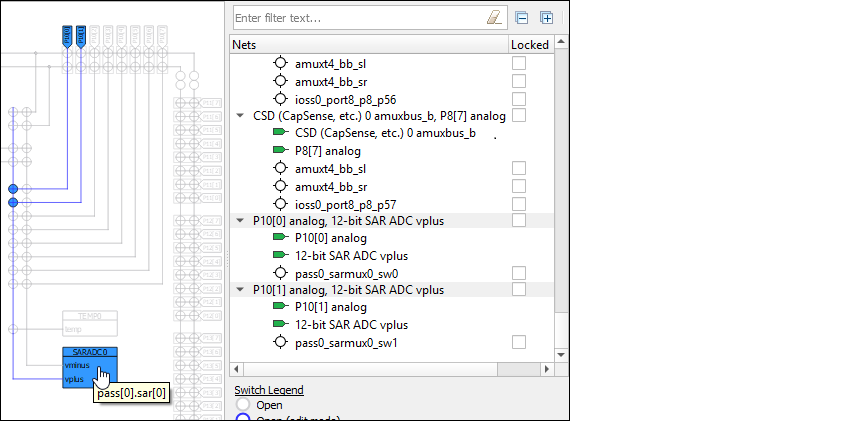
You can also select items in the tree to highlight them in the diagram.
Edit Route
With an editable analog resource selected, click the
Edit Route
command to enable edit mode. If multiple routes are selected, a pull-down menu displays to select the route to edit. You cannot edit multiple routes at the same time.
In edit mode, the net tree shows only the applicable route entries, and you cannot select resources using the tree. However, the lock/unlock check boxes remain enabled for use. The inactive switches change color to indicate they can be selected to use for the route being edited.
Route changes are live with updates applied automatically as you make changes. Selecting a switch adds it to the current route in a locked state and the route tree is updated to reflect the modifications.
If a change results in an error, a message displays. The routes are automatically rolled back to the previous state, so you will lose at most the last invalid change.
The toolbar shows the
Finish edit
command to return the editor to selection mode.
Note:
If a route is edited so that it uses switches associated with a location where no personalities are instantiated, you must manually power on the containing block at startup in order for the switches to function. Refer to the PDL API Reference Guide and the Device Technical Reference Manual for more details.