Parameters pane
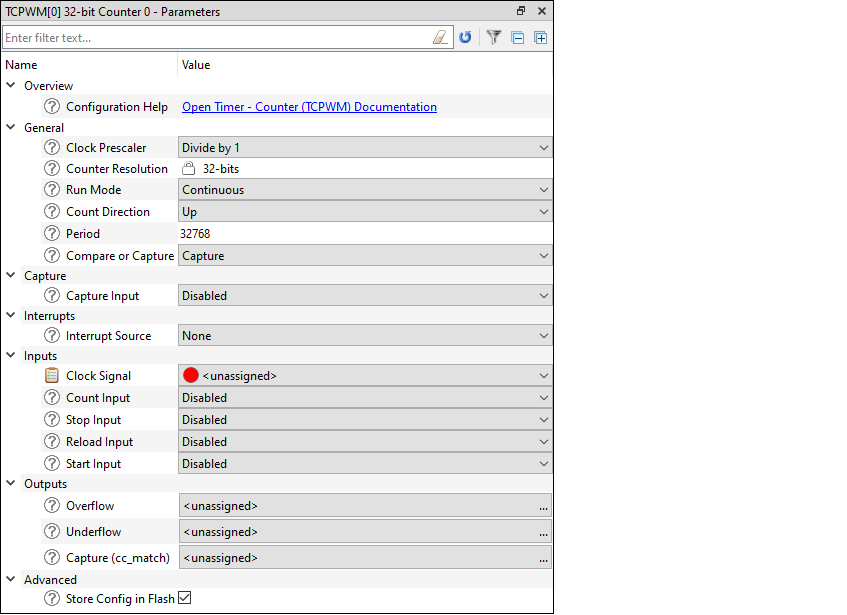
The Parameters pane contains all the parameters for a selected, enabled resource. This pane will show different parameters for each resource, grouped by various categories. For example, the parameters for the TCPWM peripheral are completely different than those for a pin resource. Some resources also provide a link to
Launch other configurators
. This pane contains a few tools:
The filter box above the list of parameters allows you to limit the items shown in the pane.
The reset button resets all parameter values to their defaults.
The filter button toggles hides or shows non-editable parameters.
The - and + buttons expand or collapse all nodes.
Configuration help
Nearly all resources provide a link to open the Peripheral Driver Library (PDL) documentation to the specific driver. This is the Doxygen-generated HTML file located in the installation directory. To see links to the documentation, simply highlight a resource; you do not need to enable it.
Parameter descriptions
As described under
Icons
, all parameters have a tooltip icon

to indicate there is information about the parameter. Hover the mouse cursor over the icon to display a description of the parameter.
Parameter values
Different parameter types have different ways to specify a value, as follows:
Pull-down Menu – For parameters with a specific set of values, use the pull-down menu to select the appropriate value.
Selection Box – For parameters with a variable set of values, click the ellipsis […] button to open a selection box. There, use the check boxes to select one or more appropriate values for the parameter.
Note:
After selecting these parameter types, use the Go To button to jump to the selected resource.
Check Box – For parameters with a true or false value, use the check box to enable or disable the parameter.
Text Box – For parameters with editable values, type the value in the text box.
Note:
Values preceded by '0' are interpreted as octal; values preceded by ‘0x’, ‘0X’, and ‘#’ are interpreted as hexadecimal.
Signal Select Indicators
For parameters where you select a signal, there is a pull-down menu for single-select signals and a button to open a dialog for multi-select signals.
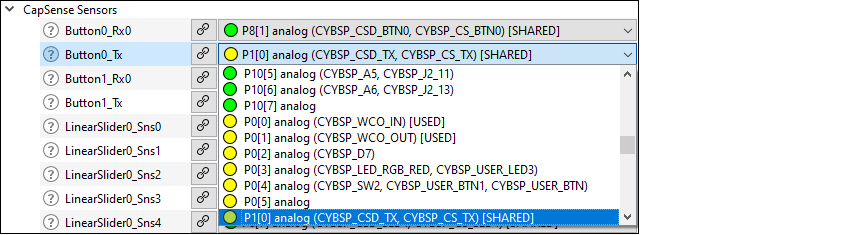
The signals have guidance icons next to them to indicate the status of the signal, as follows:
Green – preferred
Yellow – valid
Red – constrained
After selecting one or more signals, use the
Go To

button to jump to the selected signal or open a dialog to select from multiple signals.
Launch other configurators
For peripherals with their own configuration tools (CapSense, SegLCD, etc.), the Device Configurator provides links to launch those separate configurators. After enabling the peripheral on the
Peripherals
tab, the
Parameters
pane contains a
<Configurator>
parameter, where <Configurator> is the name of the other configurator.

Click on
[Launch < Configurator > . . .]
to launch the configurator.
Note:
When launching another configurator from the Device Configurator, it passes information, such as the location of the *.modus file and any configuration data, to that other configurator. Those other configurators can be launched independently from the Device Configurator. When launched independently, you will need to either open or create the appropriate configuration file for that tool. If you want to use the configuration tools independently for the same application, make sure to save the source files in the correct "GeneratedSource" folder for the appropriate application.