Scan Configuration tab [5 th gen LP] , [5 th gen ]
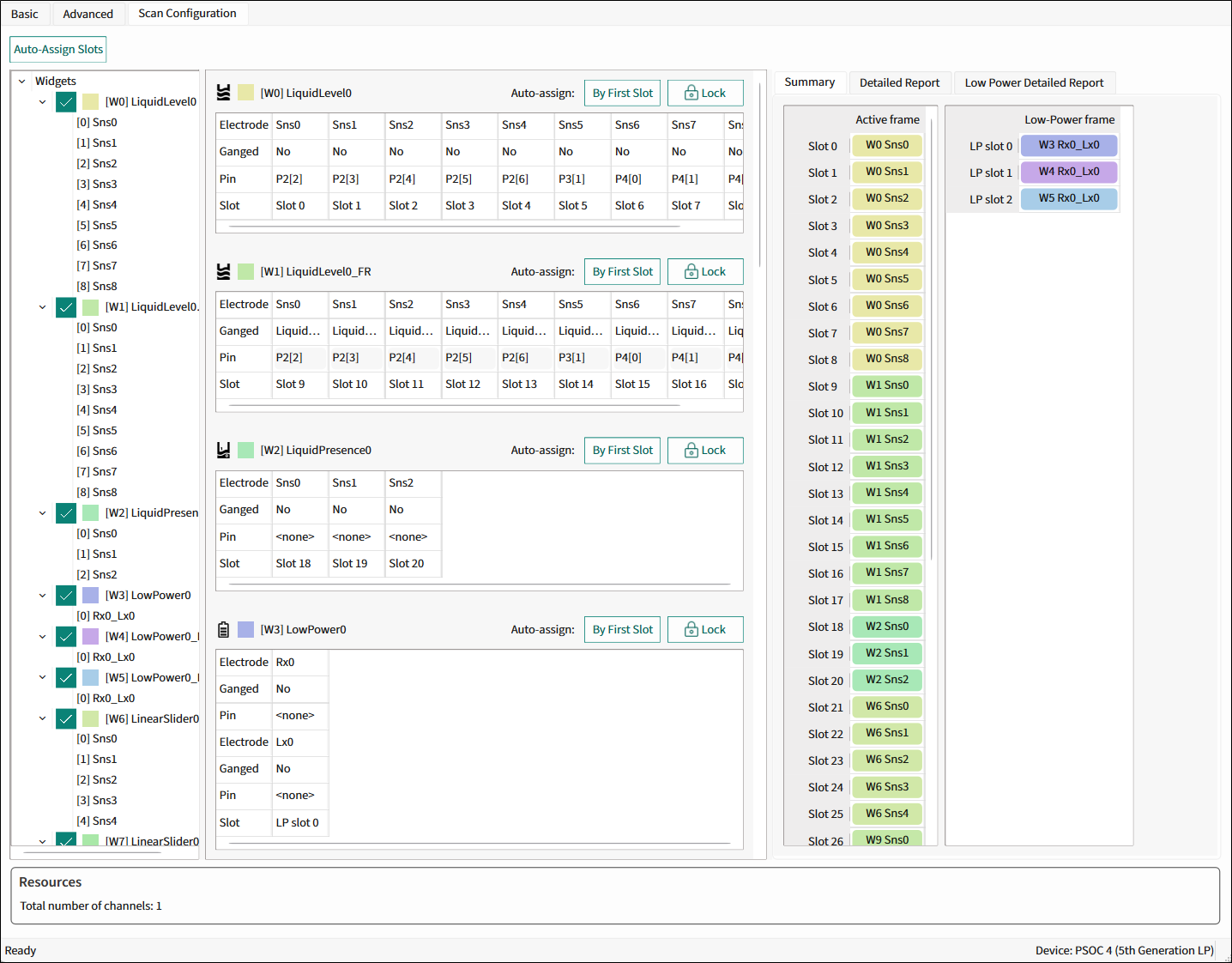
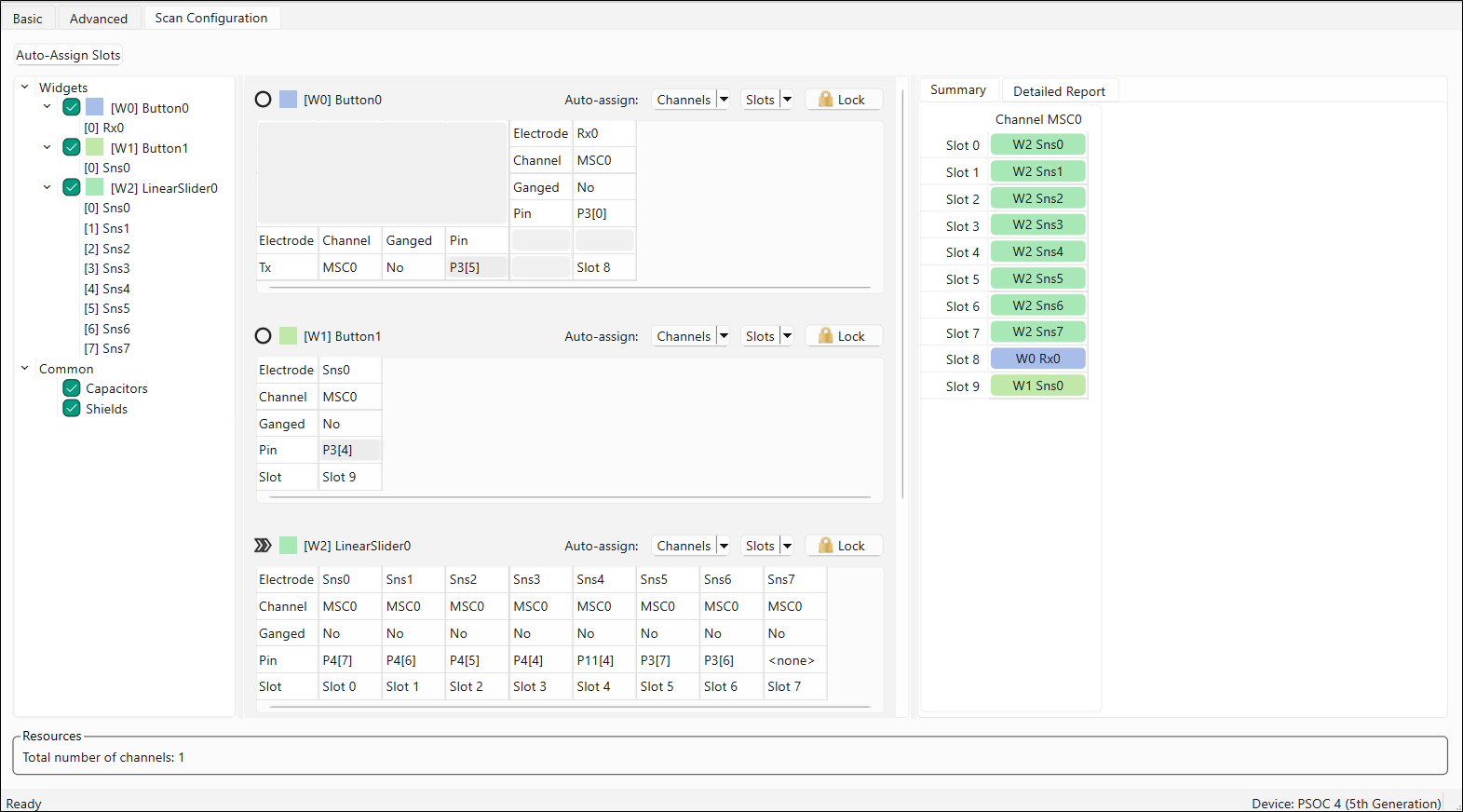
Use the Scan Configuration tab to distribute the electrodes among the channels, make ganged connection, assign pins and scan slots to each sensor.
5th generation LP CAPSENSE
5th generation CAPSENSE
Commands:
- Auto-Assign Slots - Automatically reassigns all slots for sensors based on a widget and sensor order depending on the assigned channel. Locked widgets are not modified.
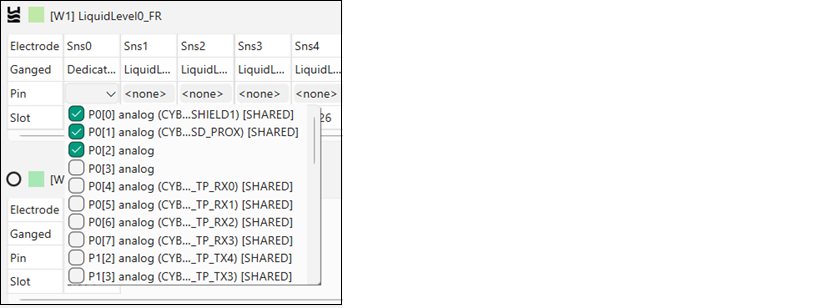
Multi-pin selection
You can use the multi-pin selection to configure more than one pin assigned to one sensor. The feature supports all sensing methods: CSD, CSX, and ISX (see Widget Sensing Method [all gen]) for MSCLP only.
Widgets tree
The Widgets tree is used for toggling widgets, capacitors, and shields on the Widgets configuration pane.
Widgets configuration pane
The Widgets configuration pane contains tables for configuring channels, pins, and slots for each instance from the Widgets tree.
| Part/Parameter | Description | CAPSENSE™ generation | |
|---|---|---|---|
| 5th LP | 5th | ||
| Channel | Selects a channel in the multi-channel solutions. The available channels correspond to the enabled MSC resources. | √ | |
| Ganged | Selects a port pin for the sensor (CSD sensing) and electrode (CSX sensing). The available options use a dedicated pin for a sensor or re-use one or more pins from any other sensor. The latter helps create a ganged sensor.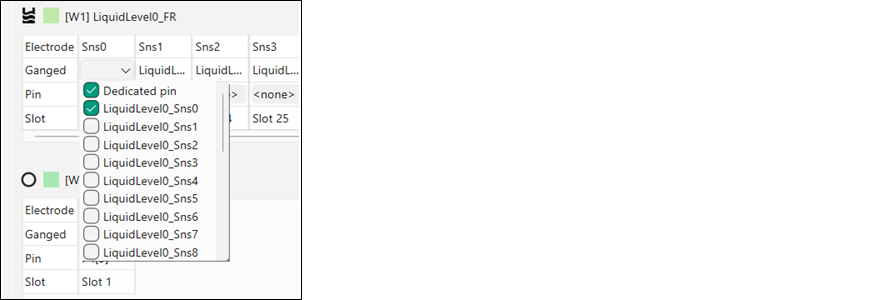 | √ | √ |
| Pin | Assigns pins for sensors. Select the appropriate signal from the pull-down menu. | √ | √ |
| Slot | Selects scan slots for sensors. In Multi-channel mode, a scan slot represents a group of sensors scanned together. In Single-channel mode, one sensor is scanned per scanning slot. | √ | √ |
Commands
| Part/Parameter | Description | CAPSENSE™ generation | |
|---|---|---|---|
| 5th LP | 5th | ||
| Auto-Assign Channels | Automatically assigns channels for widget electrodes. Multiple options are available: - Assign all electrodes to one channel. - Assign electrodes to different channels sequentially. - Assign electrodes to different channels alternately. - Assign only columns or rows. | √ | |
| Auto-Assign Slots | Incrementally assigns the slots for all widget sensors based on: - The slot of the first electrode. - The slots of the first electrodes on each channe. [5th gen] . This command does not reassign channels. | √ | √ |
| Lock | Prevents the widget scan configuration from editing and slot reassignment. | √ | √ |
Summary table
The Summary table visually represents scan slot configuration. The cell color indicates the state of a scan slot:
-
white – not occupied
-
red – occupied by more than one sensor
-
gray – shield or Tx
-
other – corresponds to the color of the widget, which occupies the slot; green-color shades for CSD widgets and blue-color shades for CSX widgets.
The red color in the index column cell indicates an error in this slot. The tooltip provides a description of the error
Detailed Report / Low Power Detailed Report
Detailed Report*[5th gen LP], [5th gen] provides all relevant information about slot assignment of active widgets . Low Power Detailed Report[5th gen LP]* provides all relevant information about slot assignment of Low Power widgets.
| Part/Parameter | Description | CAPSENSE™ generation | |
|---|---|---|---|
| 5th LP | 5th | ||
| Widget | The index of the widget, which sensor is assigned on that slot. | √ | √ |
| Node/Sns | The index of the node or sensor assigned to that slot. | √ | √ |
| Eltd config | The electrode configuration of the node. | √ | √ |
| Sensor clock, kHz | The CSD Sense clock frequency or CSX Tx clock frequency of the widget assigned to that slot. | √ | √ |
| Number of conversions | The Number of sub-conversions of the widget assigned to that slot. | √ | √ |
| Scan time, us | Time needed to perform a scan of the slot. It does not include: - HW configuration time - Initialization time - Post scan processing time | √ | √ |
| Status | Displays errors if any. The text of the error is shown in the cell’s tooltip. | √ | √ |