Configure and build
After creating an application, make a few changes before attempting to build it:
Edit the
Makefile
located in the project folder as follows:
APPNAME=Hello_World
# Use the same App_Name used to create the project

TOOLCHAIN=IAR
Open a modus-shell terminal from the ModusToolbox™ install directory, navigate to the IAR project directory, and run this command:
make build -j8Copy the post-build command from the log. For example:
../mtb_shared/core-make/release-v3.6.1/make/scripts/python.bash C:/examples/psoc64-iar/Hello_World/bsps/TARGET_APP_CY8CPROTO-064S1-SB/psoc64_postbuild.py --core CM4 --secure-boot-stage single --policy policy_single_CM0_CM4 --target cyb06xx7 --toolchain-path C:/Users/follettcj/Infineon/Tools/mtb-gcc-arm-eabi/11.3.1/gcc --toolchain IAR --build-dir C:/examples/psoc64-iar/Hello_World/build/APP_CY8CPROTO-064S1-SB/Debug --app-name Hello_World --cm0-app-path ../mtb_shared/cat1cm0p/release-v1.8.0/COMPONENT_CAT1A/COMPONENT_CM0P_SECURE --cm0-app-name psoc6_01_cm0p_securePaste the command into an appropriate editor, and make the following edits:
Update the path to python
Add path to the policy file, for example:
--policy-path ./policy
Change
--build-dir
to
Debug/Exe
Change
--app-name
to your project in IAR name, if needed
Example of command after edit:
[path to python.exe] C:/examples/psoc64-iar/Hello_World/bsps/TARGET_APP_CY8CPROTO-064S1-SB/psoc64_postbuild.py --core CM4 --secure-boot-stage single --policy-path ./policy --policy policy_single_CM0_CM4 --target cyb06xx7 --toolchain-path C:/Users/follettcj/Infineon/Tools/mtb-gcc-arm-eabi/11.3.1/gcc --toolchain IAR --build-dir Debug/Exe --app-name Hello_World --cm0-app-path ../mtb_shared/cat1cm0p/release-v1.8.0/COMPONENT_CAT1A/COMPONENT_CM0P_SECURE --cm0-app-name psoc6_01_cm0p_secureCopy the edited command.
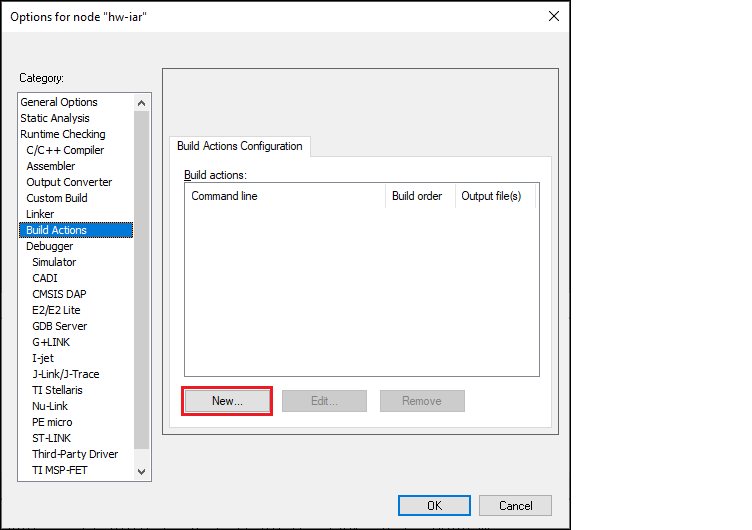
In IAR embedded Workbench, open the Options dialog, go to
Build Actions
, and click
New
:
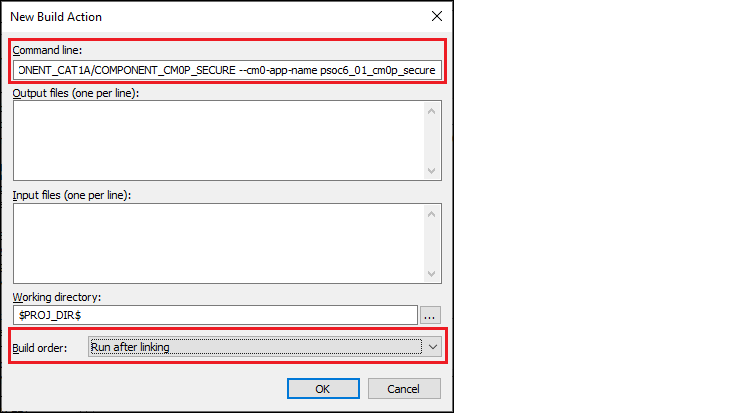
On the New Build Action dialog, paste the edited command in the
Command line
field, select "Run after linking" in the
Build order
field, and click
OK
:
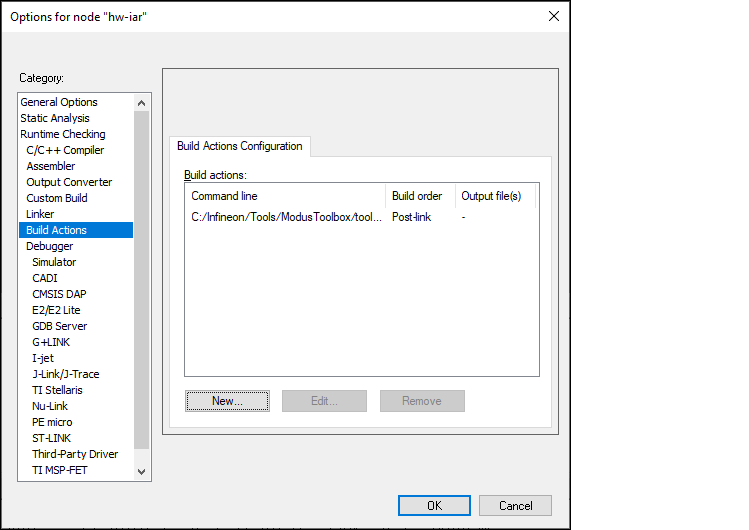
Click
OK
to close the dialog.
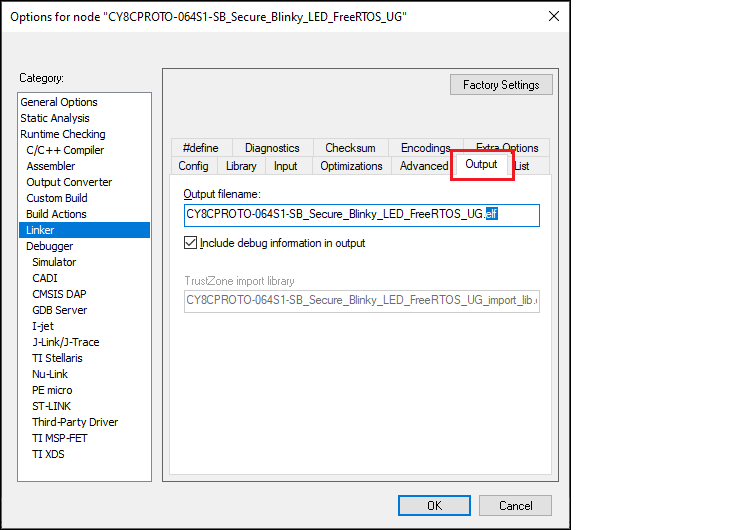
Switch to
Linker > Output
and change the file extension from ".out" to ".elf" in
Output filename
field:
Click
OK
to close the dialog.
On the IAR main menu, select
Project > Make
to build the application.