Create/export application for IAR Embedded Workbench
This section covers how to create or export a ModusToolbox™ application for use in the IAR Embedded Workbench IDE.
Create/export ModusToolbox™ application
Create new application
Use the Dashboard to open the Project Creator tool and create a ModusToolbox™ application for IAR Embedded Workbench.
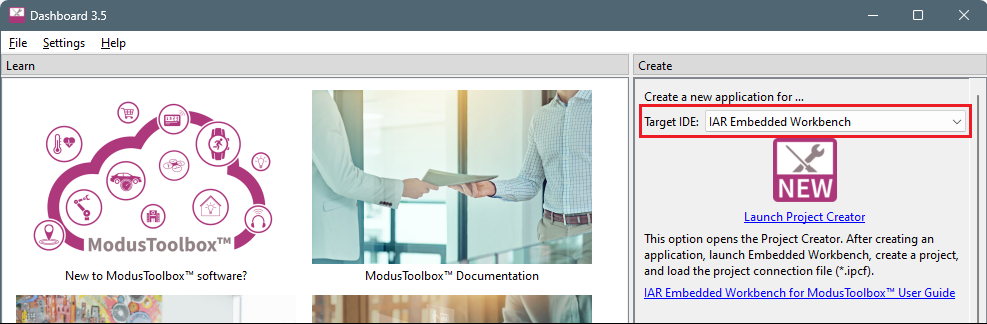
Refer to the
Project Creator user guide
for more details.
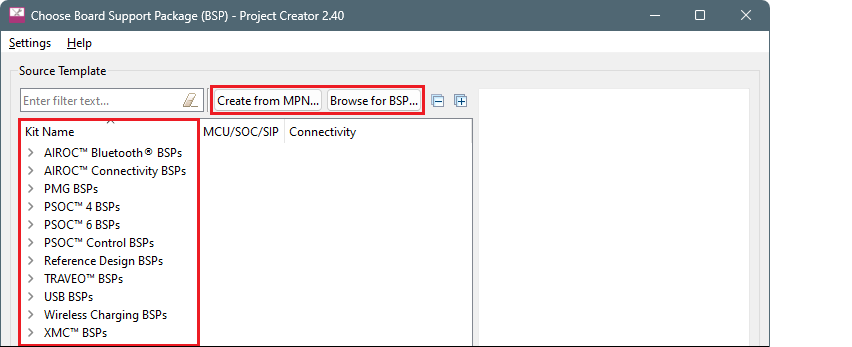
Select the BSP from the list or use one of the buttons to create a BSP from an MPN or select a BSP on disk.
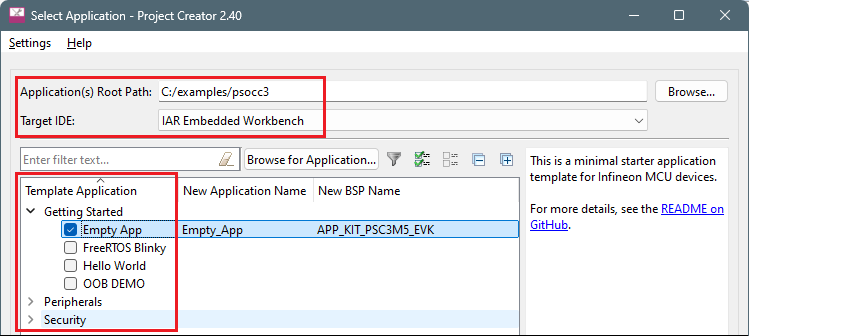
On the next page, select the location and the application to create. Notice Target IDE is already selected from the Dashboard.
Click
Create
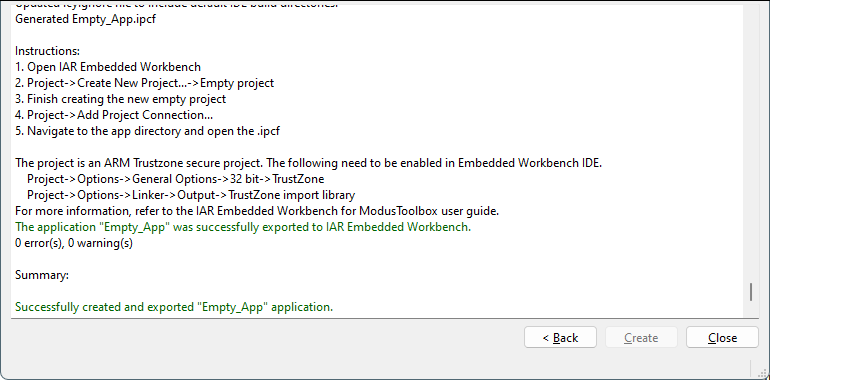
. When the process completes see the messages in the console.
Click
Close
.
Export existing application
Instead of creating a new application, if you have a ModusToolbox™ application that was created for another IDE or for the command line, you can export that application to be used in IAR. Open a terminal window (modus-shell in Windows) and type the following:
make ewarm CY_IDE_PRJNAME=[project-name] TOOLCHAIN=IAR
Where
[project-name]
is the name of the root application/project folder.
Note:
For applications that were created using core-make-3.0 or older, you must use the
make ewarm8
command instead.
This sets the
TOOLCHAIN
to IAR in the Embedded Workbench configuration files but
not
in the ModusToolbox™ application's
Makefile
. Therefore, builds inside IAR Embedded Workbench will use the IAR toolchain, while builds in the ModusToolbox™ environment will continue to use the toolchain that was previously specified in the
Makefile
. You can edit the
TOOLCHAIN
variable if you also want ModusToolbox™ builds to use the IAR toolchain.
Create IAR workspace and project(s)
After creating or exporting an application, an IAR project connection file (.ipcf) appears in the ModusToolbox™ application/project directory. This an XML file that contains the hierarchy of all the files and directories from the original ModusToolbox™ application. For example:
Hello_World.ipcf
. To use the ModusToolbox™ application with IAR, do the following:
Launch IAR Embedded Workbench.
Select
File > New Workspace
, select
File > Save Workspace
, and enter a desired workspace name (*.eww) in the directory containing the ModusToolbox™ workspace.
Select
Project > Create New Project > Empty project
and click
OK
.
Browse to the ModusToolbox™ project directory, enter a desired project name (*.ewp), and click
Save
.
Select
Project > Add Project Connection
and on the dialog ensure that "IAR Project Connection File" is selected; click
OK
.

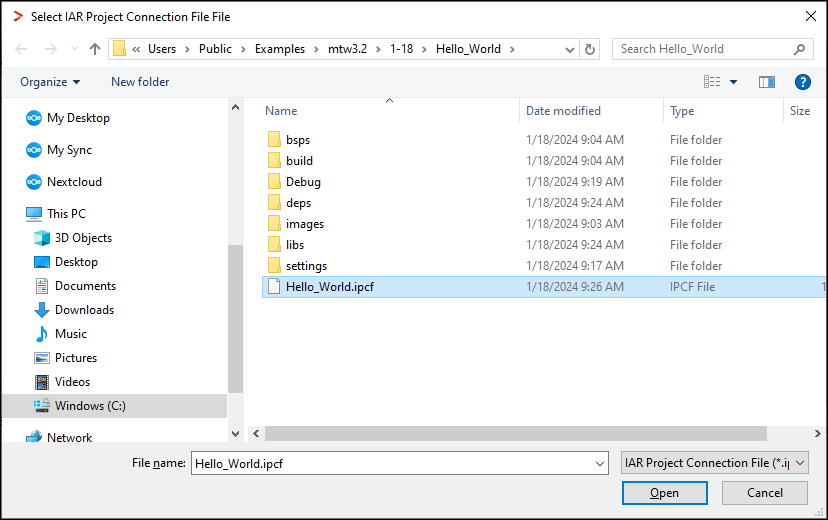
On the Select IAR Project Connection File dialog, select the .
ipcf
file and click
Open
:
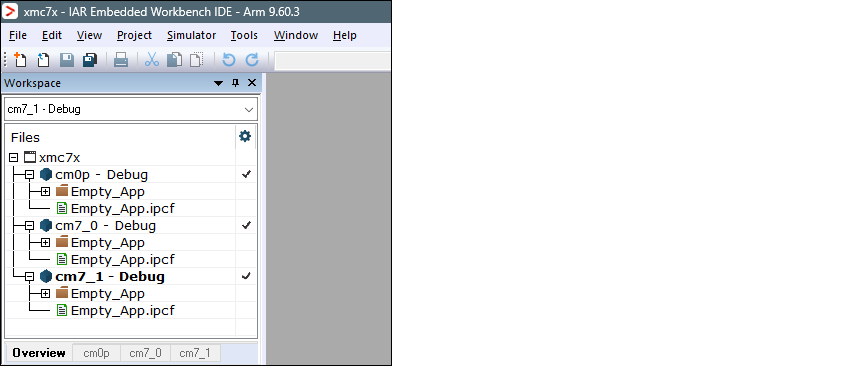
If your application has multiple cores/projects, repeat the process to create an IAR project for each core and add the .
ipcf
file for each as well. For example:
Once all projects have been created and connected, make sure to save the workspace and projects.
Note:
If you subsequently add more files and libraries in the ModusToolbox™ environment, you need to run "make ewarm" again to update the .ipcf file in the IAR Embedded Workbench project. For example:
make ewarm TOOLCHAIN=IAR CY_IDE_PRJNAME=Hello_World
If you don't use the
CY_IDE_PRJNAME
option, the generated ipcf file may revert to the original code example name, and it will not update your application.
If you don't care about staying connected to the ModusToolbox™ tools that generate the project files, you can delete the .ipcf file from the workspace and restart IAR Embedded Workbench.
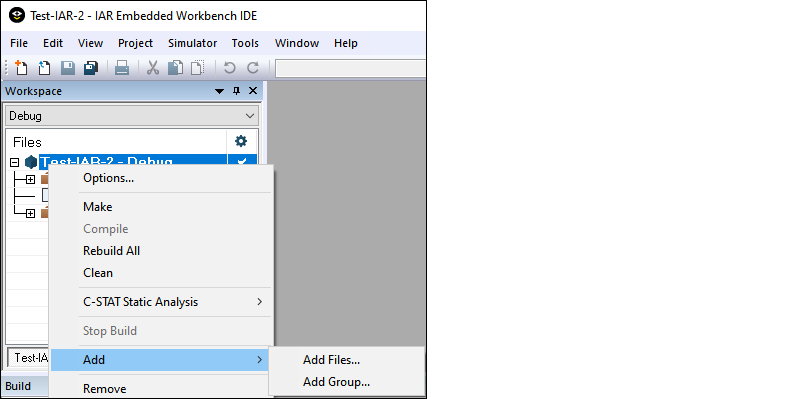
If you want to make changes in IAR Embedded Workbench, you need to do that at the workspace level using the
Add
option. These additions will not be included in the .ipcf file.
Next steps
In the simplest cases, the .ipcf file contains all required build settings, so configuring the build settings is generally not required. However, there are several cases and different devices for which configuring build settings is required, such as using TrustZone mode, post-build image processing like combining several additional images, or signing images or remaps to another memory region. Refer to the applicable device section for steps to configure build settings, build the application, then program the device if it is attached, and debug the application.