Create new memory file
-
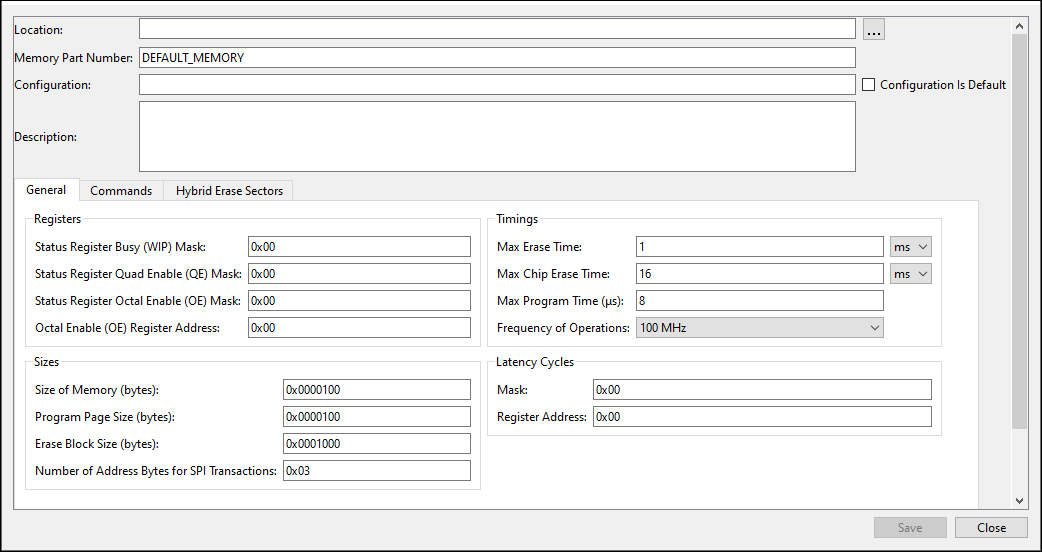
Select *New .cymem File… to open the Edit Memory window from the main QSPI Configurator:
-
Click [ ** . . . ** ] button next to the Location field to specify the file name and location of the memory configuration file (*. cymem ). If you prefer, you can ignore the Location field for now, and then specify the file name and location when saving the file.
-
Enter a desired Memory Part Number . When selected, this field will be displayed in the main QSPI Configurator window in the Memory Part Number .
-
Complete the information for the remaining fields, as appropriate. See Edit memory file fields .
-
Click Save to save the configured memory. If Location was not specified previously, this will open a save dialog to navigate to the appropriate location, type a file name, and click Save .
-
Click Close to return to the QSPI Configurator.
Memory database
The QSPI Configurator memory database is a set of default memory configurations, based on values from each memory’s datasheet. Check that the selected memory configuration is aligned with a particular part number.
By default, some memory parts are configured with protected regions, which prevents the successful execution of program/erase memory commands.
Dummy cycles may vary based on memory part configuration.
The list of supported commands may vary between memory parts.