Quick start
This section provides a simple workflow for how to use the CAPSENSE™ Tuner.
-
Create a CAPSENSE™ application with a Tuner communication interface and program the application into the device. Refer to the Eclipse IDE for ModusToolbox ™ user guide and the CAPSENSE™ Configurator user guide for more details.
Note: The simplest way to start CAPSENSE™ Tuner is to use the PSOC ™ 6 CAPSENSE™ Buttons and Slider code example configured to work on PSOC™ 6 MCU kits or PSOC™ 4 MSC CAPSENSE™ CSD Button Tuning configured to work on PSOC™ 4 MCU kits.
-
Start Communication. Click Connect and select the required communication interface.
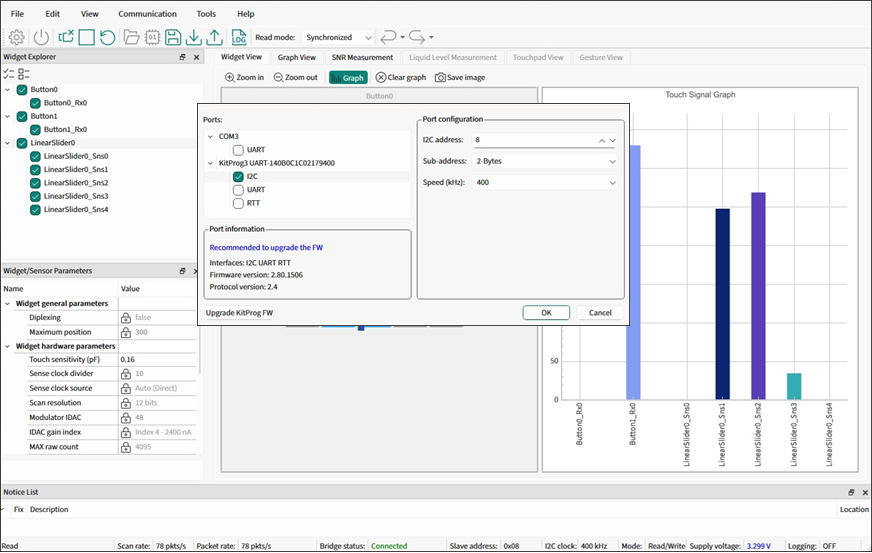
Note: For MiniProg, first, power the device – click the Tuner Communication Setup button to select the communication interface, use the Power button to select and apply the power supply, and proceed with Connect.
Note: Refer to the KitProg user guide for the supported configurations and modes. For this example, I2C address, sub-address, and speed must match the configuration.
Note: For the I2C communication, the Tuner only supports the 2-Bytes Sub-address.
-
Click Start to extract data.

-
Touch the sensors on the hardware and notice the change in the sensor/widget status on Widget View tab .
-
Open the Graph View tab. Check the sensors in the Widget Explorer pane to observe sensor signals on the graph. Touch the sensors and notice the signal change on the Graph View tab .
-
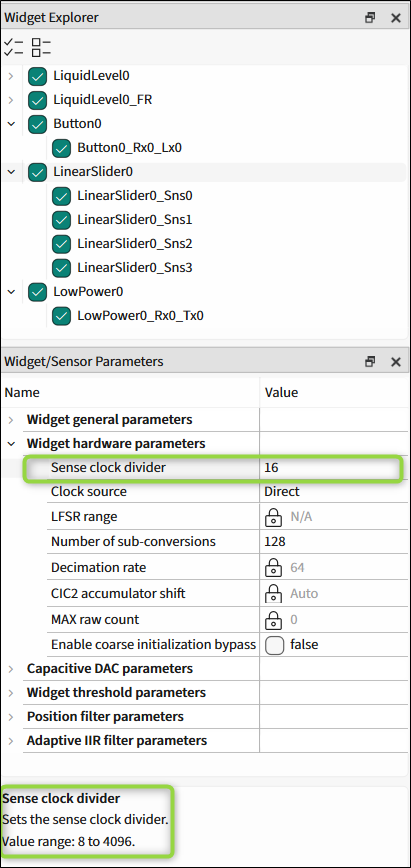
Change widget/sensor parameter values as needed. Then, apply the new settings to the device using the Apply to Device command.
-
Save the Tuner parameters. Click the Apply to Project command.
-
Exit the Tuner application.