PSOC™ Control C3 secure application
Follow steps in Create/export application for IAR Embedded Workbench. At the end of the process, you should see messages in the console. For a PSOC™ Control C3 device, one of the messages should read as follows:
The project is an ARM Trustzone secure project. The following need to be enabled in Embedded Workbench IDE.
    Project->Options->General Options->32 bit->TrustZone
In most cases, PSOC™ Control C3 applications are set to Trust Zone Secure by default. For more details about TrustZone technology, refer to the Arm® website: https://www.arm.com/technologies/trustzone-for-cortex-m.
When you open the application in IAR Embedded Workbench, you need to check the TrustZone setting. Open the Options dialog, go to General Options > 32-bit and verify that the TrustZone Mode is set to "Secure."
Save the application and select Project > Make to build it. The Output should display the progress, ending with text similar to this:
Total number of errors: 0
Total number of warnings: 0
Resolving dependencies...
Build succeeded
In addition to the TrustZone technology from Arm, PSOC™ Control C3 devices have various security life cycle stages (LCS). For more details about security, refer to Application Note AN240106 - Getting started with PSOC™ Control C3 security.
The following sections provide details about working with a device with the default out of the box policy versus a device that has been provisioned.
By default, applications created from code examples default to TrustZone "Secure" mode. For details about PSOC™ Control C3 security, refer to Application Note AN240106 - Getting started with PSOC™ Control C3 security
Device with default policy
Devices are shipped with a default policy, so you can develop and debug your application repeatedly without any knowledge about security or code signing. There is nothing to configure before programming and debugging in this state. Go the Program and debug section.
Provisioned device
If you have provisioned the device, the hex file must be signed with the same key used during provisioning using the ModusToolbox™ Edge Protect Security Suite. Use the Basic Secure Application as your reference; it automatically configures signing steps in the application.
On the IAR main menu, select Project > Make to build the application.
Go the Program and debug section.
Program and debug
Select debugger options
Before programming and debugging, select the default debugger options for your desired probe. See Program/Debug with KitProg3/MiniProg4 (CMSIS-DAP) or Program/Debug with J-Link.
Fix vector table
There is a known issue with an invalid for IAR name for the vector table in the C start-up code. To resolve it:
-
Open the Options dialog and select the Debugger item under Category .
-
Select the Extra Options tab, select the Use command line options check box, and paste the following command-line option:
--drv_vector_table_base=__Vectors
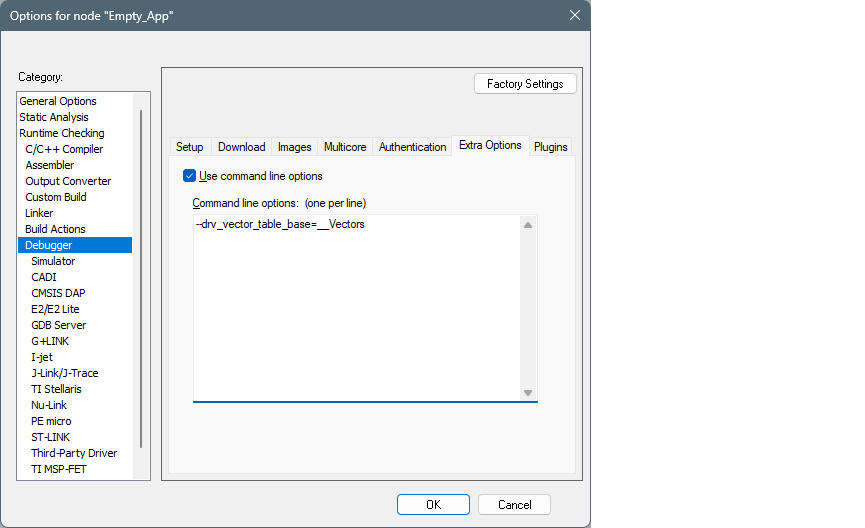
- Click OK to close the Options dialog.
Use dual-bank mode
In order to use dual-bank mode, you must enable the non-default *.board file manually for a device. To do that:
-
Open the Options dialog and select the Debugger item under Category .
-
Select the Download tab and select the Override default .board file check box.
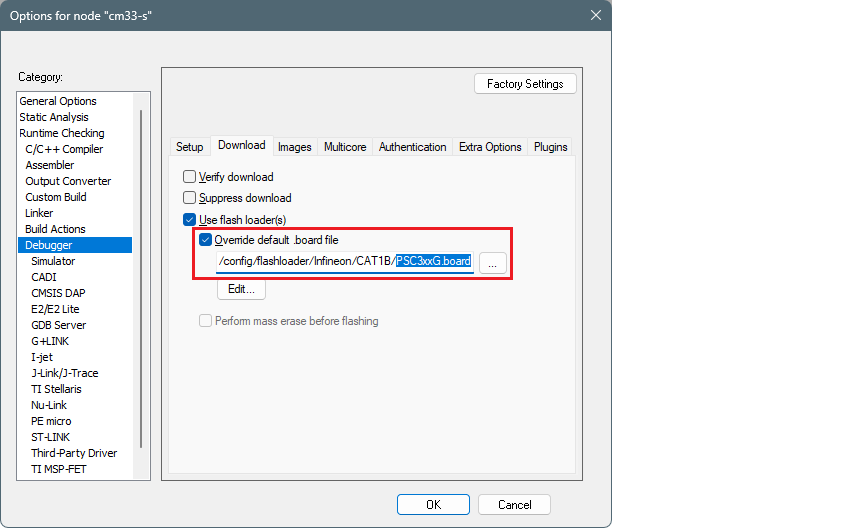
-
Identify the default .board file currently used for this project (for example, PSC3xxG.board).
-
Click the Browse […] button, then navigate to and select the same .board file that also includes "DBM".
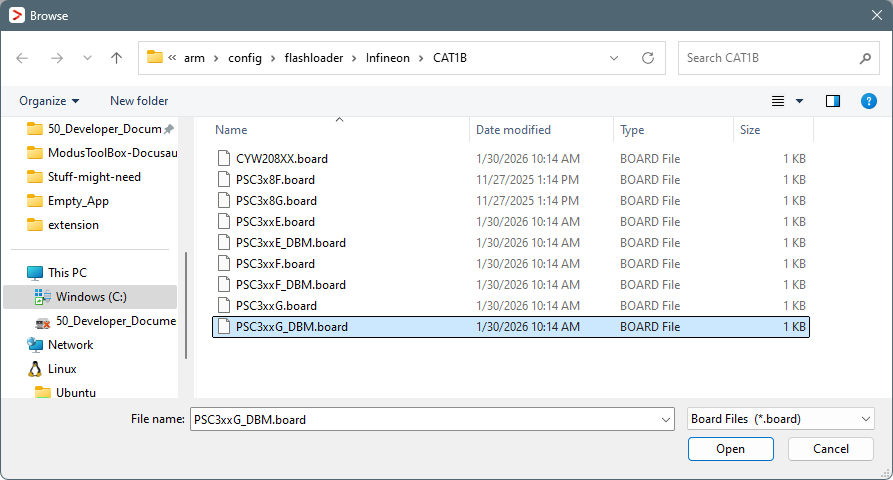
-
Click Open .
-
-
Click OK to close the Options dialog.
Program and debug
-
Select Project > Build Target to build the application.
-
Select Project > Download > Download file… and select the [project_name.hex file in [project_root]\build\APP_KIT_PSC3M5_EVK\Debug [you might have to switch to All Files (.) ].
-
Select Project >Debug without Downloading .