Make application changes and re-export
After you have successfully built the application and programmed the device, you may wish to make changes, such as configuring hardware settings for the BSP and the device, as well as adding and updating libraries. To do that, you will need to open a specific ModusToolbox™ tool or configurator, make appropriate hardware or library changes, and then re-export to update the application.
When working with a ModusToolbox™ application in IAR Embedded Workbench, it is not as convenient to open various tools and configurators as it is using Eclipse or Visual Studio Code. Those IDEs have customized plug-ins or extensions that provide a more integrated experience. For IAR Embedded Workbench, the best way to open tools and configurators and update the application is to use the modus-shell terminal.
You can also run any tool or configurator from the installation directory, under tools_[version]. After the tool opens, you will have to find the configuration file or project directory from the tool.
Every tool and configurator includes a separate guide for how to use it.
Configure hardware
Configuring hardware involves using the BSP Assistant tool to change the device and/or configurations. We recommend that you back up your project files first. Then, open the Library Manager using one of the methods described in Opening ModusToolbox™ tools and configurators. Refer to the BSP Assistant user guide for all the details about how to use this tool.
If you just want to modify parts of the existing device such as peripherals, ports/pins, clocks, etc., you can open the Device Configurator from the BSP Assistant, or as described in Opening ModusToolbox™ tools and configurators. For more details about that tool, refer to the Device Configurator user guide.
Add/update libraries
Another way to make changes to your application is by adding and updating various libraries. You do this with the Library Manager. We recommend that you back up your project files first. Then, open the Library Manager using one of the methods described in Opening ModusToolbox™ tools and configurators. For more details about the Library Manager, refer to the user guide.
Opening ModusToolbox tools and configurators
When working with a ModusToolbox™ application in IAR Embedded Workbench, it is not as convenient to open various tools and configurators as it is using Eclipse or Visual Studio Code. Those IDEs have customized plug-ins or extensions that provide a more integrated experience. Still, there are some ways to open various ModusToolbox™ tools for use with IAR Embedded Workbench. Here are a few of them:
Configuring IAR Embedded Workbench
One option to open ModusToolbox™ tools is to configure the IAR Embedded Workbench Tools menu using the Configure Tools dialog to add shortcuts to the various tools. This is a one-time configuration for each tool you wish to add. Then, the tools will be available for all your ModusToolbox™ applications running in IAR Embedded Workbench.
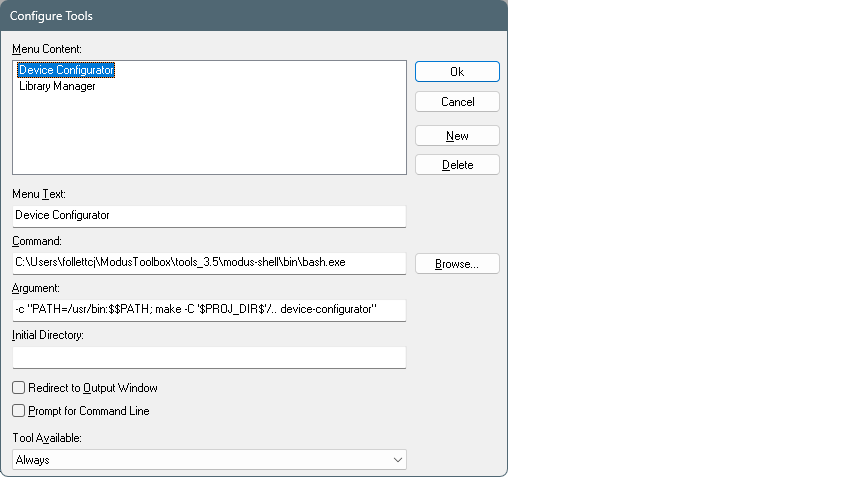
On this dialog, enter the following:
-
Menu Text : Name of the tool.
-
Command :
[path-to-modustoolbox-tools]\modus-shell\bin\bash.exeThis opens the bash shell from the tools package installation location. You can navigate to the executable using the [Browse…] button.
-
Argument :
-c "PATH=/usr/bin:$$PATH; make -C '$PROJ_DIR$' [tool-name]"This passes a command to the bash shell to open the specified
[tool-name](for example, device-configurator, bsp-assistant, library-manager, etc.).The variable
'$PROJ_DIR$'is the IAR Embedded Workbench project directory, and it is quoted because it returns a Windows-style path, which does not work without the quotes in bash. If the application is multi-core, add/..to navigate to one directory higher where the Makefile is located. -
Redirect to Output Window : This check box is optional. If selected, the bash shell commands run in the output window instead of a separate terminal.
For more details about this dialog, refer to the IAR Embedded Workbench user guide/help.
Using modus-shell
Another way to open tools and configurators and update the application is to use the modus-shell bash terminal. Open this tool from the installation directory or by typing "modus-shell" in the Windows Search box.
As described in the ModusToolbox™ tools package user guide "ModusToolbox™ build system'' chapter, you can run numerous make commands in the application directory. These include launching tools and configurators. In the modus-shell terminal, navigate to the application or project directory containing the Makefile, and run amake [tool-name]command. For example:
cd mtw/example/Hello_World

make library-manager
For consistency, the[tool-name]is always the name of the tool file name on disk, such as library-manager, bsp-assistant, device-configurator, etc. You can view tool/configurator names by using themake helpcommand.
When you open tools and configurators this way, they are opened in context with your application.
Opening directly
Another way to open any ModusToolbox™ tool or configurator is directly by launching it from the installation directory, under tools_[version]. On Windows, you can also use the Search box and type the name of the tool. After the tool opens, you will have to find the configuration file or project directory from the tool to use it with your application. Each tool and configurator includes a user guide for how to do this.
Re-export to update application
After running a tool or configurator to change some part of your application, you will need to update the application using the make ewarm command with the modus-shell terminal.
It's very important to pay attention to the name of your ipcf file(s). The name is always the one you specified when creating the project. However, if you exported from another IDE without using the CY_IDE_PRJNAME variable, the name will come from the project Makefile, which might be different than the ipcf file name..
The basic command is as follows:
make ewarm CY_IDE_PRJNAME=[existing-cprj-name] TOOLCHAIN=IAR
After running the command, verify the ipcf file(s) is(are) updated. When you view the project in IAR Embedded Workbench, you will see the updated file structure.