Miscellaneous notes
This section covers general instructions that may or may not pertain to your device and application.
- Supported debugger probes
- Configure applications with C++ files
- Build options, and prebuild/postbuild settings
- RTOS settings
- Patched flashloaders
- Perform ETM/ITM trace
- Multi-core toolbar and CTI usage (I-jet and CMSIS-DAP only)
Supported debugger probes
- KitProg3 onboard programmer
- MiniProg4
- IAR I-jet
- J-Link
Configure applications with C++ files
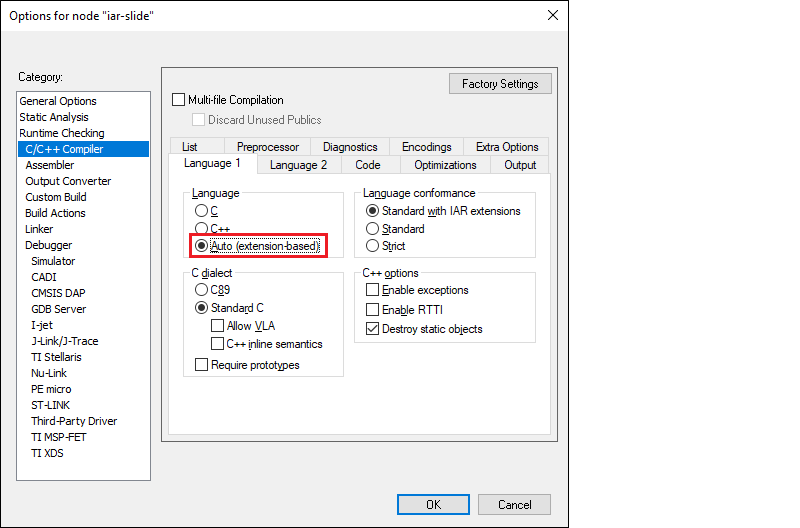
In cases where your application includes C++ files, you need to configure the C/C++ Compiler option. Right-click on the project and select Options > C/C++ Compiler > Language 1, select Auto (extension-based), and click OK.
Build options, and prebuild/postbuild settings
To set various build options, use the sections on the IAR Embedded Workbench Project Options dialog where you can enter command-line options:
- C / C++ Compiler > Extra Options
- Assembler > Extra Options
- Linker > Extra Options
Prebuild and postbuild steps from a ModusToolbox application are not included in the export process by default for most devices at this time. If your original application has these steps, you must include them in the IAR Embedded Workbench manually as follows:
-
In IAR Embedded Workbench, open the Options dialog, go to the Build Actions category.
-
Click the New button to open the New Build Action dialog.
-
On the New Build Action dialog, enter a command-line argument, output and/or input files, the working directory, and the build order.
-
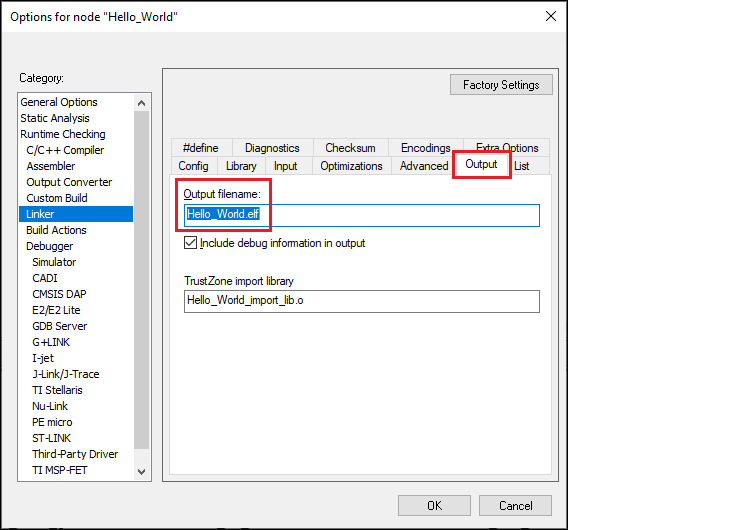
If using a postbuild script that works with .elf files, switch to the Linker > Output tab and change the file extension from ".out" to ".elf" in the Output filename field:
-
Click OK to close the Options dialog.
Refer to the IAR Embedded Workbench Help for more details.
-
On the IAR main menu, select ** Project > Make** to build the application. You should see the following:
    Hello_World.elf

    Total number of errors: 0
    Total number of warnings: 0
    Resolving dependencies...
    Build succeeded
Enable softfp VFP mode
If your application has been set to use softfp, then some libraries may export softfp variant of libraries that are not compatible with the default IAR Embedded Workbench hardfp mode. You must enable softfp VFP mode as follows:
-
Open the Options dialog for you project/application.
-
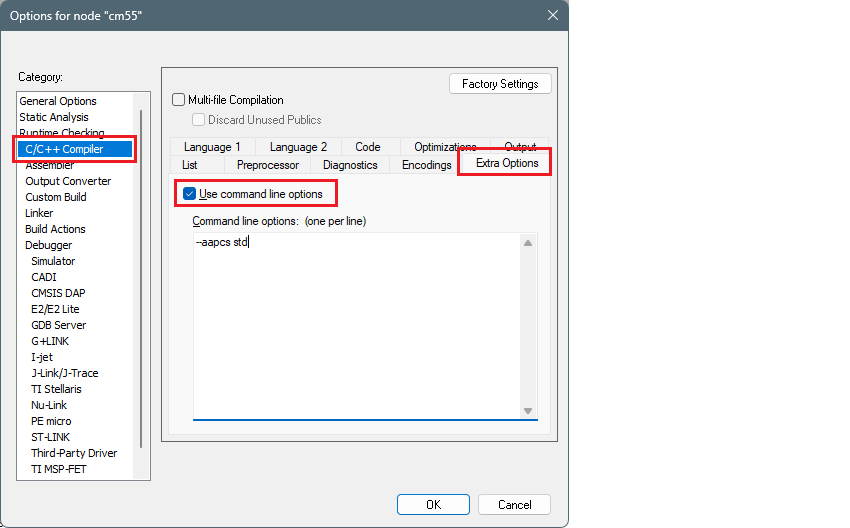
Go to C/C++ Compiler > Extra Options , and enable Use command line options .
-
Enter the following in the entry box, and click OK :
--aapcs std
For more information, refer to https://wwwfiles.iar.com/arm/webic/doc/EWARM_DevelopmentGuide.ENU.pdf.
RTOS settings
If your application includes an RTOS, you will need to update compiler and linker settings in IAR Embedded Workbench. This is needed to make the C/C++ library implementation thread safe. This process is described in the IAR C/C++ Development Guide
- Open Project > Options > General Options > Library Configuration .
- In the Library menu, select "Full".
- Select the Enable thread support in library check box.
- Click OK .
Once enabled, this will require implementations of functions that perform the locking that are provided by the clib-support library that we provide. https://github.com/Infineon/clib-support/blob/master/README.md
This is not specific to Infineon devices but more about how the IAR compiler/linker and C library implementation work. All compilers have similar enabling needed
Patched flashloaders
To enable support for different QSPI settings, the ModusToolbox™ QSPI Configurator patches flashloader files and stores them in the application directory. When exporting such applications to IAR Embedded Workbench, these patched flashloader files must be copied into the appropriate directory.
Copy the *.out file located in the [app-dir]\bsps[Kit-Name]\config\GeneratedSource directory.
Paste the flashloader file to the [install-path]\arm\config\flashloader\Infineon[device] directory.
Perform ETM/ITM trace
For PSOC™ Control and PSOC™ Edge devices, refer to application note AN242338 - Performing ETM and ITM trace on PSOC™ Control С3 and PSOC™ Edge E8 MCUs.
For PSOC™ 6 devices, refer to application note AN235279 - Performing ETM and ITM trace on PSOC™ 6 MCU.
Multi-core toolbar and CTI usage (I-jet and CMSIS-DAP only)
When multi-core debugging is established through I-jet or CMSIS-DAP drivers, a multi-core toolbar becomes available. It allows you to halt and resume all/single core(s) from within a single IDE instance.
Also, there is a feature called cross trigger interface (CTI). This allows you to immediately halt/resume one core when another core is halted/resumed. For example, this might be useful if you need to check what code is executing one of your cores when another hits a breakpoint. To use CTI, select the Run/Step/Stop affect all cores option available for multi-core applications:
