PSOC™ 6 and XMC7000/TRAVEO™ II multi-core applications
Follow steps in Create/export application for IAR Embedded Workbench. When complete, you should have a multi-core workspace similar to the following:
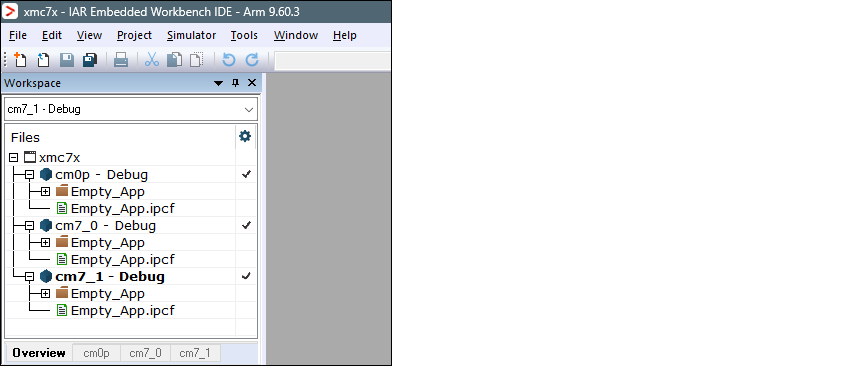
Then, use the instructions in this section to configure, build, program, and debug a multi-core application for PSOC™ 6 and XMC7000 multi-core applications in IAR Embedded Workbench.
Before you can launch a multi-core debug session, all projects within the workspace must be properly configured. In IAR there is a concept of 'master' and 'slave' projects. Configure the CM0+ core project as the master project, and configure the other cores (CM4 for PSOC™ 6 and CM7 for XMC7000) as slave projects.
Configure CM4/CM7 (slave) core(s)
-
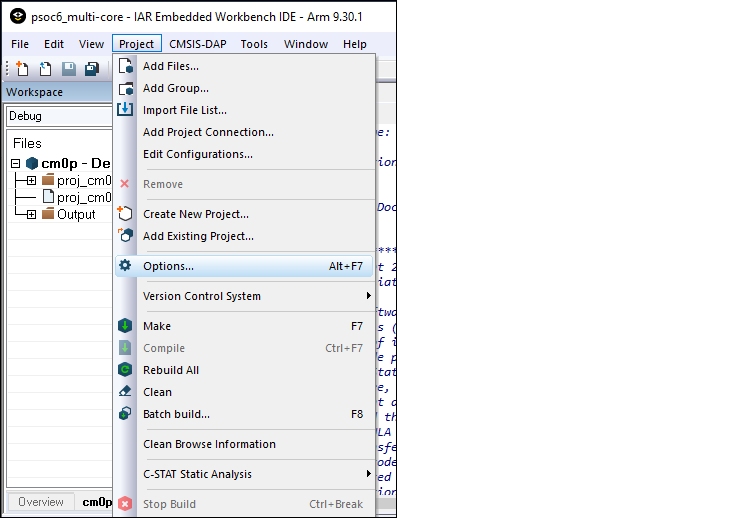
Select the CM4/CM7 core project and go to Project > Options :
-
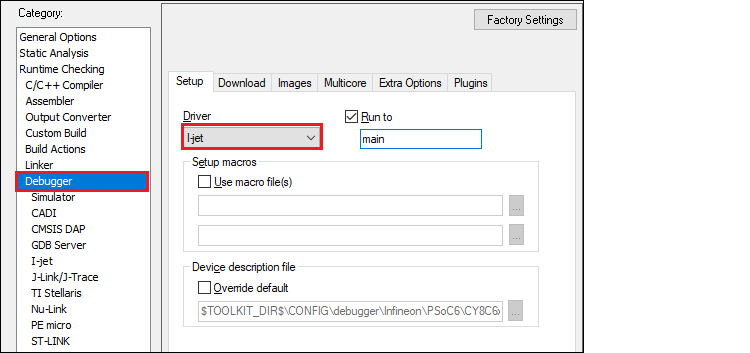
On the dialog, select the Debugger category in the Setup tab, and then select the appropriate Driver (I-jet, CMSIS-DAP, J-Link):
-
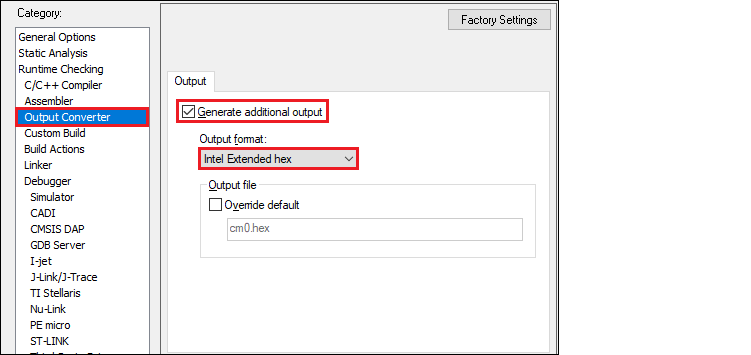
Enable hex file generation.
-
In the Runtime Checking > Output Converter category, select the Generate additional output check box.
-
Ensure Output format is set to Intel Extended hex .
-
Click OK .
-
-
Repeat these steps for all CM4/CM7 projects.
XMC7000/TRAVEO II specific steps
Some XMC7000 MCUs are triple-core devices. If you are going to use a second CM7 core in your IAR workspace, you need to implicitly set the target core in project settings so that IAR understands this project is targeting a second CM7 core. By default, IAR connects to the first CM7 core, so specifying the target core for it can be skipped.
-
Select the project for the second CM7 core and go to Project > Options .
-
Select the probe in the Debugger category, and switch to the Interface tab.
-
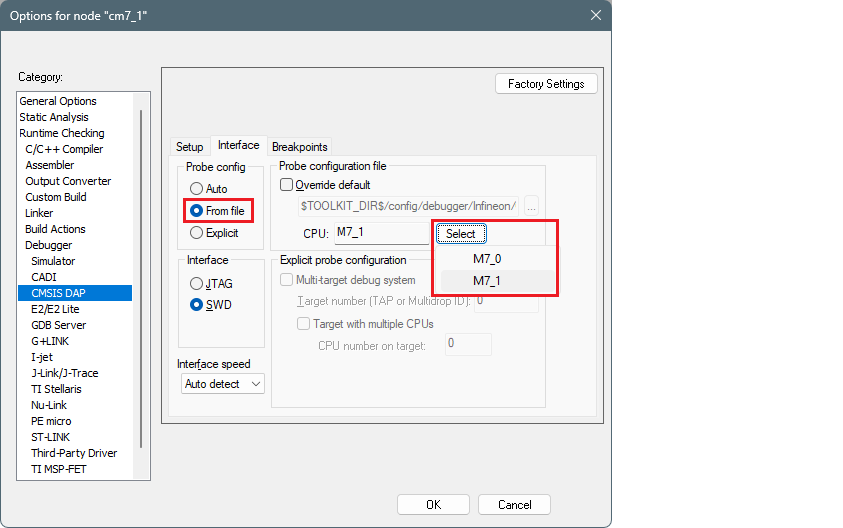
Select the From file radio button, click Select next to the CPU label, and choose M7_1 :
-
Switch to the Setup tab, and select "Custom" from the Reset pull-down menu.

-
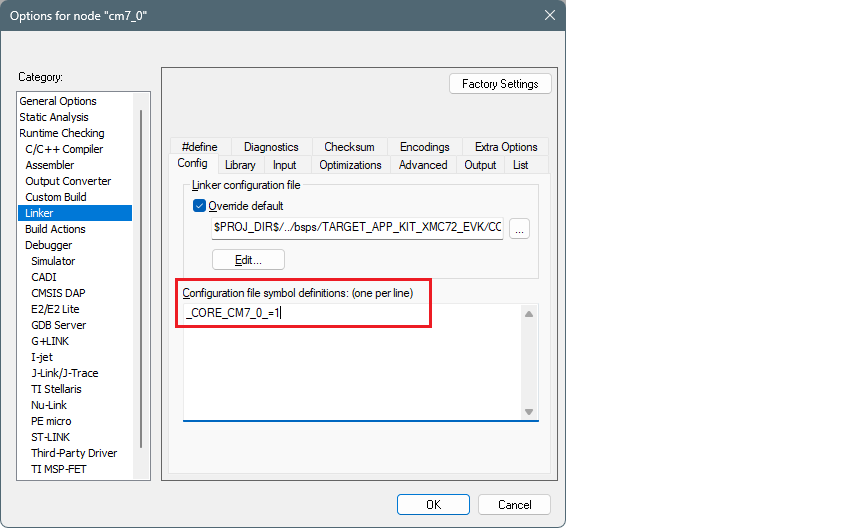
In addition, specify a special linker script symbol in the project settings to distinguish CM7_0 from CM7_1, since there is a single linker script for the two CM7 cores:
- Select the project for the first CM7 core and go to Project > Options > Linker .
- Add
_CORE_CM7_0_=1in the Configuration file symbol definitions field, and click OK .
-
Do the same for the second CM7 core:
- Select the project for the second CM7 core and go to Project > Options > Linker .
- Add
_CORE_CM7_1_=1in the Configuration file symbol definitions field , and click OK .
Note: When debugging CM4/CM7 core stand-alone, make sure to rebuild the CM0+ project in case any changes were made, since launching a debug session only loads the CM0+ image, but does not build that CM0+ project.
-
Build your CM7 project(s) before moving forward.
Configure and build CM0+ (master) core
-
Select the CM0+ project and open the Options dialog.
-
On the dialog, select the Debugger category in the Setup tab, and then select the applicable Driver (I-jet, CMSIS-DAP, J-Link):
-
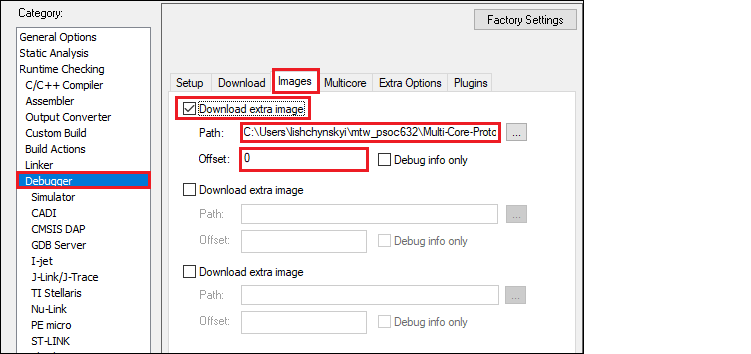
Switch to the Images tab to specify the extra image to be downloaded prior to debugging in order to download images of all projects in one process.
- Select the Download extra image check box.
- Provide a Path to the CM4/CM7's HEX image.
- Enter 0 for Offset .
If you provide an OUT file instead of a HEX file, the IAR IDE will fail to halt at the beginning of
main()due to the main function present in both the CM0+ and CM4/CM7 OUT files.Note: For triple-core MCUs you should download two extra images.
-
Switch to the Build Actions category.
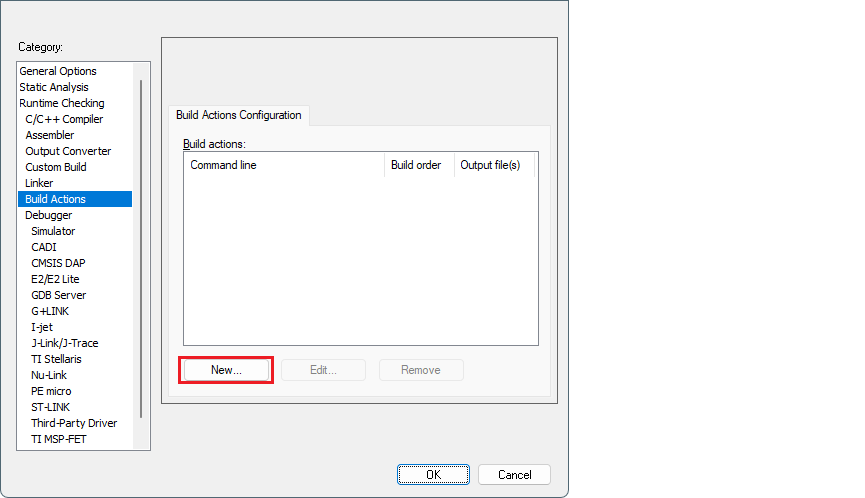
-
Click the New button to open the Build Action dialog.
-
Paste the following command to build the CM7_0 (or CM4) project in the Command line field as single line (edit the file name for your project)
-
iarbuild.exe "..\proj_cm7_0\[project-name].ewp" -make Debug
-
Select Build Order “Run before linking”.
-
Click OK to close the Build Action dialog.
-
Click the New button again.
-
Paste the following command to build the CM7_1 project (if applicable) in the Command line field as single line (edit the file name for your project)
iarbuild.exe "..\proj_cm7_1\[project-name].ewp" -make Debug
-
Select Build Order “Run before linking”.
-
Click OK to close the Build Action dialog.
The final list should look similar to this:
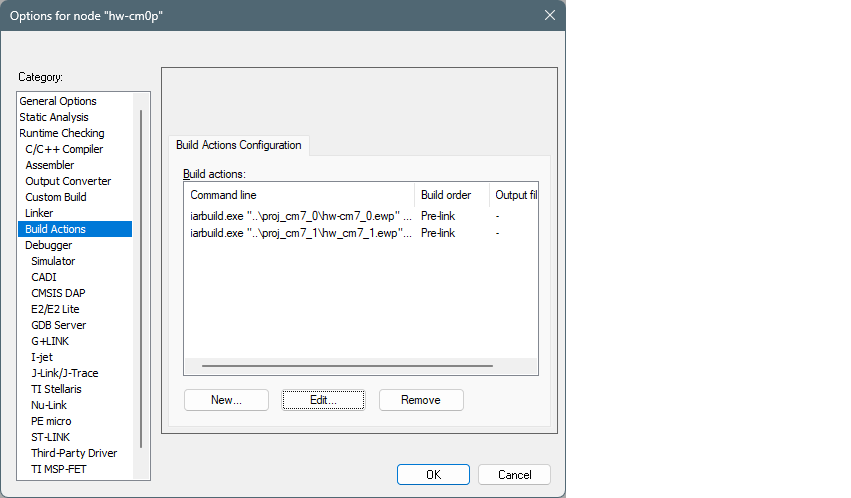
-
Enable hex file generation. In the Runtime Checking > Output Converter category:
-
Select the Generate additional output check box.
-
Ensure Output format is set to Intel Extended hex .
-
-
Click OK , and then select File > Save All to save all the changes.
-
Build the project.
Configure CMSIS-DAP/I-jet debug options
-
Create a session configuration file.
This is an xml file containing a projects list that should be launched in a multi-core debug session. The following shows an example for a triple-core device. For a dual-core device, remove the third partner node.
    <?xml version="1.0" encoding="utf-8"?>

    <sessionSetup>
        <partner>
            <name>cm0</name>
            <workspace>C:\Users\mtw-multi-core\Multicore_App\multi-core_workspace.eww</workspace>
            <project>cm0</project>
            <config>Debug</config>
            <numberOfCores>1</numberOfCores>
            <attachToRunningTarget>false</attachToRunningTarget>
        </partner>
        <partner>
            <name>cm7_0</name>
            <workspace>C:\Users\mtw-multi-core\Multicore_App\multi-core_workspace.eww</workspace>
            <project>cm7_0</project>
            <config>Debug</config>
            <numberOfCores>1</numberOfCores>
            <attachToRunningTarget>true</attachToRunningTarget>
        </partner>
        <partner>
            <name>cm7_1</name>
            <workspace>C:\Users\mtw-multi-core\Multicore_App\multi-core_workspace.eww</workspace>
            <project>cm7_1</project>
            <config>Debug</config>
            <numberOfCores>1</numberOfCores>
            <attachToRunningTarget>true</attachToRunningTarget>
        </partner>
    </sessionSetup>
-
Configure multi-core debugging for the CM0+ project.
- Go to Project > Options -> Debugger .
- Switch to the Multicore tab.
- Select the Advanced radio button and specify a path to the session configuration file in the Session configuration field.
- Click OK .
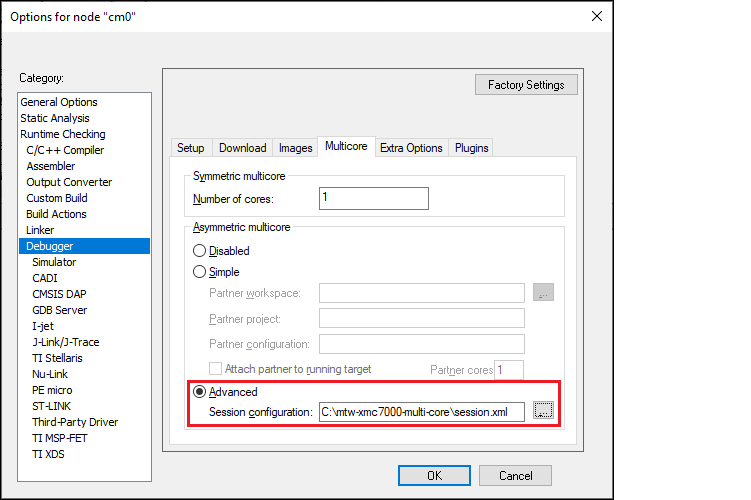
-
Save the workspace.
Launch multi-core debug session with CMSIS-DAP/I-jet
Select the CM0 project and click the Download and debug button.
IAR builds all projects, programs all the separate images, and launches a multi-core debug session. IAR opens a separate IDE instance for each project specified in the session file. For dual-core MCUs, it should look like to this:
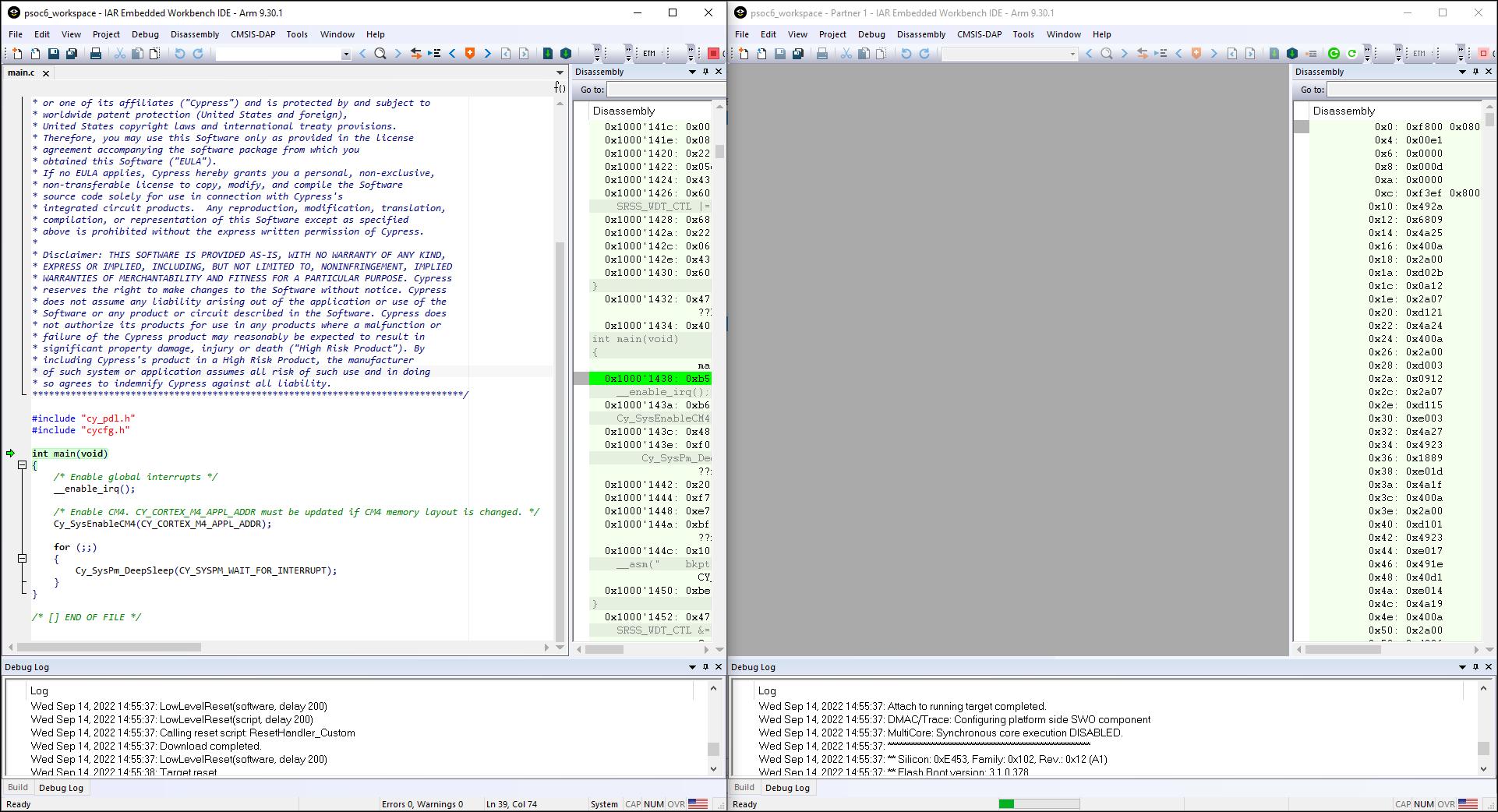
The left side of the screen shows the IAR IDE instance attached to the CM0+ core. The right side shows the CM4 (or CM7) core not started yet. Once the Cy_SysEnableCM4() function is executed on the CM0+ core, the CM4/CM7 will start executing its application.
You can step through the code by switching back and forth between the two IAR IDE instances.
Launch multi-core debug session with J-Link
The IAR IDE does not have native support for the J-Link driver, which imposes some limitations:
IAR does not provide native multi-core debugging support when using a J-Link probe. This means that in order to launch multi-core debugging, you must open a few IAR IDE instances manually (one instance per core). Also, multi-core debugging with a J-Link probe lacks some features available with CMSIS-DAP and I-jet probes. Therefore, depending on the target probe, you need to configure projects slightly differently.
-
IAR will not automatically open separate IDE instances for each core, so you need to do it manually.
-
Some enhanced features are not available; see the Multi-core toolbar and CTI usage section for more details.
To launch multi-core debugging with J-Link:
-
Open your multi-core IAR workspace in separate IDE instances (the number of IDE instances should be equal to the number of cores on your MCU).
-
Select the CM0+ project in the first IDE instance and click Download and Debug . The debugger will download all images, reset the target, and halt at the beginning of the CM0+ project's
main(). -
Switch to the other IDE instances and select: Project > Attach to Running Target .