PSOC™ 6 and XMC7xxx multi-core application
Follow instructions in Create/export application for Keil µVision. After creating all the projects in separate instances, your application should look like this:
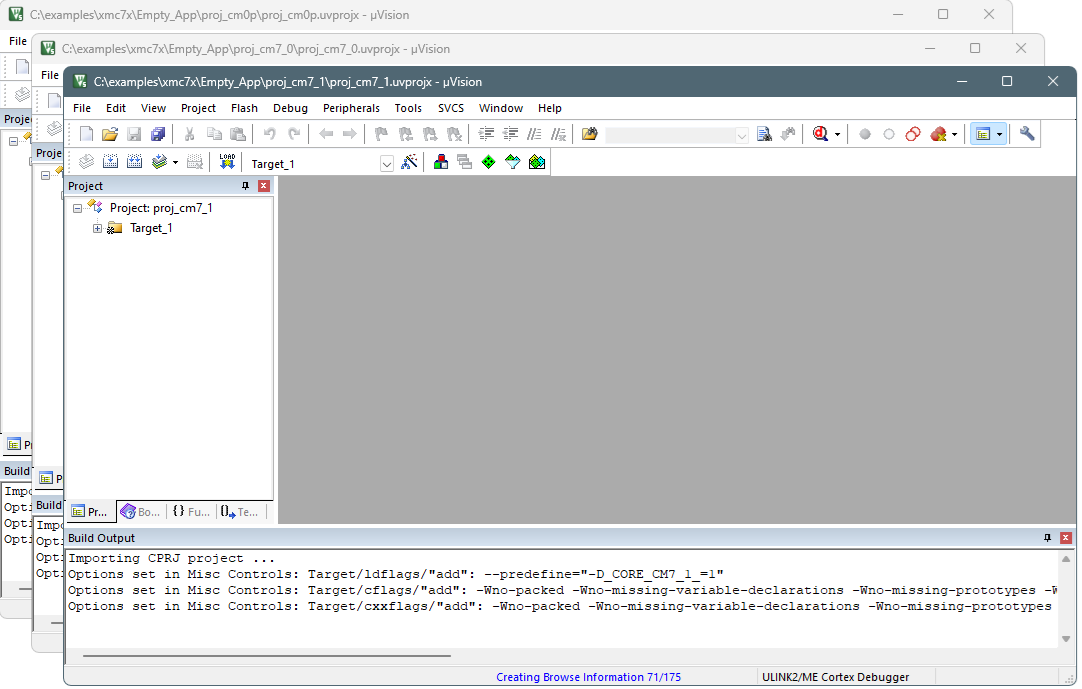
Then, use the instructions in this section to configure, build, and debug your application.
Configure CM0+ project
-
Go to Project > Options for Target [target_name] , switch to the Debug tab, select the applicable debug probe (CMSIS-DAP or J-Link) as shown:

- If using ULINK2, select the CMSIS-DAP Debugger option as the debug probe, because the ULINK2 driver does not support multi-core debugging
-
Click the Settings button to configure the target driver.
-
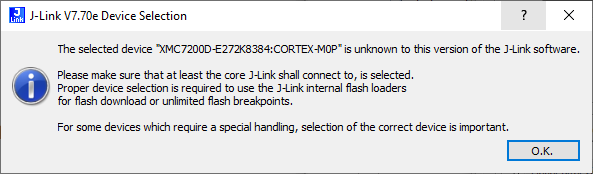
If you select the J-Link probe, a pop-up window might display reporting that the device is unknown to J-Link software.
-
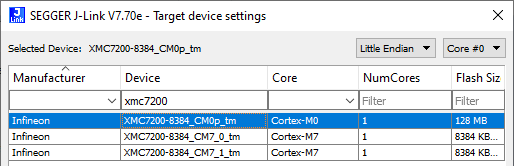
If so, click OK and select the device manually in the opened Target device settings dialog. For XMC7200 devices, there will be three aliases, each dedicated to a separate core.
-
-
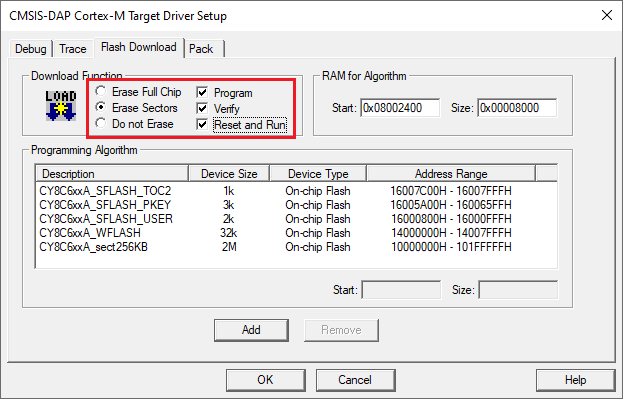
Switch to the Flash Download tab, select the Erase Sectors radio button, and select the Program , Verify , and Reset and Run check boxes.
-
Click OK to close the Target Driver Setup dialog.
-
Next, configure the project so that it also programs other image(s) from the CM4/CM7 project(s). Do this using the *. ini file.
-
Create a new empty file named load_cmx.ini and save it inside the CM0+ project directory.
-
Add a
LOADcommand with a path to the CM4/CM7 images. For example:
-
LOAD "..\\proj_cm4\\proj_cm4_Objects\\proj_cm4.axf"
- Add as many
LOADcommands for all the CM4/CM7 projects as you have.
-
Go to Project > Options for Target [target_name] , select the Utilities tab, and specify the created load_cmx.ini file in the Init File edit field.
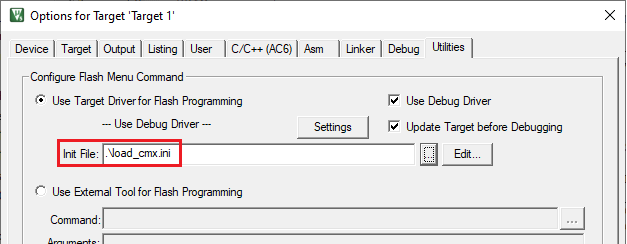
-
Switch to the Debug tab, and click the Settings button.
The configuration settings are different for CMSIS-DAP/ULINK2 and J-Link. Refer to the following sections for the applicable options:
CMSIS-DAP/ULINK2 Target Driver Setup
Use the following options:
- Port : SW
- Max Clock : 1 MHz
- Connect : Normal
- Reset : SYSRESETREQ
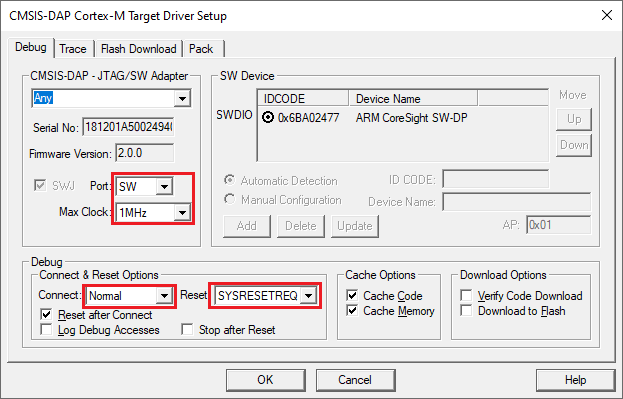
J-Link Target Driver Setup
Use the following options:
- Port : SW
- Max clock : 1 MHz
- Connect : Normal
- Reset : Normal
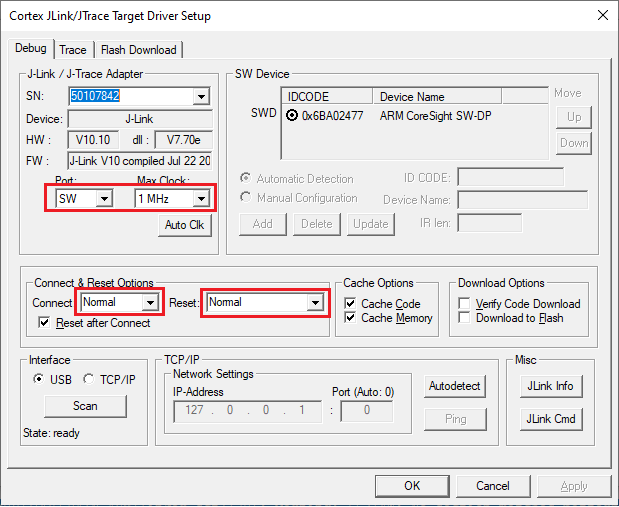
That completes configuring the CM0+ project. The next step is to configure CM4/CM7 project(s).
Configure CM4/CM7 project
-
Open the Options dialog to the Utilities tab, and deselect the Update Target before the Debugging check box.
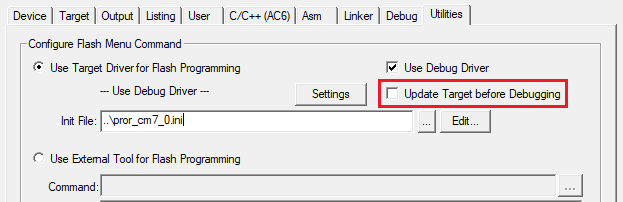
-
Switch to the Debug tab, select the applicable debug probe (CMSIS-DAP or J-Link).
- If using ULINK2, select the CMSIS-DAP Debugger option as the debug probe, the ULINK2 driver does not support multi-core debugging.
-
Click the Settings button to configure the target driver.
-
On the Target Driver Setup dialog, switch to the Flash Download tab, select the Do not Erase radio button, and deselect the Program , Verify , and Reset and Run check boxes.
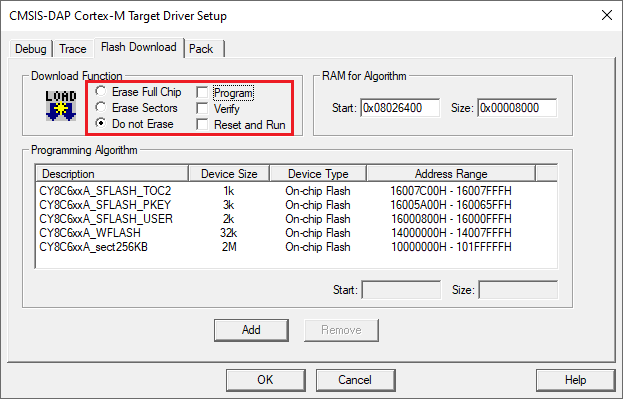
-
Switch to the Debug tab.
The configuration settings are different for CMSIS-DAP/ULINK2 and J-Link. Refer to the following for the appropriate options:
-
CMSIS-DAP/ULINK2 Target Driver Setup - Use the following options:
-
Port : SW
-
Max Clock : 1 MHz
-
Connect : Normal
-
Reset : VECTRESET
-
Reset after Connect check box: deselected
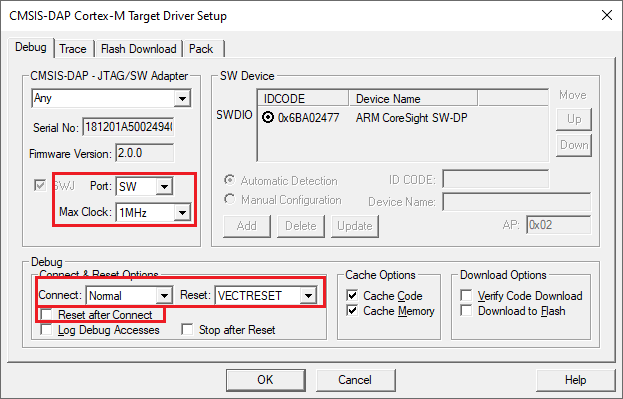
-
-
J-Link Target Driver Setup - Use the following options:
-
Port : SW
-
Max Clock : 1 MHz
-
Connect : Normal
-
Reset : Core
-
Reset after Connect check box: deselected
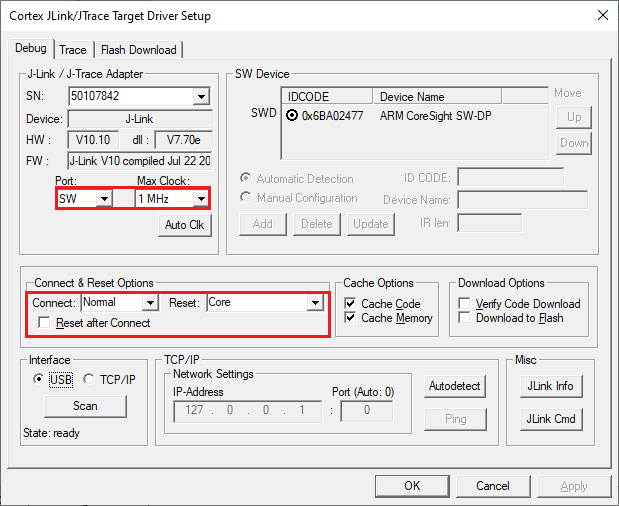
-
-
-
Click OK to close the Target Driver Setup dialog.
-
Save the project(s).
Building µVision multi-core projects
Once all projects are open, go ahead and build each one using Project > Build target.
To use J-Link debugger with XMC7000 devices
Program set-up instructions
-
Select the Debug tab in the Options for Target dialog, select "J-LINK / J-TRACE Cortex" as the debug adapter, and click Settings .
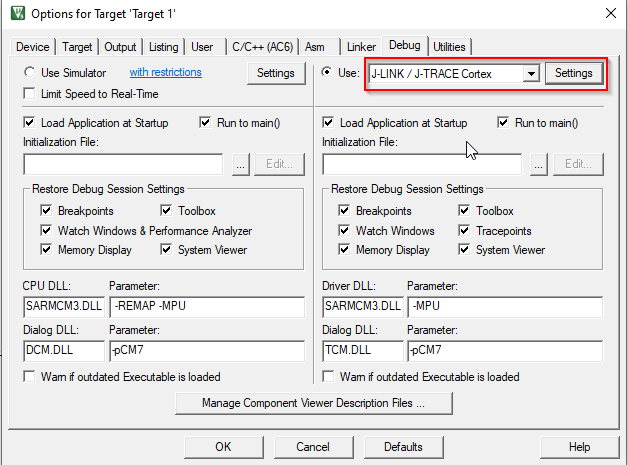
-
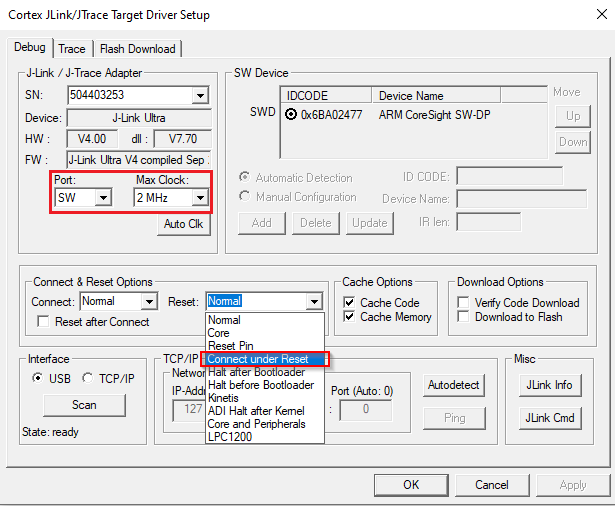
On the Debug tab in the Cortex J-Link/JTrace Target Driver Setup dialog, select "SW" for Port , 2 MHz for Max Clock , and "Connect under Reset" on the Reset pull-down menu, and then click OK .
-
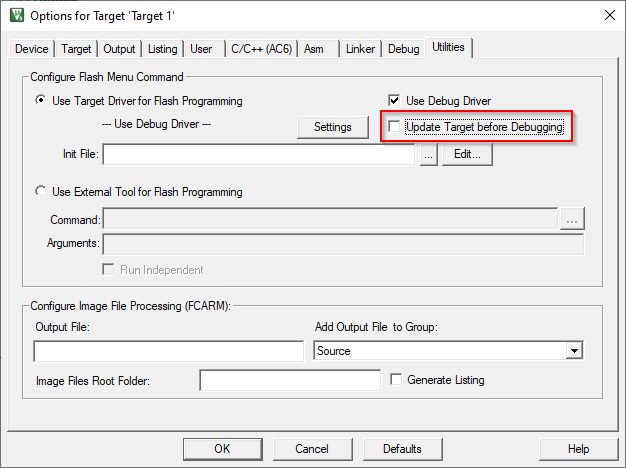
Select the Utilities tab in the Options for Target dialog and deselect the Update target before Debugging check box.
Debug set-up instructions
-
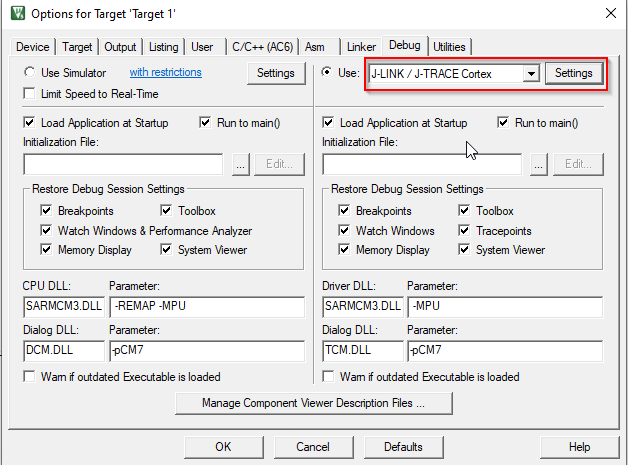
Select the Debug tab in the Options for Target dialog, select "J-LINK / J-TRACE Cortex" as the debug adapter, and click Settings .
-
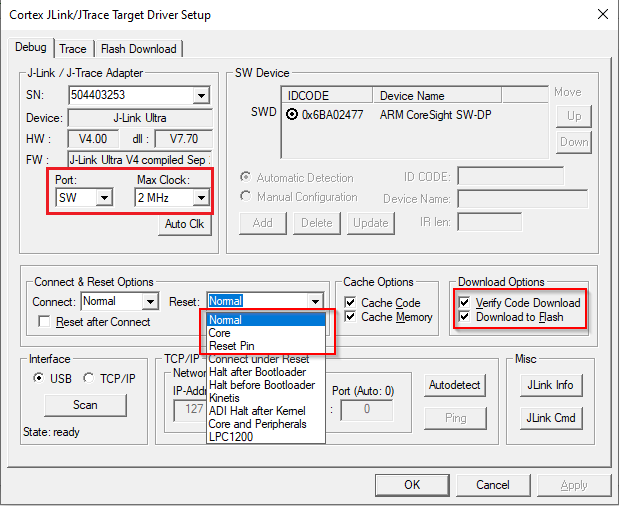
On the Debug tab in the Target Driver Setup dialog:
-
Port : select "SW"
-
Max Clock : select 2 MHz
-
Reset pull-down: select "Normal," "Core" or "Reset Pin"
-
Download Options : enable "Verify Code Download" and "Download to Flash"
-
Launch multi-core debug session
To launch a multi-core debug session, all your µVision projects must be opened in separate IDE instances.
-
Open a µVision IDE session with the project for the CM0+ core and start debugging by pressing Debug > Start/Stop Debug Session . This will program all images, reset the target, and halt at the beginning of the CM0+ project
main(). -
Repeat the same process for the CM4/CM7 core(s). This will attach the running CM4/CM7 core that will be spinning in the boot code until the CM0+ project starts it.
Ensure both projects are built before launching a debug session.
For dual-core MCUs, the projects will be similar to these images:
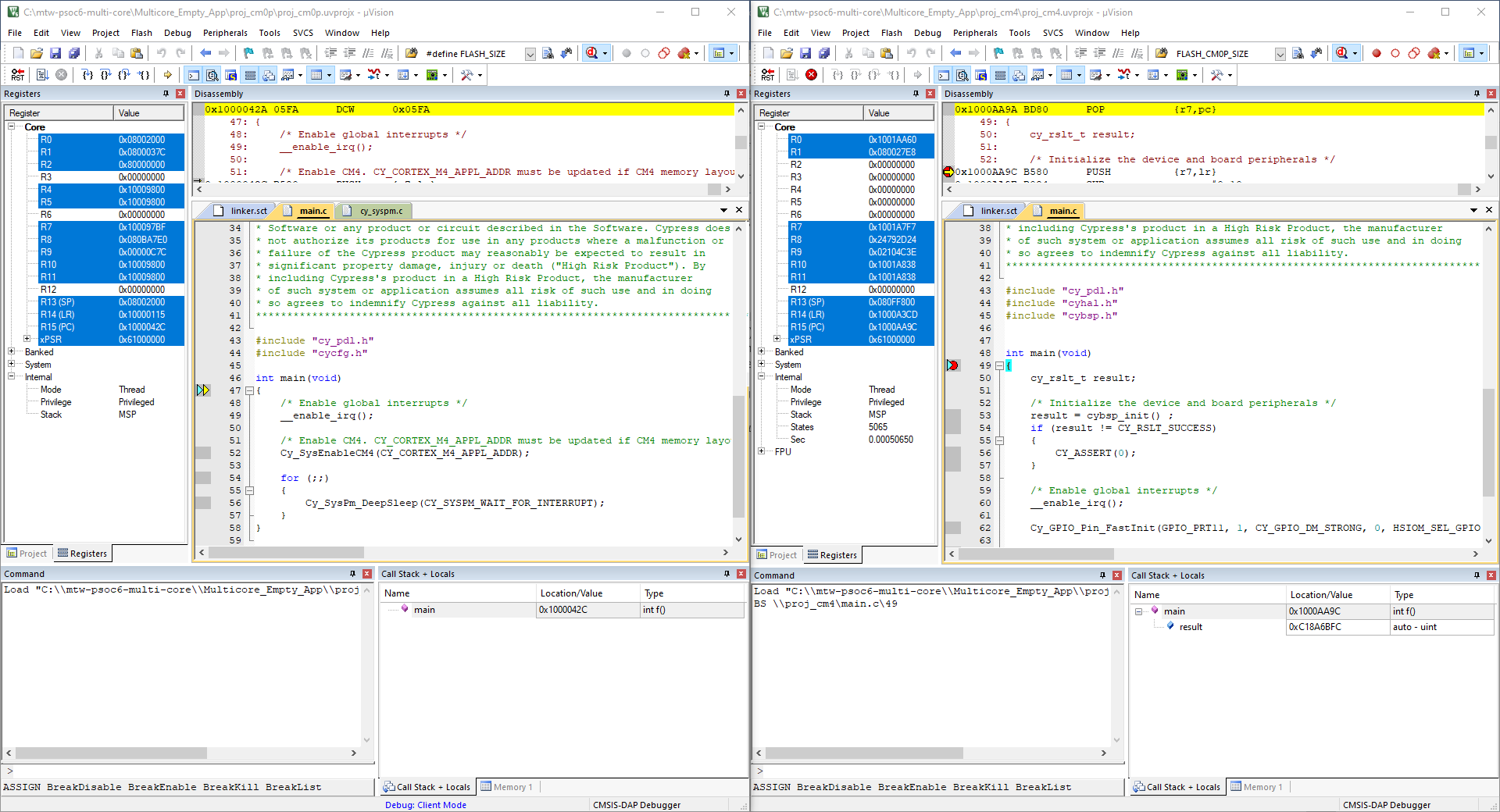
The left side of the screen shows a µVision IDE instance attached to the CM0+ core. The right side shows the CM4 core has not started yet. Once the Cy_SysEnableCM4() function on the CM0+ core has been executed, the CM4 will start executing its application. You can step through the code by switching back and forth between the two µVision IDE instances.