PSOC™ 4 and PSOC™ 6 single-core application
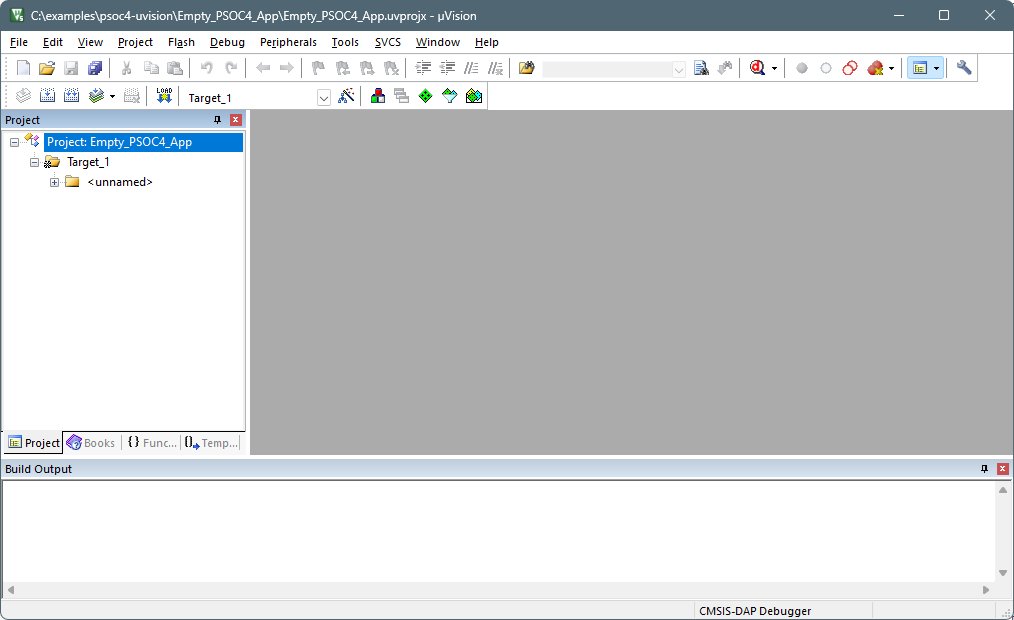
Follow instructions in Create/export application for Keil µVision. When complete, your project should look similar to the following. Then, use the instructions in this section to configure, build, and debug your application.
Configure and build the application
-
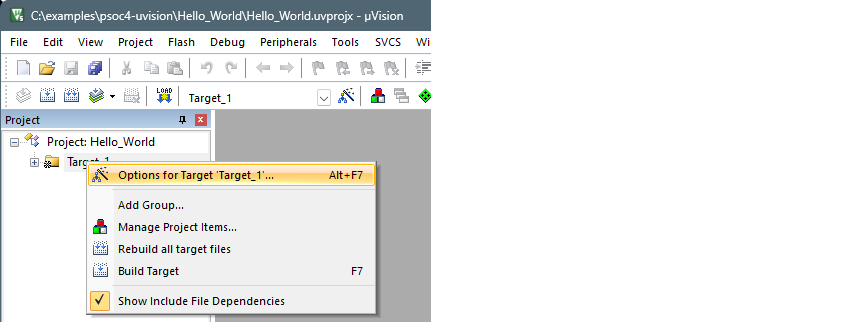
Right-click on the Target_1 directory in the µVision Project view and select Options for Target 'Target_1' …
-
Select the Debug tab and then select the appropriate debugger probe. See Miscellaneous notes for details to configure the probe.
-
Click OK to close the Options dialog.
Note: For applications using the PSOC™ 64 secure single-core application or AIROC™ CYW20829 single-core application, skip the next step. Instead, perform the steps outlined in the applicable section.
-
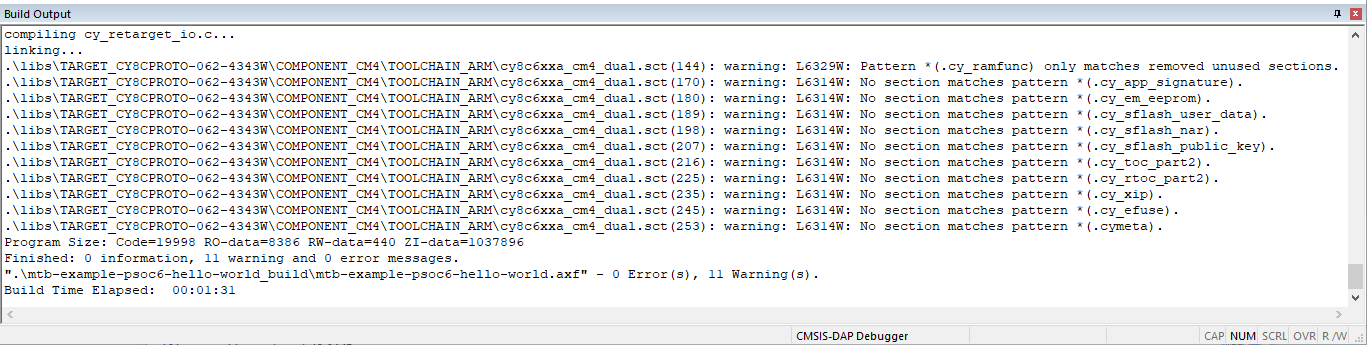
Select Project > Build target .
Programming/Debugging
Refer to sections for setting up the applicable debugger probe under Miscellaneous notes. Then:
-
Connect the PSOC™ 6 kit to the host PC.
-
As needed, run the fw-loader tool to make sure the board firmware is upgraded to KitProg3. See KitProg3 User Guide for details. The fw-loader tool is located in this directory by default:
[install-path]/ModusToolboxProgtools-[version]/fw-loader/bin/
-
Select Debug > Start/Stop Debug Session .
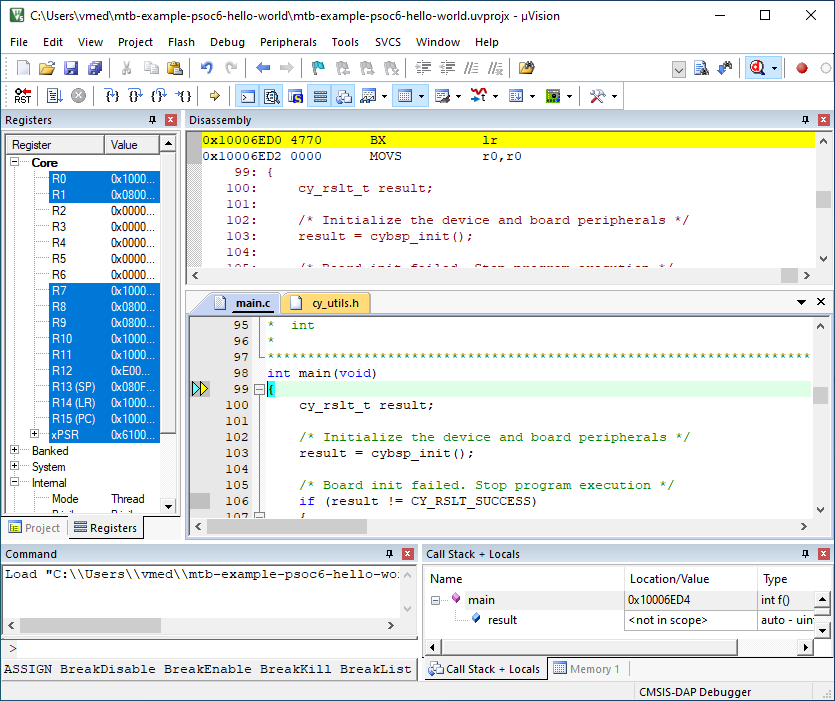
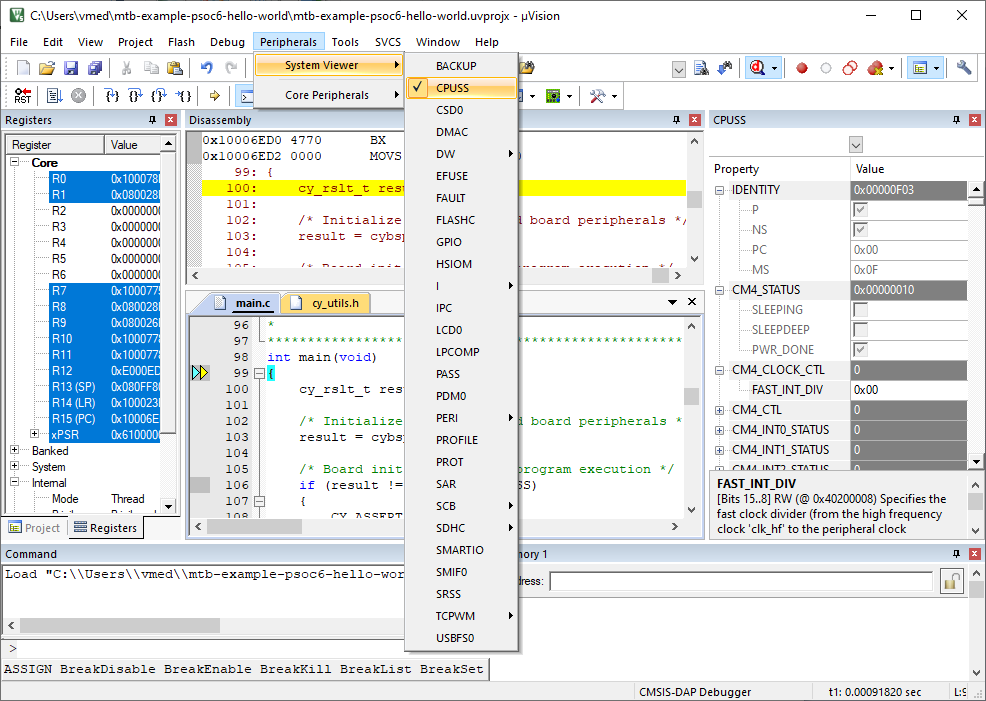
You can view the system and peripheral registers in the SVD view.
Program external memory
-
Download internal flash as described above.
Notice "No Algorithm found for: 18000000H - 1800FFFFH" warning.
-
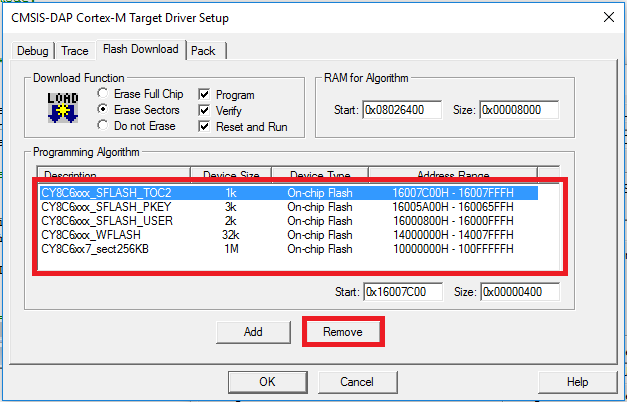
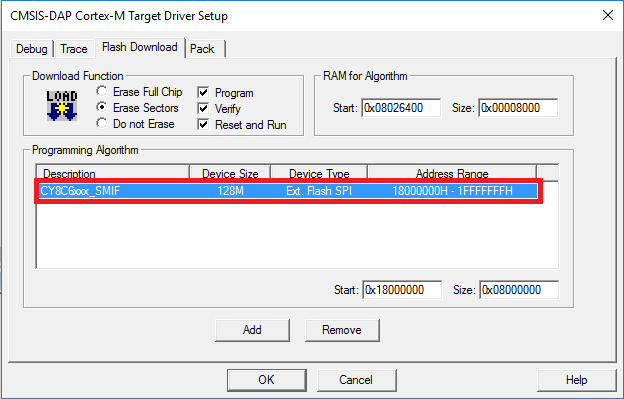
Select the Flash Download tab in Target Driver Setup dialog and remove all programming algorithms for On-chip Flash and add programming algorithm for External Flash SPI:
-
Download flash.
Notice warnings:
- No Algorithm found for: 10000000H - 1000182FH
- No Algorithm found for: 10002000H - 10007E5BH
- No Algorithm found for: 16007C00H - 16007DFFH
Erase external memory
-
Select the Flash Download tab in Target Driver Setup dialog and remove all programming algorithms for On-chip Flash and add programming algorithm for External Flash SPI:
-
Click Flash > Erase in menu bar.