GUI description
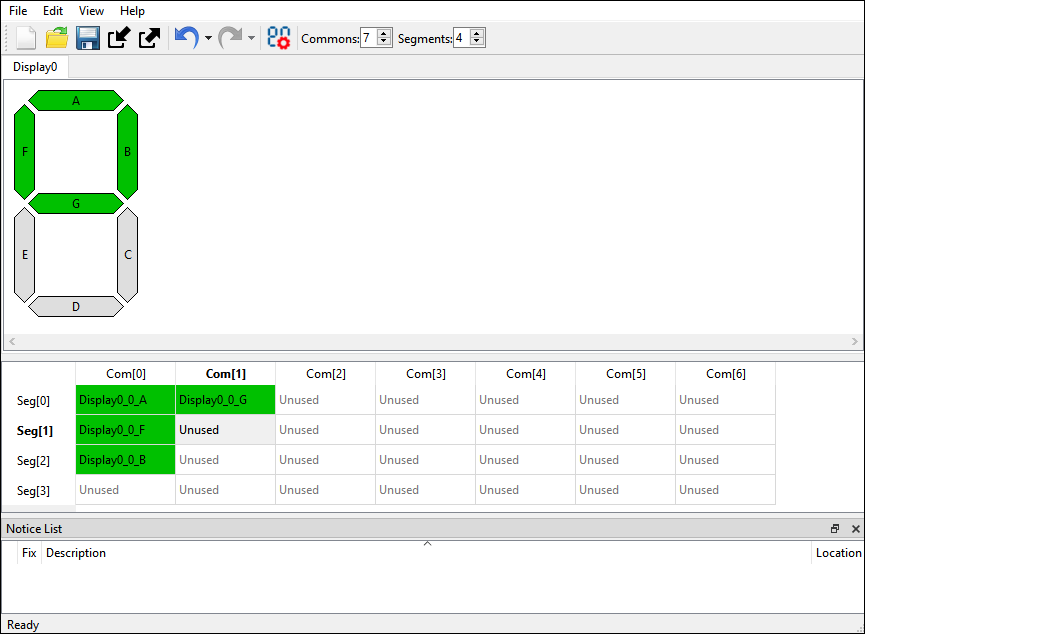
The Segment LCD Configurator GUI contains menus and display view to configure display tabs, and a Notice List to provide indications.
Menus
File
-
New… - Creates a new file with new configuration.
-
Open… - Opens and loads an existing file.
-
Save - Saves the existing file.
-
Save As… - Saves the existing file under a different name.
-
Open in System Explorer - Opens your computer’s file explorer tool to the folder that contains the *. modus file.
-
Import… - Imports a specified configuration file.
-
Export… - Exports the current configuration file into a specified file.
-
Recent Files - Shows recent files that you can open directly.
-
Exit - Closes the tool.
Edit
-
Undo - Undoes the last action or sequence of actions.
-
Redo - Redoes the last undone action or sequence of undone actions.
-
Edit Displays - Opens the Display Editor dialog.
View
-
Undo - Undoes the last action or sequence of actions.
-
Redo - Redoes the last undone action or sequence of undone actions.
-
Edit Displays - Opens the Display Editor dialog.
Help
-
View Help - Opens this document.
-
About Segment LCD Configurator - Opens the About box for version information, with links to open https://www.infineon.com and the current session log file.
Toolbar
The toolbar provides the basic buttons from the menus to create, open, edit, and save files.

Also, the toolbar contains buttons to configure and edit displays:
-
Edit Displays - Opens the Display Editor dialog.
-
Commons - Specifies the number of common LCD connections represented as columns on the mapping table.
-
Segments - Specifies the number of segment LCD connections represented as rows on the mapping table.
Display Editor
See Display Editor.
Display View
See Display view.
Notice List
The Notice List pane combines notices (errors, warnings, tasks, and notes) from many places in the configuration into a centralized list. If a notice shows a location, double-click the entry to show the error or warning.

For more information, refer to the Device Configurator guide.