Configuring Keil µVision
One option to open ModusToolbox™ tools is to configure the Keil µVision
Tools
menu using the
Customize Tools Menu
dialog to add shortcuts to the various tools. This is a one-time configuration for each tool you wish to add. Then, the tools will be available for all your ModusToolbox™ applications running in Keil µVision.
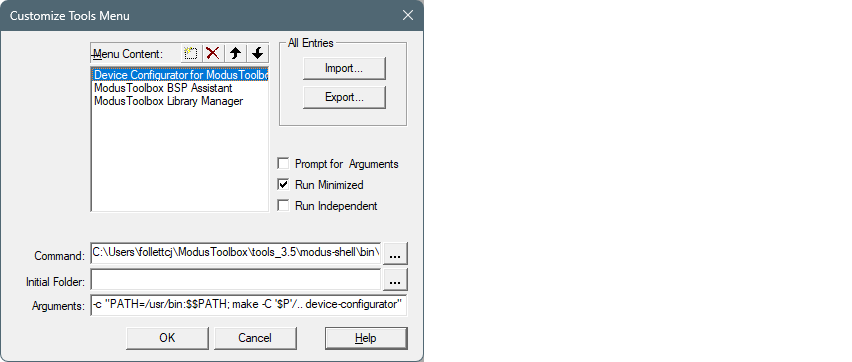
On this dialog, click the
Menu Content "New"
button and enter a name for the tool. Then, complete the following:
Command
:
[
path-to-modustoolbox-tools
]\modus-shell\bin\bash.exe
This opens the bash shell from the tools package installation location. You can navigate to the executable using the [
…
] button.
Arguments
:
-c "PATH=/usr/bin:$$PATH; make -C '$P' [
tool-name
]"
This passes a command to the bash shell to open the specified
[tool-name]
(for example, device-configurator, bsp-assistant, library-manager, etc.).
The variable
'$P'
is the µVision project directory, and it is quoted because it returns a Windows-style path, which does not work without the quotes in bash. If the application is multi-core, add
/..
to navigate to one directory higher where the
Makefile
is located.
Run Minimized
: This check box is optional. If selected, the bash shell is minimized in the Taskbar running the command to open the tool.
For more details about this dialog, refer to the Keil µVision user guide/help.