Create/export application for Keil µVision
This section covers the ways to get started using Keil µVision with ModusToolbox™ software.
Create/export ModusToolbox application
Create new application
-
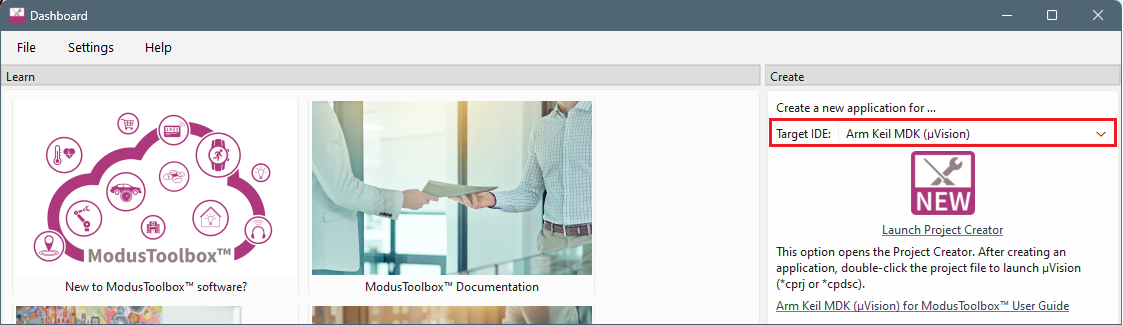
Use the Dashboard to open the Project Creator tool and create a ModusToolbox™ application for Keil µVision. Refer to the Dashboard user guide for more details for this tool.
-
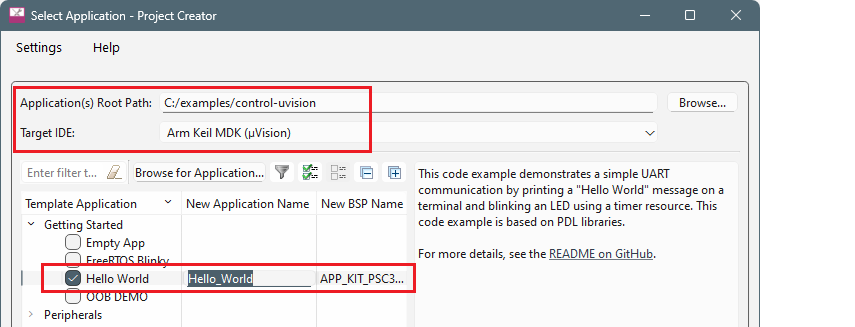
In the Project Creator tool, make sure to select the Application(s) Root Path and that the Target IDE is set to Arm Keil MDK (µVision), in addition to choosing the Template Application . Refer to the Project Creator user guide for more details.
-
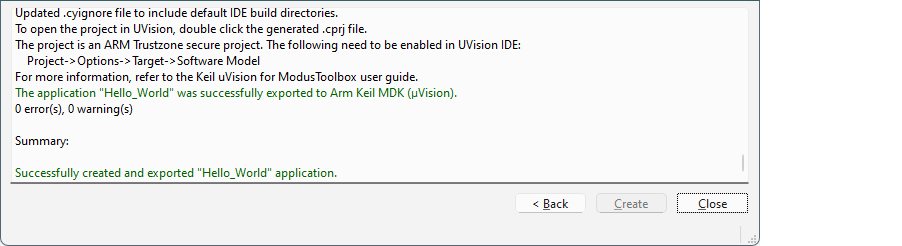
After the project creation process completes, check the messages in the console.
-
Close the Project Creator and the Dashboard. Proceed to the section in this document for your device family.
Export existing application
Instead of creating a new application, if you have a ModusToolbox™ application that was created for another IDE or for the command line, you can export that application to be used in Keil µVision. Open a terminal window (modus-shell in Windows) and type the following:
make uvision CY_IDE_PRJNAME=[project-name] TOOLCHAIN=ARM
For applications that were created using core-make-3.0 or older, you must use the make uvision5 command instead.
This sets the TOOLCHAIN to ARM in the Keil µVision configuration files but not in the ModusToolbox™ application's Makefile. Therefore, builds inside Keil µVision will use the ARM toolchain, while builds in the ModusToolbox™ environment will continue to use the toolchain that was previously specified in the Makefile. You can edit the Makefile's TOOLCHAIN variable if you also want ModusToolbox™ builds to use the ARM toolchain.
Check the output log for instructions.
Postbuild script
The process to create or export an application for use in Keil µVision creates a script file named ide_postbuild.bat. This script updates the hex file as needed for security and multi-core support. It requires you to set the CY_COMPILER_ARM_DIR environment variable. For example:
CY_COMPILER_ARM_DIR=C:/Keil_v5/ARM/ARMCLANG
Use forward slashes (even on Windows) because of UNIX/Linux path rules.
Create Keil µVision project(s)
Creating or exporting the application generates a *.cprj file in the application/project directory. The cprj file extension should have the association enabled to open it in Keil µVision.
-
Double-click the *.cprj file. This launches the Keil µVision IDE.
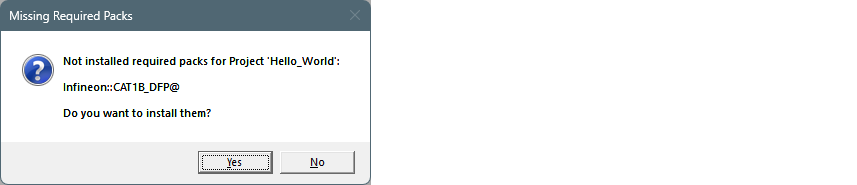
The first time you do this, a dialog similar to the following displays:
-
Click Yes to install the device pack. You only need to do this once per device type.
-
Follow the steps in the Pack Installer to properly install the device pack.
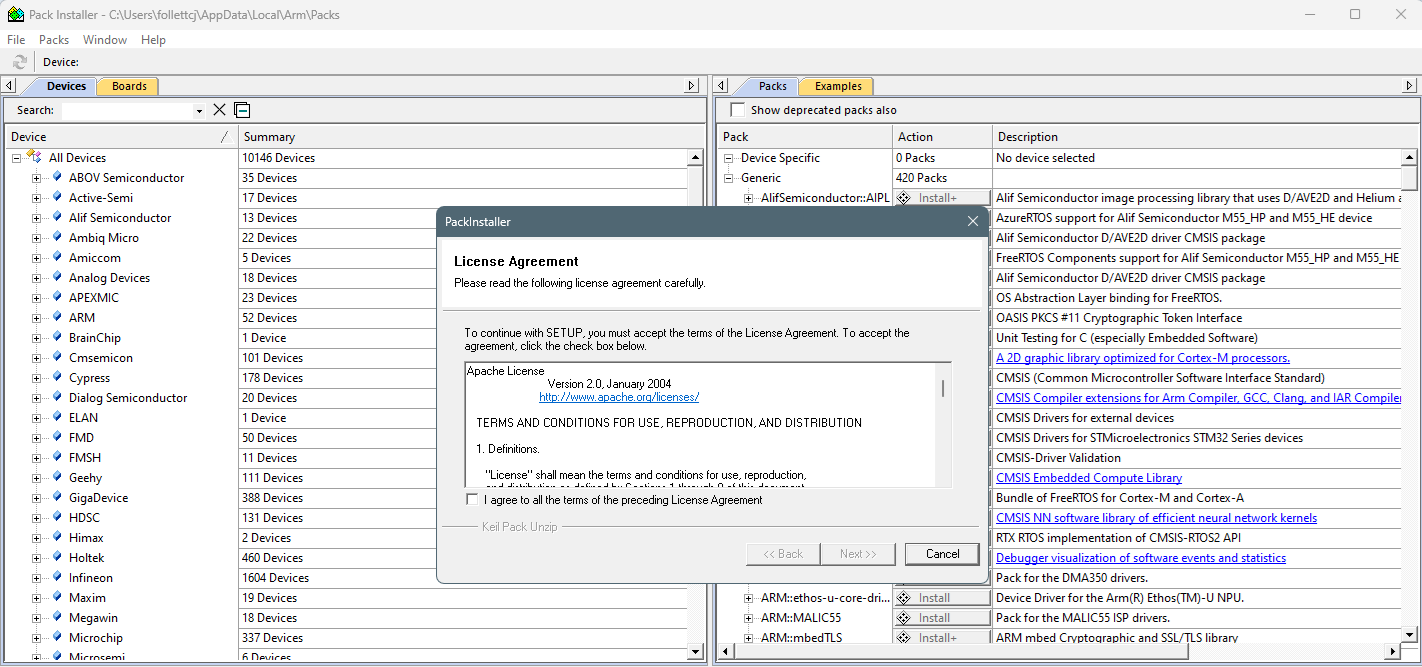
Note: In some cases, you may see the following error message:SSL caching disabled in Windows Internet settings. Switched to offline mode.
See this link for how to solve this problem: https://developer.arm.com/documentation/ka002253/latest
-
When complete, close the Pack Installer and the application will be created for you in the IDE.
-
If you're working with a multi-core or multi-project application, a cprj file is created in each sub-project directory. Double-click the *. cprj file in each folder (for example, PSOC™ Edge: cm33s, cm33ns, and cm55, XMC7xxx: cm0p, cm7_0, and cm7_1).