Configure and build
After creating an application, make a few changes before attempting to build it:
Edit the
Makefile
located in the project folder as follows:
APPNAME=Hello_World
# Use the same App_Name used to create the project

TOOLCHAIN=IAR
Using your favorite code editor, create a
postbuild.bat
file in the IAR project directory.
Add
SET PATH=%PATH%;"/usr/bin"
at the start of file.
Open a modus-shell terminal from the ModusToolbox™ install directory, navigate to the IAR project directory, and run this command:
make build -j8Copy the IAR-related post-build output from the modus-shell terminal. For example:
C:/iar/ewarm-9.60.3/arm/bin/ielftool C:/examples/20829/Hello_World/build/APP_CYW920829M2EVK-02/Debug/Hello_World.elf --bin-multi C:/examples/20829/Hello_World/build/APP_CYW920829M2EVK-02/Debug/Hello_World.bin; C:/iar/ewarm-9.60.3/arm/bin/ielfdumparm -a C:/examples/20829/Hello_World/build/APP_CYW920829M2EVK-02/Debug/Hello_World.elf > C:/examples/20829/Hello_World/build/APP_CYW920829M2EVK-02/Debug/Hello_World.dis; "[install-path]/ModusToolbox/tools_[version]/modus-shell/bin/bash.exe" --norc --noprofile ../mtb_shared/recipe-make-cat1b/release-v2.8.0/make/scripts/20829/flash_postbuild.sh "IAR" "C:/examples/20829/Hello_World/build/APP_CYW920829M2EVK-02/Debug" "Hello_World" "[install-path]/Infineon/Tools/mtb-gcc-arm-eabi/11.3.1/gcc/bin" "C:/Users/follettcj/ModusToolbox/tools_3.5/srecord/bin/srec_cat.exe" "0x00003A00"; "[install-path]/ModusToolbox/tools_[version]/modus-shell/bin/bash.exe" --norc --noprofile ../mtb_shared/recipe-make-cat1b/release-v2.8.0/make/scripts/20829/run_toc2_generator.sh "NON_SECURE" "C:/examples/20829/Hello_World/build/APP_CYW920829M2EVK-02/Debug" "Hello_World" "flash" "bsps/TARGET_APP_CYW920829M2EVK-02" "NONE" "[install-path]/Infineon/Tools/mtb-gcc-arm-eabi/11.3.1/gcc" "" 0x20000 0 "" "0x00003A00" "256"; [install-path]/ModusToolbox/tools_[version]/srecord/bin/srec_cat.exe C:/examples/20829/Hello_World/build/APP_CYW920829M2EVK-02/Debug/Hello_World.final.bin -Binary -offset 0x60000000 -o C:/examples/20829/Hello_World/build/APP_CYW920829M2EVK-02/Debug/Hello_World.final.hex -Intel -Output_Block_Size=16;Paste the post-build output into the
postbuild.bat
file, make the following edits, and save the file:
Change the paths from "build/APP_CYW920829M2EVK-02/Debug/..." to "Debug/Exe/…".
Remove all the semi-colons. We recommend making a line break for each semi-colon.
Delete un-needed commands (e.g., ielfdumparm, rm -rf, and cp).
Example edited file:
PATH=%PATH%;"/usr/bin"

C:/iar/ewarm-9.60.3/arm/bin/ielftool C:/examples/20829/Hello_World/Debug/Exe/Hello_World.elf --bin-multi C:/examples/20829/Hello_World/Debug/Exe/Hello_World.bin

"[install-path]/ModusToolbox/tools_[version]/modus-shell/bin/bash.exe" --norc --noprofile ../mtb_shared/recipe-make-cat1b/release-v2.8.0/make/scripts/20829/flash_postbuild.sh "IAR" "C:/examples/20829/Hello_World/Debug/Exe" "Hello_World" "[install-path]/Infineon/Tools/mtb-gcc-arm-eabi/11.3.1/gcc/bin" "[install-path]/ModusToolbox/tools_[version]/srecord/bin/srec_cat.exe" "0x00003A00"

"[install-path]/ModusToolbox/tools_[version]/modus-shell/bin/bash.exe" --norc --noprofile ../mtb_shared/recipe-make-cat1b/release-v2.8.0/make/scripts/20829/run_toc2_generator.sh "NON_SECURE" "C:/examples/20829/Hello_World/Debug/Exe" "Hello_World" "flash" "bsps/TARGET_APP_CYW920829M2EVK-02" "NONE" "[install-path]/Infineon/Tools/mtb-gcc-arm-eabi/11.3.1/gcc" "" 0x20000 0 "" "0x00003A00" "256"

[install-path]/ModusToolbox/tools_[version]/srecord/bin/srec_cat.exe "Debug/Exe/Hello_World.final.bin" -Binary -offset 0x60000000 -o "Debug/Exe/Hello_World.final.hex" -Intel -Output_Block_Size=16
Note:
Make sure to update the paths as needed for your system.
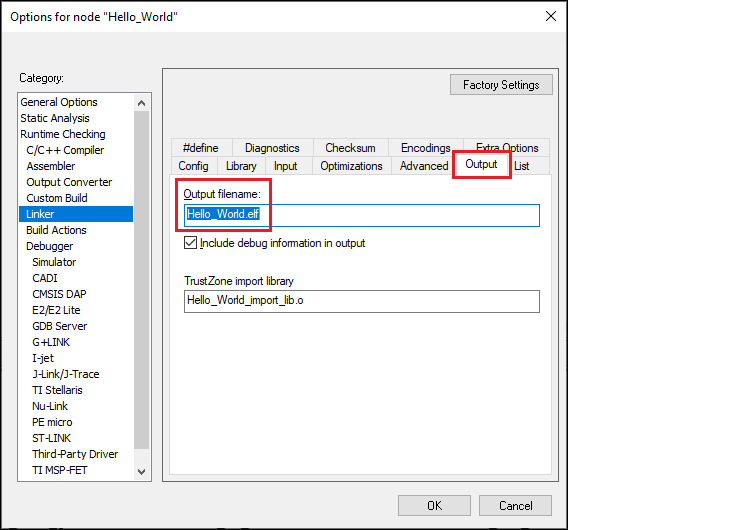
In IAR Embedded Workbench, open the Options dialog, go to
Linker > Output
and change the file extension from ".out" to ".elf" in the
Output filename
field:
Switch to
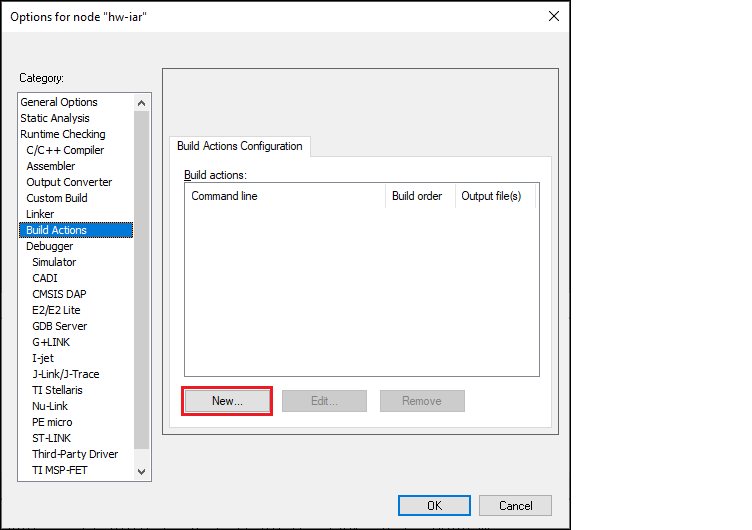
Build Actions
and click
New
:
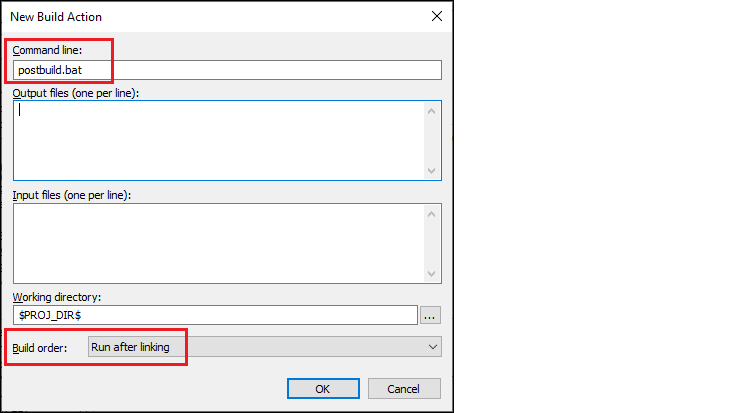
On the New Build Action dialog, type the
postbuild.bat
file in the
Command line
field, select "Run after linking" in the
Build order
field, and click
OK
:
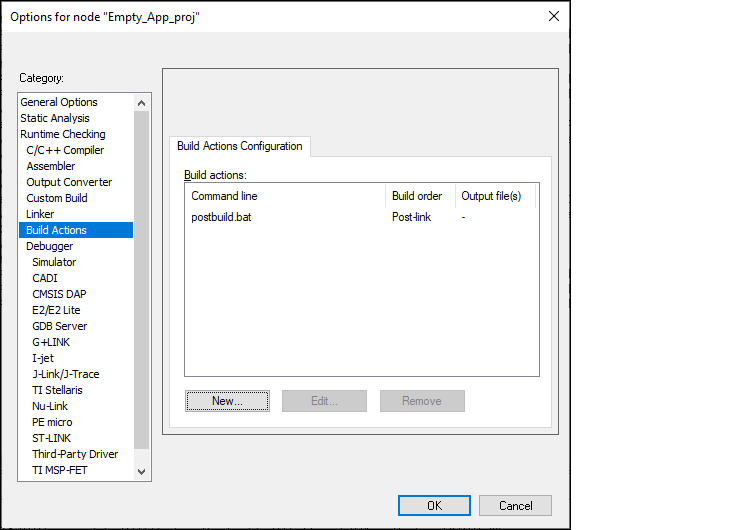
Click
OK
to close the Options dialog.
On the IAR main menu, select
Project > Make
to build the application. You should see the following:
Total number of errors: 0
Total number of warnings: 0
Resolving dependencies...
Build succeeded