Launch the Power Conversion Configurator
There are several ways to launch the Power Conversion Configurator, and those ways depend on the application, and how you use the various tools.
After you create a new project, at first use the Library Manager to add the mtb-pwrconv library and use the Device Configurator to add a Buck Converter. Further, you can open the Power Conversion Configurator in any below-described way.
From the Device Configurator
You can launch the Power Conversion Configurator by using the Device Configurator. The Device Configurator displays information based on the design.modus file. When you open the Power Conversion Configurator from the Device Configurator, information about the device and the application is passed to the Power Conversion Configurator. When you save changes in the Power Conversion Configurator, it updates the design.modus file and generates code; see Code generation.
Launch the Device Configurator. (For details, refer to the Device Configurator user guide.)
On the Solutions tab:
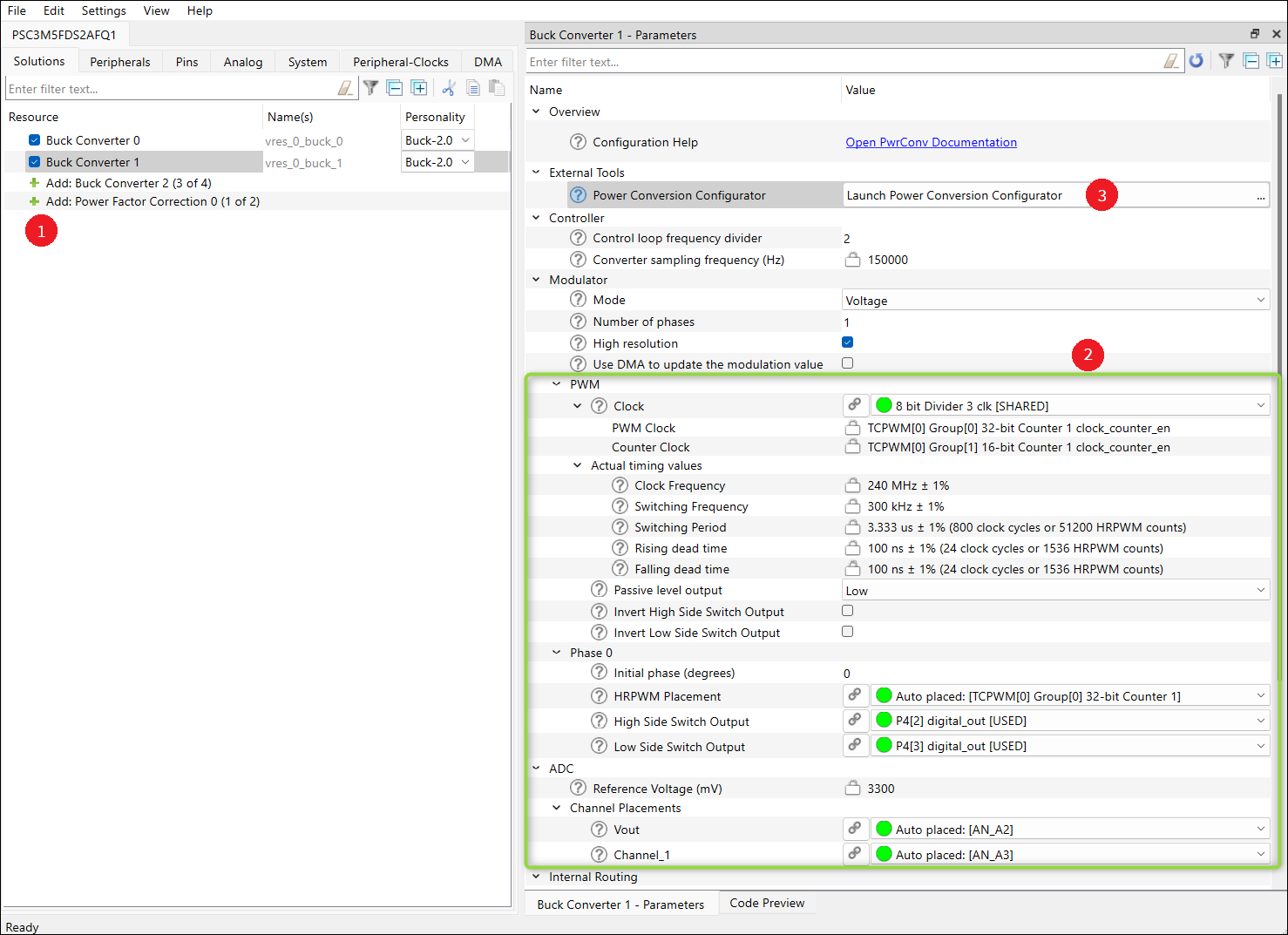
- Add a Buck Converter .
- Configure the hardware parameters.
- On the Parameters pane, click the Launch Power Conversion Configurator button.
- For multiple solutions (up to 4): select a respective solution and do step 3.
make command
As described in the ModusToolbox™ tools package user guide "ModusToolbox™ build system" chapter, you can run numerous make commands in the application directory, such as launching the Power Conversion Configurator. Create a ModusToolbox™ application, navigate to the application directory, and type the following command in the appropriate bash terminal window:
make power-conversion-configurator
This command opens the Power Conversion Configurator GUI for the specific application in which you are working.
VS Code and Eclipse
VS Code and Eclipse have tools to launch the Power Conversion Configurator from within an open application. Refer to the applicable user guide for more details:
Standalone executable
You can launch the Power Conversion Configurator by running its executable as appropriate for your operating system (for example, double-click it or select it using the Windows Start menu). By default, the Configurator is installed here:
[install_dir]/ModusToolbox/packs/ModusToolbox-Industrial-MCU-Pack/tools/power-conversion-configurator
When launched this way, the Power Conversion Configurator opens blank. Open an existing *.modus file that is already supporting the solution personality information.
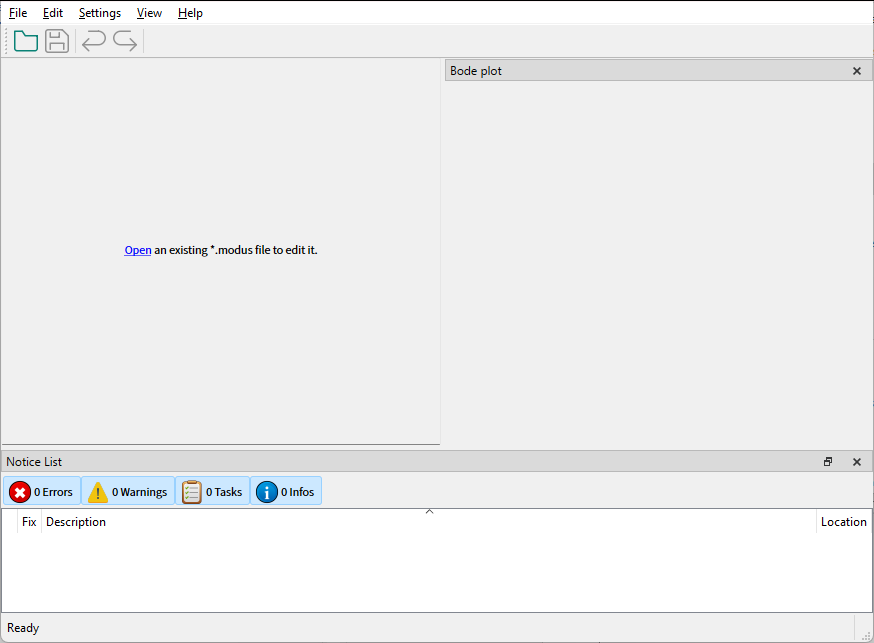
See Menus for more information.