Launch the Bluetooth® Configurator
There are several ways to launch the Bluetooth® Configurator, and those ways depend on how you use the various tools in the ModusToolbox™ ecosystem.
make command
As described in the ModusToolbox ™ tools package user guide "ModusToolbox™ build system'' chapter, you can run numerous make commands in the application directory, such as launching the Bluetooth® Configurator. After you have created a ModusToolbox™ application, navigate to the application directory and type the following command in the appropriate bash terminal window:
make bt-configurator
If the application has an existing Bluetooth® configuration (*.cybt) file, this command opens the Bluetooth® Configurator GUI for the specific application in which you are working.
If there is no *.cybt file, this command launches an empty Bluetooth® Configurator. You must Open an existing configuration file or Create a new configuration file for the application in which you want to configure Bluetooth®.
VS Code and Eclipse
VS Code and Eclipse have tools to launch the Bluetooth® Configurator from within an open application. Refer to the applicable user guide for more details:
Executable (GUI)
To create an application or just to see what the Bluetooth® Configurator looks like, launch the Bluetooth® Configurator GUI by running its executable as appropriate for your operating system – double-click it or select it using the Windows Start menu. By default, it is installed here:
[install_dir]/ModusToolbox/tools_[version]/bt-configurator[version]
When opened this way, the Bluetooth® Configurator GUI opens blank without any information.
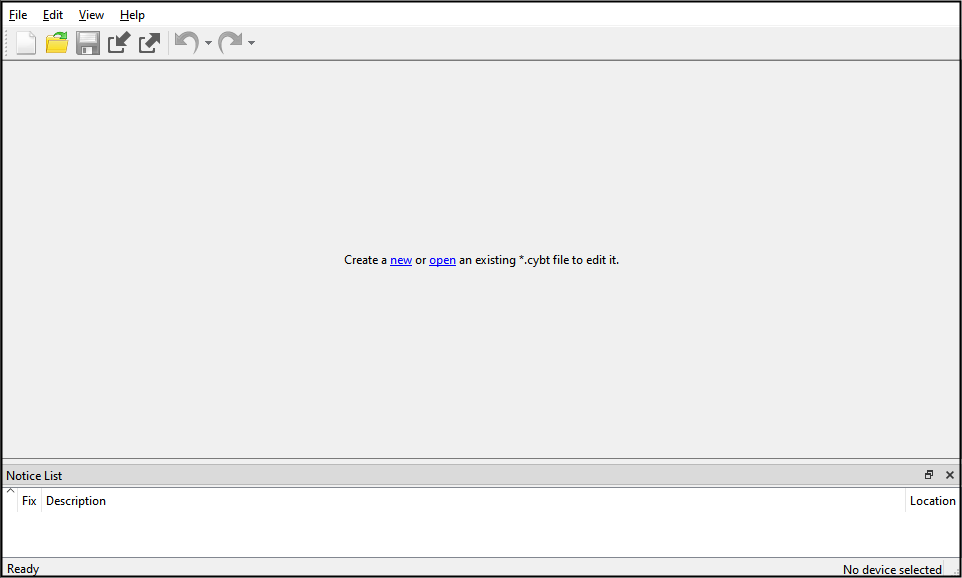
You must open an existing *.cybt file or create a new one for the application in which you want to configure Bluetooth®.
Open an existing configuration file
To open an existing configuration file, select File > Open ([Ctrl]+[O]). In the "Open Configuration File" dialog, navigate to the appropriate directory, and select the desired configuration file (*.cybt).
Create a new configuration file
To create a new configuration file, select File > New ([Ctrl]+[N]). The Device dialog drop-down menu displays the following options:
-
AIROC™ BTSDK [BTSTACK 1.0] (CYW20706, CYW20719, CYW20721, CYW20735, CYW20819, CYW20820, CYW20835, CYW43012)
-
AIROC™ BTSTACK with Bluetooth® LE only (CYW20829, PSoC™ 63, PSoC™ 6 with CYW43xxx Connectivity device)
-
AIROC™ BTSDK [BTSTACK 3.x] (CYW43022, CYW5551x, CYW5591x, CYW5557x)
-
Not for new design: PSoC™ Bluetooth® LE only Legacy Stack (PSoC™ 63)
When a new configuration is created as a ModusToolbox™-generated application based on a supported device(s) (Supported devices and libraries), Bluetooth® Configurator tries to detect the proper Middleware type (Option1..4) for that device(s). If the application is created successfully, the Device dialog does not display and the relevant Option is selected automatically. If auto-detection fails, you can still select the desired Middleware library in the displayed Device dialog manually.
Option4 is not recommended for creating new configuration.
Various parameter configuration options depend on the selected device to generate code for.
Command line options for GUI executable
The GUI executable accepts the following command line options:
| Option name | Short name | Description | Valid values |
|---|---|---|---|
--help | -?, -h | Displays help on command line options | |
--help-all | Displays help including Qt specific options | ||
--version | -v | Displays version information | |
--config [file] | -c [file] | The path to the config file | |
--app_dir [dir] | Opens all files in the context of the provided application/project | ||
--output-dir [dir] | -o [dir] | The path to the generated source directory. It is either an absolute path or a path relative to the configuration file parent directory. | |
--stack [stack] | -s [stack] | Middleware library (Section 1.1) | Option1 Option2 Option3 Option4 |
Executable (CLI)
The Bluetooth® Configurator executable can be run from the command line, and it also has a "cli" version of the executable. Running the configurator executable from the command line can be useful as part of batch files or shell scripts to re-generate the source code based on the latest configuration settings. The exit code for the executable is zero if the operation is successful, or non-zero if the operation encounters an error. For more information about the command-line options, run the executable using the -h option.
Command line options for CLI executable
The CLI executable accepts the following command line options:
| Option Name | Short Name | Description |
|---|---|---|
--help | -?, -h | Displays help on command line options |
--help-all | Displays help including Qt specific options | |
--version | -v | Displays version information |
--config [file] | -c [file] | The path to the config file |
--app_dir [dir] | Opens all files in the context of the provided application/project | |
--output-dir [dir] | -o [dir] | The path to the generated source directory. It is either an absolute path or a path relative to the configuration file parent directory. |
--clean | Removes the generated files from the output folder |