Installing in non-default user home directory
If your default user home directory contains spaces or illegal characters, or if you need to install for all users, the Customization dialog prevents you from installing into that directory or warns you about needing to set the
CY_TOOLS_PATHS
variable.
If possible, create a new user account and user home directory that doesn’t contain spaces or illegal characters. Then, you can just use the default process for that account. If you cannot create a new user home directory, then you must perform some extra manual installation steps.
The same is true if you install for all users in a non-default user home directory.
Choose the customize installation option
If your default installation directory contains spaces or illegal characters, or if you want to install the ModusToolbox™ tools package in a non-default location, select the
Customize installation
option on the verify page:
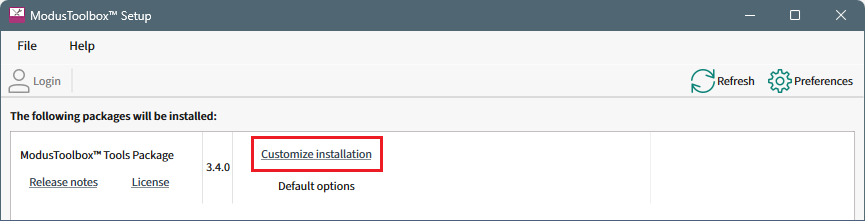
This opens the Customization Installation dialog to change the scope of the install (all users or current user) and the installation path. If you specify a non-default location, a message displays as a reminder to set the
CY_TOOLS_PATHS
environment variable. You will also have to specify a few other variable when the installer completes.
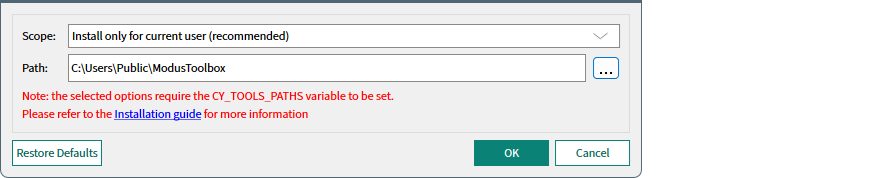
Specify an alternate installation path that does not include spaces. For example:
C:\Infineon\ModusToolbox
Any path without spaces or illegal characters will work.
Create directories
When installing in a non-default location, you should create a couple directories. You can choose any path as long as it doesn’t contain spaces. :
Create a hidden "dot" directory named ".modustoolbox" for variable locations described later in this section. For example:
C:\MyPath\
.
modustoolbox
Also, create a directory to store your workspaces. For example:
C:\MyPath\mtb-projects
Create variable to specify the path to Tools
Because you are installing ModusToolbox™ into a non-default location, you need to specify the path to your "tools" directory using an Environment Variable. Open the Environment Variables dialog, and create a new System or User Variable, depending on your installation type (current user or all users). For example:
CY_TOOLS_PATHS = C:/MyPath/ModusToolbox/tools_3.4
Note: Use a Windows-style path (not Cygwin-style, like /cygdrive/c/). Also, use forward slashes.
Create variable to specify the global path
You also need to specify the global path using an Environment Variable. Open the Environment Variables dialog, and create a new System or User Variable, depending on your installation type (current user or all users). For example:
CY_GETLIBS_GLOBAL_PATH = C:/MyPath/.modustoolbox/global
Note: Use a Windows-style path (not Cygwin-style, like /cygdrive/c/). Also, use forward slashes.
Specify the custom path to use for Local Content Storage
If you use Local Content Storage (LCS) to enable work without access to the Internet, set this variable to specify where the content will be stored. For example:
MTB_LOCAL_CONTENT_PATH = C:/MyPath/.modustoolbox/lcs